New: Guided Setup Wizard — Get Your Group Consolidation Live in Six Steps
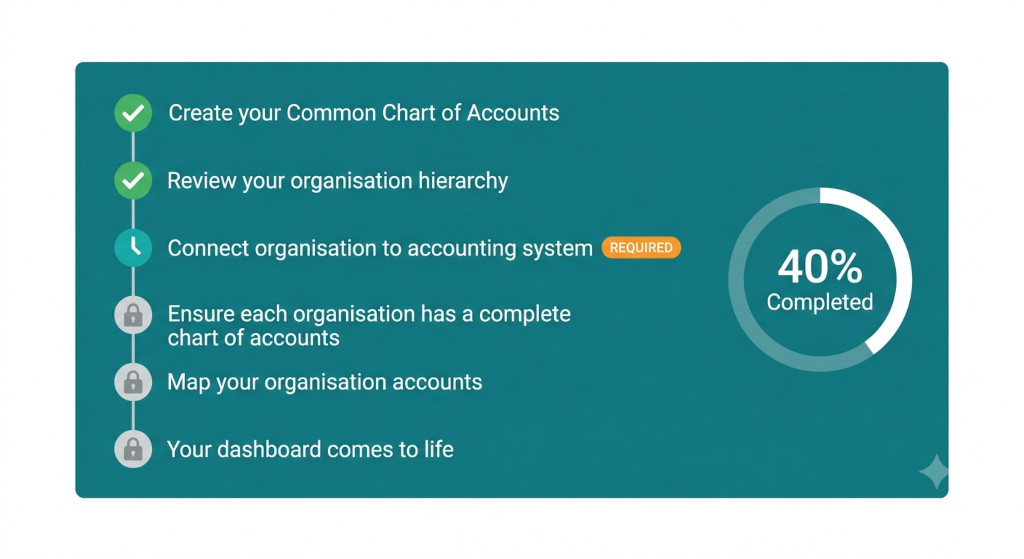
One of the most common questions new BrizoConsol users ask is: where do I start? Setting up a group consolidation involves several moving parts — building a common chart of accounts, confirming your entity hierarchy, connecting each accounting system, and mapping accounts across entities. Each step depends on the previous one, and it has not always been obvious how they fit together.
Today we are introducing the Consolidation Setup Wizard — a guided, step-by-step progress tracker built directly into BrizoConsol that walks every new user through setup in the correct order, shows exactly where they are in the process, and unlocks the next step only when the current one is complete.
Why We Built It
Group consolidation setup is not complicated, but it is sequential. Trying to map accounts before connecting your accounting system, or configuring intercompany rules before defining your entity hierarchy, leads to errors and rework. The old experience left users to figure out the right order themselves — which meant support tickets, slower time to first report, and unnecessary frustration during the first week.
Stop building consolidations in spreadsheets.
BrizoConsol automates multi-entity consolidation — setup in minutes, reports the same day.
The setup wizard removes that ambiguity entirely. You always know what to do next, why it matters, and what becomes possible once it is done.
What the Six Steps Cover
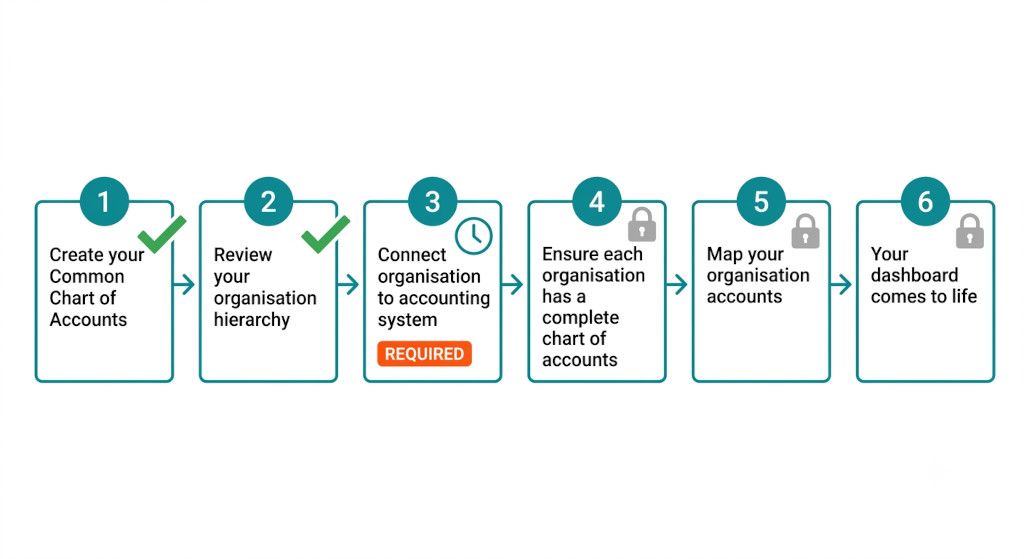
1Create Your Common Chart of Accounts
Define the account structure shared across all your entities. This is the foundation of everything — every entity’s accounts will eventually be mapped to this structure, so consolidated reports roll up correctly. BrizoConsol provides a default structure you can customise, or you can build your own from scratch.
2Review Your Organisation Hierarchy
Confirm parent-subsidiary relationships and ownership percentages. This is what tells BrizoConsol how to apply consolidation rules: which entities are fully consolidated, which use the equity method, and where non-controlling interest calculations apply. Getting this right at setup means your NCI and equity method accounting is handled automatically from day one.
3Connect Each Organisation to Its Accounting System
Link each entity to Xero, QuickBooks, MYOB, or Zoho Books via direct API connection. Once connected, BrizoConsol pulls the entity’s trial balance automatically — no CSV exports, no manual data entry. This is the step that makes everything downstream possible.
4Ensure Each Organisation Has a Complete Chart of Accounts
Confirm that every account has synced correctly from each connected accounting system. BrizoConsol flags any accounts that are missing or incomplete before you begin mapping — so you are not discovering gaps halfway through the account mapping step.
5Map Your Organisation Accounts
Link each entity’s local chart of accounts to the common structure defined in step one. BrizoConsol’s AI Auto-Map feature accelerates this significantly — it proposes mappings based on account names and codes, which you review and confirm. For most entities, the mapping is complete in minutes rather than hours.
6Your Dashboard Comes to Life
Once mapping is complete, BrizoConsol’s dashboards, KPI tiles, consolidated P&L, balance sheet, and cash flow statement populate automatically. There is no additional configuration required — the setup you completed in steps one through five is everything the platform needs to produce your first consolidated report.
Your Dashboard Comes to Life
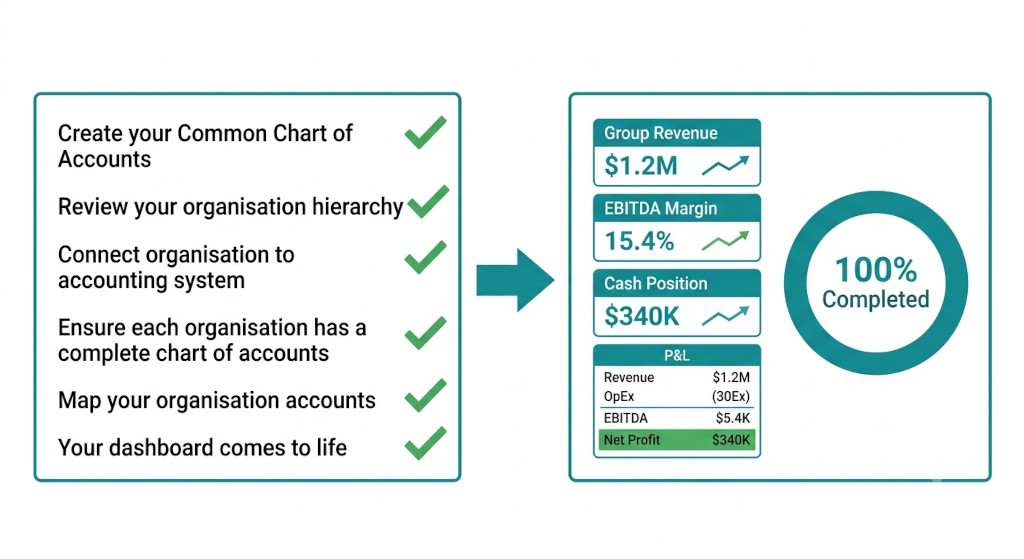
The moment step six unlocks, your group’s financial data is live. Dashboards show consolidated revenue, EBITDA, and cash position across all entities. The consolidated P&L breaks down contribution by entity and at group level, with intercompany eliminations applied automatically. The balance sheet reconciles. The close that used to take days in a spreadsheet is now a matter of refreshing each entity connection and reviewing the output.
Most new BrizoConsol users complete all six setup steps and reach their first consolidated report within a single working session — typically two to three hours for a three-to-five entity group using a single accounting system.
Where to Find It
The Setup Wizard is available to all BrizoConsol users under Organisation Settings → Global Settings → Setup Progress. For new groups, it launches automatically on first login. For existing users who want to review their setup completeness, it is accessible at any time from the same menu. Each step shows its current status — complete, in progress, or locked — and links directly to the relevant settings screen.
If you are mid-setup and have already completed some steps, the wizard will reflect your current progress accurately. You do not need to start from scratch.
We will be adding further onboarding guidance — contextual help, video walkthroughs, and in-app tooltips — to each step over the coming weeks. If you have feedback on the current experience, use the in-app support ticket tool or reach out via our support site.
Ready to Get Your Consolidation Live?
Start your free trial and work through the guided setup wizard — most groups are producing their first consolidated report within a single session. Start Free Trial