Build an IFRS 18 Income Statement From Scratch Using BrizoConsol’s Custom Report Builder
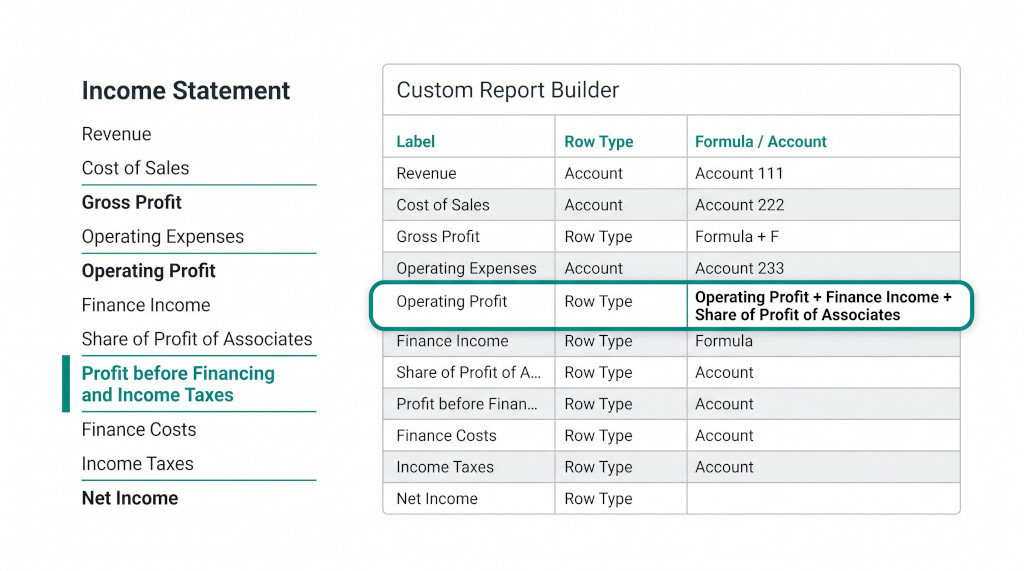
Every time an accounting standard changes the way a financial statement is structured, finance teams face the same question: can their reporting tool produce the new layout, or does someone need to rebuild a template from scratch in Excel? IFRS 18, effective for periods beginning on or after 1 January 2027, adds a mandatory new subtotal to the income statement — Profit before Financing and Income Taxes — and requires income and expenses to be classified into three defined categories. The layout is different enough from IAS 1 that it cannot simply be patched by renaming a row.
BrizoConsol’s reporting engine is designed so that layout decisions like this are yours to make, not the software’s. The custom report builder lets you define every row in a report — what data it pulls, what arithmetic it performs, where it sits on the page — using four row types and a formula language where row labels are the variables. This post walks through building a complete IFRS 18-structured income statement from scratch, showing exactly which row types to use and how to wire the formulas so the mandatory subtotal computes correctly.
Why the custom report builder, not the system template
BrizoConsol ships an IFRS consolidated P&L system template (Report 29) that is already updated to the IFRS 18 structure. For most users, that template is the right starting point. The custom report builder exists for situations where the system template does not match your group’s specific layout requirements:
Stop building consolidations in spreadsheets.
BrizoConsol automates multi-entity consolidation — setup in minutes, reports the same day.
- Your group presents interest income split across two separate lines rather than combined into a single Finance Income row.
- Your board pack uses different labels — for example, Earnings before Finance Costs and Tax instead of the IFRS 18 canonical label.
- You need additional subtotals or commentary rows that are specific to your industry or internal reporting conventions.
- You are building a management accounts template that mirrors the IFRS structure but pulls from a different account grouping.
- You want to understand how the calculation chain works so you can verify or audit the system template.
All of these are addressed in the custom report builder. The walkthrough below shows the full IFRS 18 P&L build from an empty report.
The four building blocks
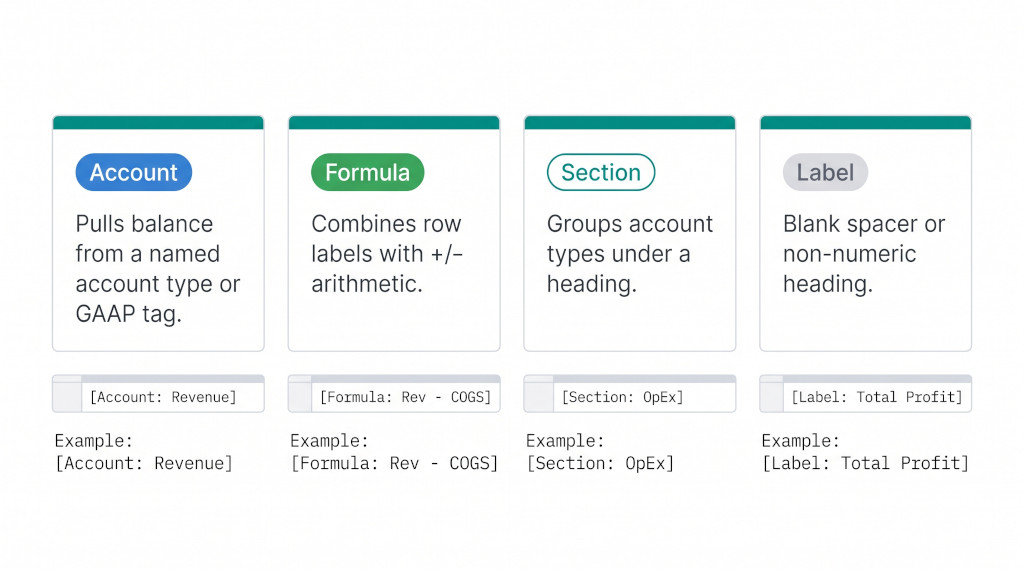
Every row in a BrizoConsol custom report is one of four types. Understanding the difference between them is the only prerequisite for what follows.
An Account row pulls a live balance from the consolidation ledger. You specify either a named account type (e.g. REVENUE, DIRECT COSTS) or a GAAP-tagged subset of accounts (e.g. ifrs_tag:distribution_costs). The row displays the sum of all accounts that match, across all entities in scope, net of intercompany eliminations.
A Formula row performs arithmetic on other rows in the report. The formula references rows by their exact label. If you have a row labelled Gross Profit and another labelled Operating Expenses, a formula row can compute Gross Profit - Operating Expenses. This is what connects the building blocks into a working income statement.
A Section row (also called a type-total row) aggregates all accounts within a defined account type into a single figure. It is used when you want to capture a whole category of accounts — for example, all accounts classified as Finance Costs — without listing each account individually. Section rows can be hidden from the printed report while remaining available as formula variables; this is how intermediate calculations are kept off the face of the statement.
A Label row inserts a non-numeric row — a blank line, a section heading, or an explanatory note. It has no numeric value and cannot be referenced in a formula.
Building the IFRS 18 income statement: full row-by-row walkthrough
The table below is the complete custom report definition for an IFRS 18-structured consolidated income statement. Rows marked hidden are excluded from the printed output but are available as formula variables — they capture subtotals needed in the arithmetic without cluttering the face of the statement.
| Label | Row Type | Hidden | Account / Formula |
|---|---|---|---|
| OPERATING SECTION | |||
| Revenue | Account | REVENUE |
|
| Cost of Revenue | Account | DIRECT COSTS |
|
| Gross Profit | Formula | Revenue - Cost of Revenue |
|
| Other Income | Formula | Other Income (Raw) - Finance Income (Base) - Interest Income (Base) - Share of Profit of Associates (Base)
Strips investing-category items out of Other Income so only operating income remains visible here. |
|
| Distribution Costs | Account | ifrs_tag:distribution_costs |
|
| Administrative Expenses | Account | ifrs_tag:administrative_expenses |
|
| Other Operating Expenses | Account | OTHER OPERATING EXPENSES |
|
| Operating Profit | Formula | Gross Profit + Other Income - Distribution Costs - Administrative Expenses - Other Operating Expenses |
|
| (blank spacer) | |||
| INVESTING SECTION | |||
| Finance Income | Formula | Finance Income (Base) + Interest Income (Base)
Combines interest on deposits with other finance income — both are investing-category items under IFRS 18. |
|
| Share of Profit of Associates | Formula | Share of Profit of Associates (Base) |
|
| Profit before Financing and Income Taxes | Formula | Operating Profit + Finance Income + Share of Profit of Associates
IFRS 18 mandatory subtotal. Required for all entities applying IFRS 18. |
|
| (blank spacer) | |||
| FINANCING SECTION | |||
| Finance Costs | Formula | Finance Costs (Base) + Interest Expense (Base) |
|
| Profit Before Tax | Formula | Profit before Financing and Income Taxes - Finance Costs |
|
| Income Tax Expense | Account | TAXES EXPENSE |
|
| Profit for the Year | Formula | Profit Before Tax - Income Tax Expense |
|
| Attributable to: | |||
| Owners of the Parent | Formula | Profit for the Year - NCI ALLOCATION |
|
| Non-Controlling Interests | Formula | NCI ALLOCATION |
|
How the IFRS 18 mandatory subtotal is wired
The new mandatory subtotal is the pivot point of the entire IFRS 18 layout change. Understanding how it is constructed makes every other row decision logical.
Mandatory subtotal formula
Profit before Financing and Income Taxes = Operating Profit + Finance Income + Share of Profit of Associates
Finance Income here already includes Interest Income (Base) — combining both investing-category income items into one visible line before the subtotal.
The hidden row pattern is what makes this work cleanly. Finance Income and Interest Income each exist as hidden section rows that pull raw balances from the ledger. The visible Finance Income row is a formula that sums them. The mandatory subtotal then references the visible Finance Income row — which is the total investing income — rather than reaching back to the raw ledger rows directly.
The same pattern applies to Finance Costs: two hidden section rows (Finance Costs and Interest Expense) are combined into one visible Finance Costs row, which sits below the mandatory subtotal. The formula chain from the mandatory subtotal through to Profit Before Tax becomes a single clean subtraction:
Profit Before Tax derivation
Profit Before Tax = Profit before Financing and Income Taxes − Finance Costs
Because Finance Costs already incorporates interest expense on borrowings, no other items are deducted between the mandatory subtotal and PBT for a standard non-financial entity.
An important verification: the bottom-line Profit for the Year is arithmetically identical to what the same report would produce under IAS 1. The mandatory subtotal and the category separation between investing and financing items is a presentation requirement. The numbers that flow into and out of Profit Before Tax are unchanged; only the intermediate path is restructured.
Try building this report in BrizoConsol
Open the custom report builder on a free trial account and follow the walkthrough above on your own group data. See It In Action
The GAAP tag system: one chart of accounts, many report structures
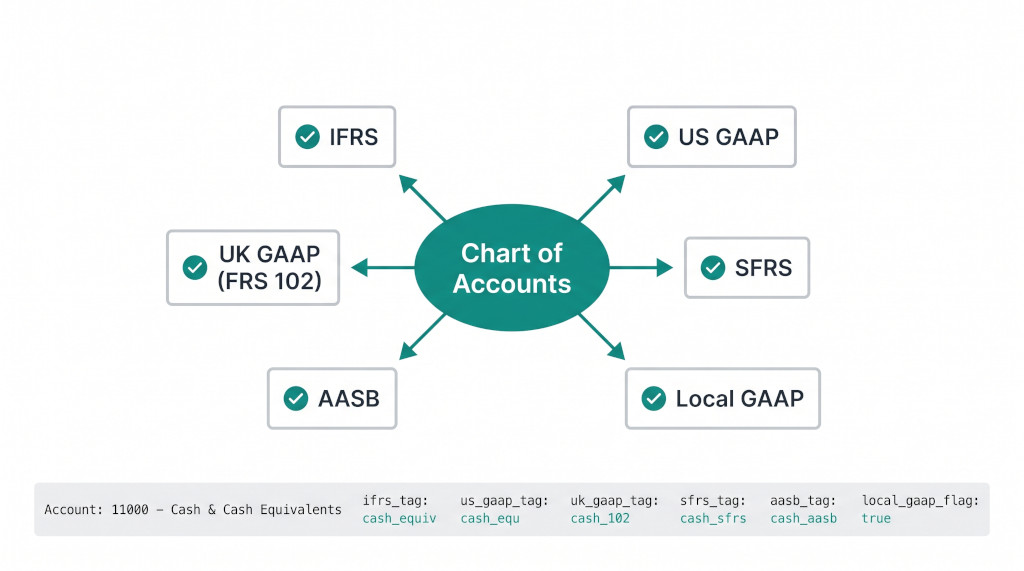
Two rows in the walkthrough table above reference GAAP tags rather than account type names: Distribution Costs uses ifrs_tag:distribution_costs and Administrative Expenses uses ifrs_tag:administrative_expenses. This is worth understanding because it is what makes BrizoConsol’s reporting engine genuinely flexible across standards — not just across IFRS versions.
BrizoConsol’s chart of accounts carries six tag columns: ifrs_tag, us_gaap_tag, uk_gaap_tag, sfrs_tag, aasb_tag, and local_gaap_flag. Each column maps accounts to values specific to that standard. Distribution Costs is a category that exists under IFRS; it does not have a direct equivalent in US GAAP. An account tagged ifrs_tag:distribution_costs appears in the IFRS income statement under that line, while the same account tagged us_gaap_tag:selling_expenses flows into the correct US GAAP line.
This means a group that operates across jurisdictions — say, a Singapore parent with an Australian subsidiary and a US subsidiary — maintains a single chart of accounts. Each account is tagged once, and each standard-specific report reads the appropriate tag column when it runs. There is no separate chart of accounts per standard, no parallel ledger, and no manual reclassification step at period end.
| Row in the IFRS 18 income statement | IFRS tag used | Works across standards |
|---|---|---|
| Distribution Costs | distribution_costs | ✓ |
| Administrative Expenses | administrative_expenses | ✓ |
| Share of Profit of Associates | share_of_profit_of_associates | ✓ |
| Revenue, COGS, Finance Income, Tax | Account type (standard-agnostic) | ✓ |
Account types — Revenue, Direct Costs, Finance Income, Finance Costs, Taxes Expense — are standard-agnostic. Every standard uses them. GAAP tags are used only where classification differs between standards. For IFRS 18, the classification differences between standards are concentrated in the investing-category items: how interest income is classified, whether share of profit of associates appears as investing or operating, and how distribution versus administrative expenses are presented. The tag system handles all of this without requiring a parallel chart structure.
Adapting the layout for your group’s specific needs
The walkthrough above builds a clean, standards-conforming IFRS 18 income statement. In practice, groups often need variations. The custom report builder accommodates these without touching the system template.
Splitting Finance Income across two lines
Some groups prefer to present Interest Income (from deposits and short-term investments) and Finance Income (from longer-term financial assets) as separate visible lines before the mandatory subtotal. To do this, remove the combined Finance Income formula row and instead present the two hidden base rows directly as visible formula rows:
- Make Interest Income (Base) a visible formula row labelled Interest Income
- Make Finance Income (Base) a visible formula row labelled Finance Income
- Update the mandatory subtotal formula:
Operating Profit + Finance Income + Interest Income + Share of Profit of Associates
Adding an EBITDA line
EBITDA is not a defined line under IFRS 18 but is frequently shown in management accounts and investor presentations. Because formula rows can reference any earlier row by label, adding EBITDA is straightforward: add hidden section rows for depreciation and amortisation charges, then add a visible formula row above Operating Profit:
EBITDA = Operating Profit + Depreciation (Base) + Amortisation (Base)
The row can be placed either above or below Operating Profit depending on your presentation preference; the formula arithmetic is the same either way.
Using a different label for the mandatory subtotal
IFRS 18 specifies the content of the mandatory subtotal, not the exact label. Some groups present it as Earnings before Finance Costs and Income Tax, others as Profit before Net Finance Costs and Tax. In the custom report builder, the label is a free-text field. Change it to match your group’s terminology. The formula variable name used in downstream rows must match the label exactly — update both if you rename the row.
Label consistency is critical. Formula rows reference other rows by their exact label text, including capitalisation. If you rename a row — say, from “Gross Profit” to “Gross Margin” — every formula row that references it must be updated to use the new label. The report builder will compute a zero or incorrect value for any formula that references a label that no longer exists in the report.
Verification: checking your custom report produces the right result
- Run the custom report for a period where you already have a known Profit Before Tax figure from another source (for example, from the system IFRS template, Report 29). The PBT line must match exactly. If it differs, there is a formula label mismatch or a double-counted row somewhere in the chain.
- Verify that the mandatory subtotal — Profit before Financing and Income Taxes — equals Operating Profit plus all investing-category items. Check this against the period’s interest income balance plus share of profit of associates. If those items appear nowhere else in the operating section, the subtotal should equal Operating Profit plus exactly those balances.
- Confirm that interest income does not appear in the operating Other Income line. The formula
Other Income (Raw) - Finance Income (Base) - Interest Income (Base) - Share of Profit of Associates (Base)should zero out those items from operating income. Test with a period where Interest Income has a non-zero balance and verify the Other Income line excludes it. - Check the NCI attribution: Owners of the Parent plus Non-Controlling Interests must equal Profit for the Year. This is the simplest arithmetic check and catches any misconfiguration in the NCI ALLOCATION section row.
Build your IFRS 18 income statement today
Start a free BrizoConsol trial and use the walkthrough above to configure your group’s custom report in under an hour. Start Free Trial