Bulk Import for Journals and Intercompany Eliminations
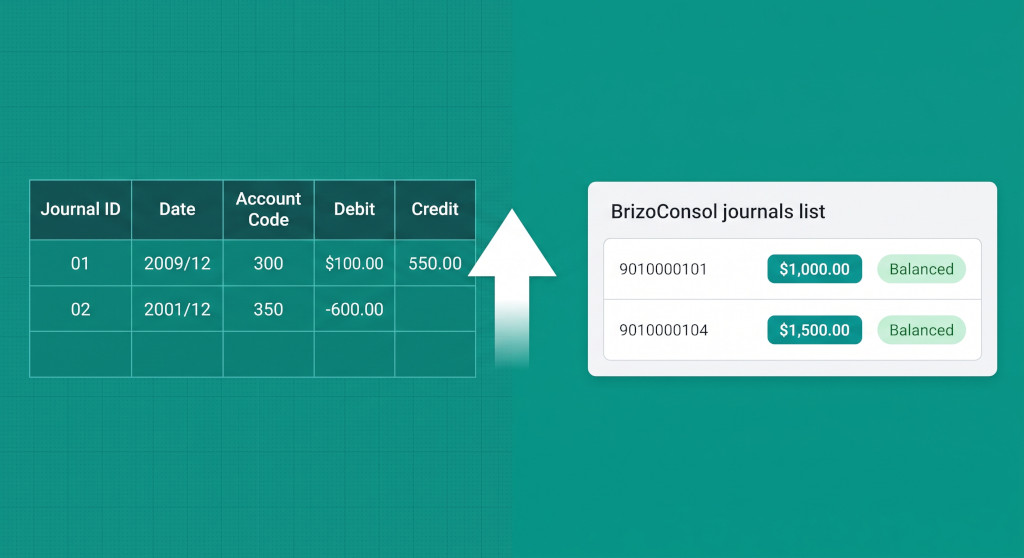
Month-end for a multi-entity group is rarely short of work. Between the CTA adjustments, NCI journals, intercompany loan eliminations, and the GAAP reclassifications that accumulate across subsidiaries, a finance team can spend an uncomfortable number of hours at the keyboard before the consolidation numbers even start to move. When each entry has to be opened, filled in, and saved individually, the volume of that work grows with the size of the group — and the risk of a missed entry or a transposed digit grows with it.
BrizoConsol has always allowed journals and intercompany eliminations to be entered through dialog-based forms that enforce balance, period locks, and accounting-standard rules at the point of entry. Those dialogs are still there. But if you have a period where twenty journals need to land — or a consolidation that requires clearing a full matrix of intercompany balances — typing them in one at a time is not a workflow, it is a tax on your time.
Two new features address this directly: Import Journal Entries and Import Intercompany Eliminations. Both accept a spreadsheet you prepare offline, validate every row against exactly the same rules the dialog enforces, and write nothing until the entire file is clean. The rest of this post explains how each one works, what the file must contain, and what you can expect the system to do when the upload lands.
Intercompany eliminations without the manual work.
BrizoConsol identifies and eliminates intercompany balances automatically at consolidation.
Import Journal Entries
Where to find it
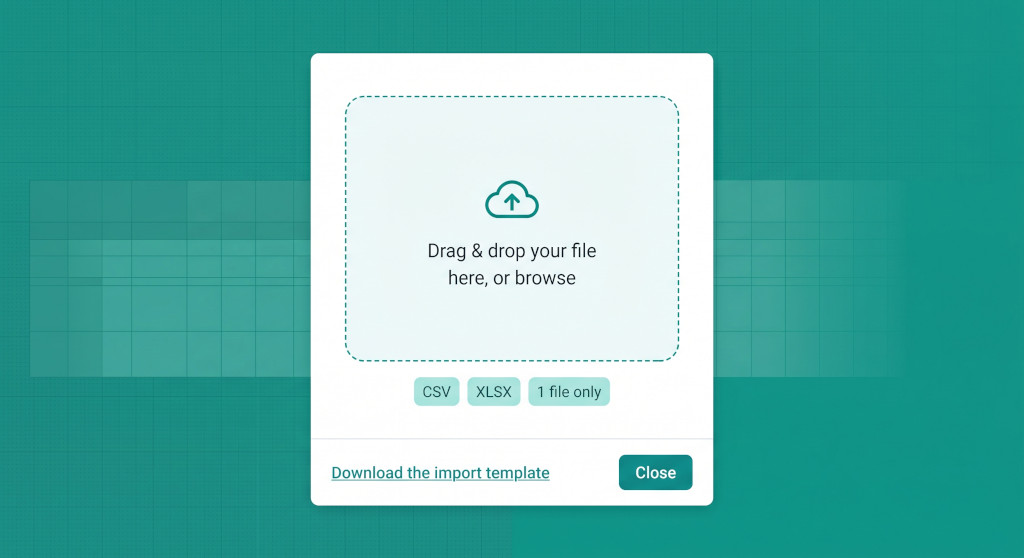
Open the Journal Entries page for your group and choose your scenario and period from the filters at the top. A new button labelled Import from file appears in the action bar. Clicking it opens the import dialog, which has two controls: a drop zone for your file, and a link to download the template.
The template
Download the template before building your file. On Pro and Business editions the template is an Excel workbook (journal-import-template.xlsx) with three sheets. The first sheet, Journals, carries the thirteen column headers the importer reads. The second sheet, Lists, contains the reference data you need to fill the first sheet: journal type codes and their labels, accounting standard codes, the three scenario names, the names of your subsidiary entities, and every account code in the group chart of accounts with its name. The third sheet, Instructions, repeats the rules in plain text.
On the Standard edition the template is a CSV carrying only the header row, and the importer accepts CSV files only. Every other edition accepts CSV, Excel workbooks, and plain-text tab-separated files.
The thirteen columns in the order the template writes them:
| Column | Required | Notes |
|---|---|---|
| Journal ID | ✓ | Groups lines into one entry. Must be unique per scenario. |
| Date | ✓ | Posting date. Unambiguous formats (31-Aug-2026, 2026-08-31) are read directly. A slash date (05/08/2026) follows your own date-order setting. |
| Description | Entry-level description, read from the first row of each Journal ID. | |
| Journal Type | Code or label from the Lists sheet. Blank means Other Consolidation Journals. | |
| Accounting Standard | Code or label from Lists. Blank means local (base standard). | |
| Scenario | Actual, Forecast or Budget. Blank inherits the scenario selected on the page. | |
| Related Subsidiary | Required for CTA, NCI, JV / Associate, Acquisition and Disposal journals. | |
| Account Code | ✓ | Must exist in the group chart of accounts. |
| Account Name | Informational — the importer does not use it, but the template lists it for readability. | |
| Debit | Positive amount on the debit side. One of Debit or Credit must be filled per row. | |
| Credit | Positive amount on the credit side. | |
| Exchange Rate | Defaults to 1 if blank or zero. | |
| Line Description | Stored against the individual line, not the entry. |
File structure: one row is one line
This is the rule that trips most people on first use. Each row in the file represents one debit or one credit line — not a complete double-entry. Two rows sharing the same Journal ID become one journal entry. The importer collects those rows, assembles the entry, and checks that the debits and credits balance before it writes anything.
Header-level values — Description, Journal Type, Accounting Standard, Scenario, Related Subsidiary, Date — are read from the first row of each Journal ID that carries them. A later row for the same Journal ID that fills in a different value for any of those fields is refused as a conflict, because one journal entry has one date and one description.
Worked example
A group operating in Singapore wants to post a monthly CTA adjustment for its Australian subsidiary. The two-line entry looks like this in the file:
| Journal ID | Date | Description | Journal Type | Related Subsidiary | Account Code | Debit | Credit |
|---|---|---|---|---|---|---|---|
| CTA-AUS-AUG26 | 31-Aug-2026 | CTA — AU Sub | journal_cta | AU Subsidiary | 7100 | 18,420.00 | |
| CTA-AUS-AUG26 | 3900 | 18,420.00 |
Both rows share Journal ID CTA-AUS-AUG26. The importer assembles them into one entry, confirms the totals balance, then writes one journal with two legs.
After a successful upload the system returns:
Imported 1 journal entry (2 lines).
If the same file is uploaded a second time without first deleting the entry, the importer refuses with:
Entry ‘CTA-AUS-AUG26’: a journal with this ID already exists in the Actual scenario. Delete it first or use a different ID.
What the system validates — and what it refuses
Every problem in the file is reported before anything is written. The importer checks: whether each Journal ID’s debits and credits balance to zero (rounding to six decimal places); whether every account code exists in the group chart; whether any account appears more than once in the same entry; whether the posting date falls in a locked period; whether the journal type is available under your accounting-standard configuration; and whether a Related Subsidiary is provided for the journal types that require one. Up to thirty problems are listed by row number and Journal ID. Fix them all, re-upload, and the ledger is updated in one transaction.
Ready to cut your period-close data-entry time?
BrizoConsol Pro and Business let you upload journal entries from Excel or CSV in one go. Try it on your next period close. Start Free Trial
Import Intercompany Eliminations
Where to find it
Open the Intercompany Eliminations screen — the one at /eliminations_sub — and filter to the scenario and period you are working in. The same Import from file button appears in the action bar. The dialog and the drop zone look the same as the journal import, and the download link offers the elimination-specific template.
The template
The elimination template downloads as intercompany-elimination-import-template.xlsx on Pro (or as a CSV on Standard), with the same three-sheet structure. The Eliminations sheet carries sixteen columns. The Lists sheet is richer than the journal equivalent: it carries one block per entity in the group, with each entity’s own chart of accounts, because a single elimination entry can span multiple entities and each line must use an account from the entity it is posted to.
| Column | Required | Notes |
|---|---|---|
| Elimination ID | ✓ | Groups lines into one entry. Must not already exist. |
| Date | ✓ | Same date-parsing rules as journals. |
| Description | Entry-level description. | |
| Elimination Type | Code or label from Lists. Blank uses the type of the screen you uploaded from. | |
| Accounting Standard | Blank means local. | |
| Scenario | Actual, Forecast or Budget. Blank inherits the page scenario. | |
| FX Account Code | Optional. Used as a plug for any unallocated difference when no treatment lines are given. | |
| Line Type | Blank or base for a debit or credit leg. Use fx, timing or write_off for a residual treatment line. | |
| Entity | Name or id from Lists. Blank means the organisation you are importing into. | |
| Currency | Defaults to the importing organisation’s currency if blank. | |
| Account Code | ✓ | Must exist in the named entity’s own chart of accounts. |
| Debit | Amount in line currency. One of Debit or Credit required for base legs. | |
| Credit | Amount in line currency. | |
| Exchange Rate | Defaults to 1 if blank. Amount is stored multiplied by this rate. | |
| Treatment Amount | Required for fx, timing and write_off lines. | |
| Justification | Stored against the treatment line. Free text. |
File structure: entities, currencies and treatment lines
The same one-row-per-line rule applies. What is different from the journal import is that each line names an entity and a currency, because an intercompany elimination typically touches accounts in two entities — the group and a subsidiary, or two subsidiaries — and may carry amounts in different transaction currencies.
An elimination that clears a trade receivable in one entity against a trade payable in another will have at least two base lines, each naming a different entity and each using an account code from that entity’s own chart. If the two sides do not balance in the group’s presentation currency — because of an exchange-rate difference, for instance — the entry needs either an FX account code (used as a plug) or one or more treatment lines. A treatment line carries Line Type of fx, timing or write_off, a Treatment Amount, and an optional Justification explaining why the difference is being treated that way.
Worked example
A Singapore parent has extended an intercompany loan to its UK subsidiary. At August month end, the receivable on the parent’s books is USD 250,000 and the payable on the subsidiary’s books has been translated at a slightly different rate, giving a USD 248,500 equivalent. The USD 1,500 difference is an FX timing item.
| Elimination ID | Date | Type | Entity | Account Code | Debit | Credit | Line Type | Treatment Amt |
|---|---|---|---|---|---|---|---|---|
| LOAN-SG-UK-AUG26 | 31-Aug-2026 | elimination_intercompany_loan | SG Parent | 2110 | 250,000.00 | |||
| LOAN-SG-UK-AUG26 | UK Subsidiary | 3210 | 248,500.00 | |||||
| LOAN-SG-UK-AUG26 | SG Parent | 7500 | timing | 1,500.00 |
Three rows share LOAN-SG-UK-AUG26. The first two are base legs; the third is a timing treatment line allocating the FX difference. The importer assembles all three, sends the payload through the same validator the dialog uses, and writes the entry only if it passes.
A successful import returns:
Imported 1 intercompany elimination entry.
If the entry’s base debits and credits do not balance and no treatment line or FX account code is provided, the importer refuses with the same message the dialog raises:
Elimination ‘LOAN-SG-UK-AUG26’: Allocate the difference before confirming the elimination entry.
How the same rules as the dialog are enforced
This is worth stating plainly, because it is what prevents a file import from becoming a way to bypass the controls that keep the consolidation ledger clean. The elimination import does not have its own set of business rules. It parses the file into the same payload shape the dialog submits, then passes that payload through the same buildSubEliminationPayload function the dialog uses. Period locks, allowed account categories, balance requirements, and the difference-allocation check are all applied in exactly the same code path. A file entry that the dialog would refuse is refused by the import, with the same error message and without writing a single row.
The same principle holds for journals. The journal import resolves types, standards, subsidiaries, and dates, then writes through JournalWriter — the same writer the dialog calls. Free-plan quotas are enforced across the whole import as a unit, not per entry. The audit log records each imported journal as source: import, with the original file name.
What happens after the import lands
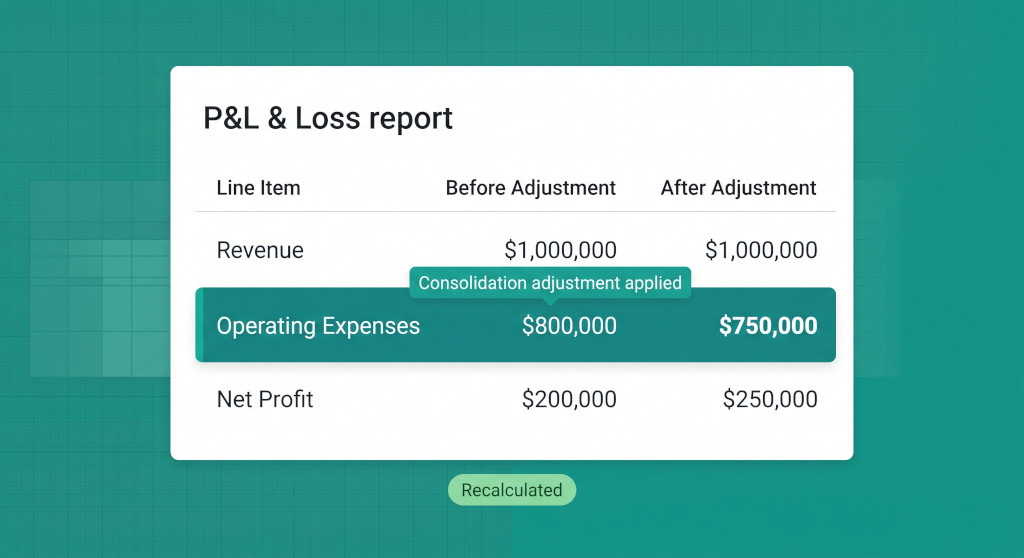
Once a file passes validation, the entries are written in a single database transaction. The consolidation recalculation is then dispatched — once per scenario, not once per entry, so a file with fifteen journals across two scenarios queues two recalculation jobs. When those jobs complete, your reports reflect the imported data exactly as they would if you had typed every entry through the dialog.
If an entry needs to be corrected after import, delete it from the journals or eliminations list and re-import a corrected file. The ID uniqueness check means a re-import without a prior delete is refused, so the ledger cannot accumulate duplicate entries from repeated uploads of the same file.
Edition availability
| Standard edition | CSV only (journal & elimination import) |
| Pro edition | CSV, Excel (.xlsx, .xls), TXT / tab-separated |
| Business edition | CSV, Excel (.xlsx, .xls), TXT / tab-separated |
The template format matches the edition’s upload format: Standard users get a CSV template with the header row only, since a CSV carries one sheet. Pro and Business users get a workbook template with the column header row, a Lists reference sheet, and an Instructions sheet.
Checklist: your first import
Follow these steps to verify the import works as expected on your group before you use it for a real period close.
- Open the Journal Entries page (or Intercompany Eliminations page) and note the current row count for your chosen scenario and period.
- Click Import from file, then click Download the import template. Save the file.
- Open the template’s Lists sheet and copy two or three account codes from your group chart. Note which are asset, P&L, or balance-sheet accounts.
- Fill in the data sheet: write one row per line, give the entry a unique Journal ID (or Elimination ID), date it to an open period, and make sure debits equal credits for each ID.
- Save the file (as CSV if you are on Standard, or keep it as xlsx on Pro/Business).
- Drop the file on the drop zone. Wait for the response — it should say Imported N journal entries or Imported N intercompany elimination entries.
- Close the dialog and reload the list. Confirm the new entry or entries appear with the correct date, ID and amounts.
- Open a consolidated report for the same period. After the recalculation queue clears, confirm the relevant account lines have moved by the amounts you imported.
- Upload the same file again without deleting. Confirm the system refuses with a duplicate-ID message and that the list is unchanged.
- Delete the test entry, let the queue run, and confirm the report line returns to its pre-import value.
See bulk import in action
Book a short walkthrough and we will show you how to build the import file for your group’s own journals and intercompany eliminations. See It In Action