More ways in — and more control over who gets in
Every month, someone in a finance team resets a shared password because a colleague left the firm, or a new team member gets locked out waiting for the consolidation software administrator to set up their credentials. For accounting firms running group reporting across eight or twelve entities, the login screen is a friction point that compounds: users rotate, integrations multiply, and the email-and-password credential that was fine for a two-person operation feels thin once the same database holds minority interests, intercompany eliminations, and a completed consolidation pack.
The ask from customers has been consistent: let us sign in with accounts we already manage, and give us a way to enforce a minimum standard without auditing individual user settings manually. BrizoConsol now does both. This update adds Sign in with Google, Sign in with Zoho, and passkeys — alongside the existing password, 2FA, and Xero and QuickBooks sign-in — and introduces a subscription-level security policy that lets an owner specify which methods are permitted and what credential is required behind the BrizoConsol account.
None of this requires a migration or a support ticket. The new sign-in options appear on the login screen once the deployment has enabled them. The security policy, available on eligible plans, is set from Subscription settings and takes effect on the schedule the owner chooses.
Stop building consolidations in spreadsheets.
BrizoConsol automates multi-entity consolidation — setup in minutes, reports the same day.
Sign in with Google
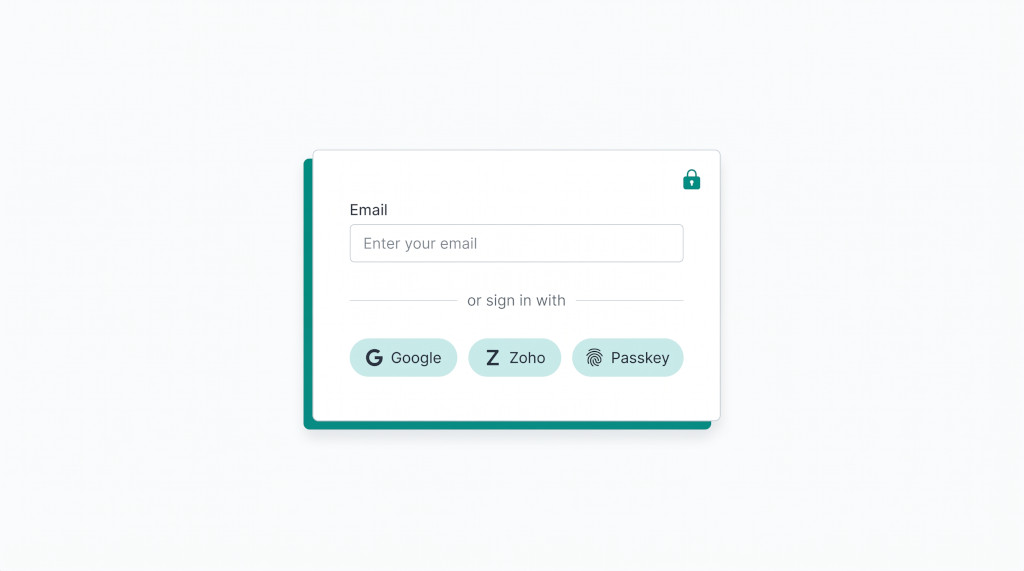
Users whose organisations run on Google Workspace no longer need a separate BrizoConsol password. When Google sign-in is enabled for your deployment, a Sign in with Google button appears on the login screen. Clicking it sends the browser to Google for authentication and returns it to the BrizoConsol dashboard on success — the same flow Google users already know from other SaaS tools.
A few rules govern how the identity is resolved:
- New account, first Google sign-in. If no BrizoConsol account exists for that Google identity, one is created automatically using the name and email Google returns. The account starts with password sign-in switched off — there is no password, and Google is the only way in. Email is already marked as verified.
- Existing account. If a BrizoConsol account already exists under that address, the Google subject ID — not the email address alone — is used to match it. Google email alone does not claim an account; the subject ID is what Google has actually vouched for.
- Linking to an existing account. Users who already have a BrizoConsol password account can link Google from their profile under Account Security → Sign In Methods. Once linked, either method signs them in. A provider that the subscription’s security policy does not permit is not offered as a link option — it would be refused at sign-in anyway.
Google sign-in requires that Google has verified the email address on the account. An unverified address is rejected at the callback. This is by design: an unverified address cannot prove the identity it claims.
Sign in with Zoho
Zoho sign-in follows the same pattern as Google, and it is particularly relevant for teams that use Zoho Books as their accounting system. With a Zoho Books integration already connected in BrizoConsol, those users now have a single identity for both: the same Zoho account that syncs their trial balance can also open BrizoConsol.
A Sign in with Zoho button appears on the login screen when Zoho sign-in is enabled. The resolution logic is the same as Google: Zoho’s subject ID is the match key, a first sign-in creates an account if none exists, and an existing account can be linked from the profile. Zoho must also confirm the email address on the account — an unconfirmed one is rejected.
One note on account creation via Zoho: like Google, a Zoho-created account starts with password sign-in switched off. The account’s only credential is the Zoho identity. If that account later needs a BrizoConsol password — for example, to register a passkey — the user can enable the password route from their profile.
Zoho sign-in and Google sign-in are deployment-level switches. If the button does not appear on your login screen, the feature has not been enabled for your deployment. Contact your plan administrator or BrizoConsol support.
Passkeys: sign in without a password
A passkey is a device-bound credential — a fingerprint, Face ID, or a hardware security key — that replaces the password entirely. There is nothing to remember, nothing to rotate, and nothing that can be phished. BrizoConsol now supports passkeys for all editions.
Registering a passkey
Go to Profile → Account Security → Sign In Methods. A Passkeys section lists the passkeys currently registered to the account. Click Add a passkey, confirm the account password when prompted (a one-time check that the account is present for the change), and follow the browser’s native credential prompt — the same dialog that appears when saving a password, but registering a cryptographic key instead. Give the passkey a name that identifies the device, and it appears in the list with its registration date.
Multiple passkeys are supported. An account can register one on a laptop and another on a phone, and either will sign it in.
What a passkey does to the password route
This is the behaviour that surprises users if they do not expect it: a registered passkey holds the password route closed. While the account holds a passkey, password sign-in is not available. The passkey is the credential — the password is not. Removing the passkey restores password sign-in. This is shown clearly on the profile: the Sign In Methods panel describes what is holding the password route, not just that it is closed.
Two-factor authentication is the layer behind the password. With a passkey registered, password sign-in is off, so the 2FA question is moot for that account: the passkey itself is the strong credential. The 2FA controls remain visible on the profile for accounts that want to keep them for the password path after removing the passkey.
Passkey autofill and the explicit button
On browsers that support WebAuthn conditional UI, the passkey appears in the email field’s own autofill list — the same dropdown that suggests saved passwords. Selecting it from there signs the account in without any other interaction. On browsers that do not support this, a Sign in with a passkey button sits below the password field and triggers the same credential lookup explicitly.
Consolidation software that fits how your team works
Sign in with Google, Zoho, or a passkey. Set a security policy that holds everyone to the same standard. Run the consolidation. Start Free Trial
Security Policy: what the subscription owner controls
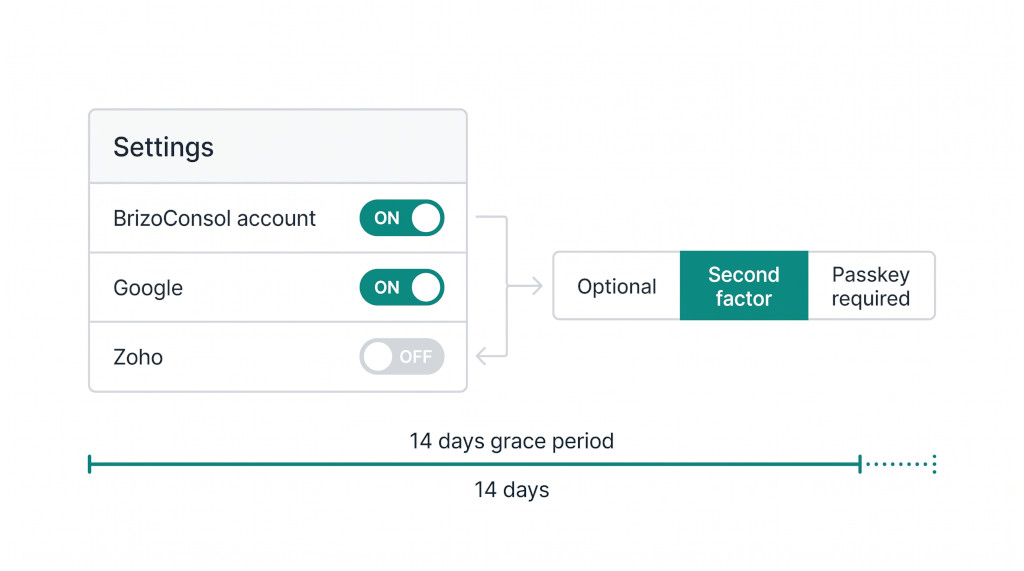
Every subscription owner on an eligible plan now has a Security Policy section in Subscription settings. It controls two things independently: which sign-in methods users on the plan are permitted to use, and what credential is required behind the BrizoConsol account.
Allowed sign-in methods
Each method can be toggled on or off: BrizoConsol account, Google, Xero, QuickBooks, and Zoho. When a method is off, it is not offered on the login screen for users on that plan. A user whose only linked method has been blocked is shown the policy screen (described below) the next time they open the app, not the dashboard.
The BrizoConsol account switch controls the password, passkey, and 2FA route together. Switching it off means all three are blocked — the only ways in are the provider methods that remain on. This is useful for firms that want to mandate Google or Xero sign-in and close the password door entirely.
Protection level for the BrizoConsol account
When the BrizoConsol account is permitted, the policy sets what guards it. Three levels are available:
| Level | What it requires | What it rejects |
|---|---|---|
| Optional | Password alone is enough | Nothing — the default |
| Second factor required | Password + TOTP (authenticator app) | Password-only accounts without 2FA set up |
| Passkey required | A registered passkey | Password sign-in, whether or not 2FA is set up |
The protection level applies only to the BrizoConsol account route. Provider sign-in — Google, Zoho, Xero, QuickBooks — is not subject to it. A firm that wants passkeys for BrizoConsol accounts but lets Xero sign-in run without a passkey can set that exactly.
Grace period
When a new policy is activated, the owner sets a grace period: 0, 7, 14, or 30 days. The policy takes effect at the end of that window. Users who have not complied by then are held at the policy screen on their next login until they do. The grace period is designed for firm-wide rollouts: announce the change, give staff time to register a passkey or set up 2FA, then enforce.
The policy screen: a gate, not a lockout
When a user’s account does not satisfy the plan’s active policy, the app redirects them to a setup screen rather than the dashboard. The screen shows the same Sign In Methods and Password Protection panels as their profile — the same controls, the same UI — with a message that names the specific requirement they have not met. They set up the required credential there, click Back to the app, and the gate opens. They do not need to contact an administrator.
The design is intentional. Holding the account at a setup screen rather than refusing the login means a policy tightened while users are already signed in takes effect immediately, not only at the next login. And because the policy screen surfaces the remedying controls directly, compliance is a task that takes a minute — register the passkey, set up 2FA — not a support ticket.
Subscription administrators keep access to the Subscription settings screen regardless of the policy state. The owner cannot accidentally lock themselves out of the one screen that can change the policy.
A worked example: an accounting firm rolls out passkey-required
Meridian Advisory runs eight client consolidation groups in BrizoConsol under a single Pro plan. The managing partner decides to require passkeys for all BrizoConsol accounts, with a 14-day grace period.
| Policy setting | Passkey required |
| Grace period | 14 days |
| Users on the plan | 11 |
| Deadline for compliance | Oct 21, 2026 |
The managing partner saves the policy on 7 October. A notification goes out to the team. For 14 days, all 11 users can still sign in normally — the policy is set but not yet in force. They register their passkeys at their own pace.
On 22 October, the three users who have not yet registered a passkey open BrizoConsol and land on the policy screen instead of the dashboard. The screen tells them: “This plan requires a passkey. Register one below to continue.” Each user registers a passkey in under a minute using their phone’s Face ID and is immediately admitted to the app.
From that point, password sign-in is effectively closed for all 11 users on the plan. The passkey is the credential. A user who loses access to their passkey device removes it from their profile and registers the new one — no administrator action required.
The four users on the plan who sign in with Xero are unaffected. The protection level applies to the BrizoConsol account, not to provider sign-in. Their Xero login path is unchanged.
Setting it up for the first time
- Enable Google and/or Zoho sign-in in your BrizoConsol deployment configuration (environment settings). The buttons appear on the login screen automatically once enabled.
- Link a provider to your account from Profile → Account Security → Sign In Methods. Click the provider name and follow the OAuth prompt.
- Register a passkey from the same Sign In Methods section. Click Add a passkey, confirm your password, and follow the browser prompt. Name the passkey after the device.
- Review your Security Policy settings if you are a subscription owner on an eligible plan. Open Subscription settings and find the Security Policy section. Set the allowed methods and protection level that match your firm’s access requirements.
- Set a grace period when activating the policy for the first time. A 14- or 30-day window gives users time to comply without being locked out on day one.
- Verify the login screen shows the methods you expect. Sign out and confirm the provider buttons and passkey option appear. Confirm that disallowed methods are absent.
- Test a policy block with a test account that has not met the requirement, to confirm it lands on the policy screen rather than the dashboard.
See it in action
Walk through the new sign-in methods and security policy with a live demo — no setup required. See It In Action