Connect BrizoConsol to ChatGPT: Ask Your Group Financials Questions, Read Live from the Source
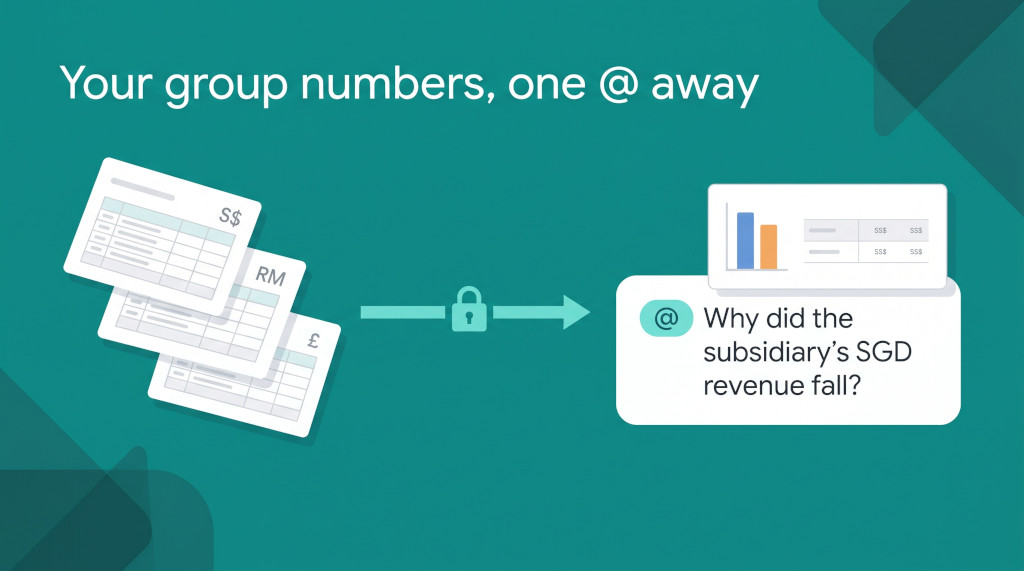
A regional finance manager reviews the September pack and notices that the Malaysian subsidiary’s revenue fell in Singapore dollars, even though the local team reported growth. The explanation is almost certainly the exchange rate, but proving it means opening two periods of statements, looking up the translation rates used, and doing the arithmetic in a spreadsheet before replying to anyone. It is a ten-minute question that tends to take an hour.
If the team already uses ChatGPT, the tempting shortcut is to paste the statements into a conversation. But then the figures are a static copy, nobody controls which entities were shared, and there is no record of what left the system of record.
BrizoConsol’s Model Context Protocol (MCP) server removes the copy-and-paste step. You add BrizoConsol to ChatGPT as a custom MCP server, and ChatGPT reads trial balances, statements, transactions, KPIs and exchange rates directly from BrizoConsol when you ask. Access is read-only, limited to what your administrator allows, and every call is logged.
Automate NCI calculations across all your entities.
BrizoConsol handles non-controlling interest automatically — no manual adjustments required.
What ChatGPT can read
BrizoConsol’s MCP server exposes one tool per type of financial data, and each tool returns exactly what BrizoConsol’s read API returns for the same resource. When you ask a question, ChatGPT chooses the tools it needs, calls them against your live data, and answers from the results.
| Data | Example tools | Scope in AI Access |
|---|---|---|
| Companies, periods, currencies, KPIs and other lists | list_organisations, list_periods, list_currencies | Reference data (read) |
| Chart of accounts | list_accounts | Accounts (read) |
| Trial balance | get_trial_balance | Trial balance (read) |
| Financial statements | get_statement | Statements (read) |
| Journal lines | list_transactions | Journal lines (read) |
| Exchange rates | get_exchange_rate | Exchange rates (read) |
| KPI values and targets | get_kpi_value | KPIs (read) |
| Invoices and bills | list_invoices, list_bills | Invoices (read), Bills (read) |
| Operational data | get_operation_data | Operational data (read) |
| Consolidated results | get_consolidation | Consolidation (read) |
| Intercompany eliminations | list_intercompany_transactions | Intercompany transactions (read) |
The connection is read-only. ChatGPT cannot create, edit or delete anything in BrizoConsol.
Before you start: AI Access
A BrizoConsol group administrator decides what any AI client may read, once, for the whole group. The settings are at Settings → Organisation Settings → AI Access:
- Allow AI connections — the master switch. When it is off, every AI client is refused, including ones users have already connected.
- Companies — tick each entity AI clients may read. Unticked companies cannot be read, and a request for one is answered as though the company does not exist.
- Scopes — tick the data categories to expose. Only the tools for ticked scopes are offered to ChatGPT.
- MCP endpoint — the URL shown at the bottom of the form, which you paste into ChatGPT.
Turning the switch on is not enough on its own. At least one company and one scope must be ticked, or every call is still refused. Click Save after any change.
When a user connects ChatGPT, the connection receives the group’s settings narrowed to the companies that user can already report on in BrizoConsol. A user can never give ChatGPT more than the administrator allowed, or more than they could open themselves. AI Access is available on BrizoConsol editions that include API access.
On the ChatGPT side, two requirements apply:
- Custom MCP servers are available on ChatGPT Pro, Business, Enterprise and Edu plans.
- The connection works on ChatGPT web only, not the mobile apps.
Adding BrizoConsol to ChatGPT
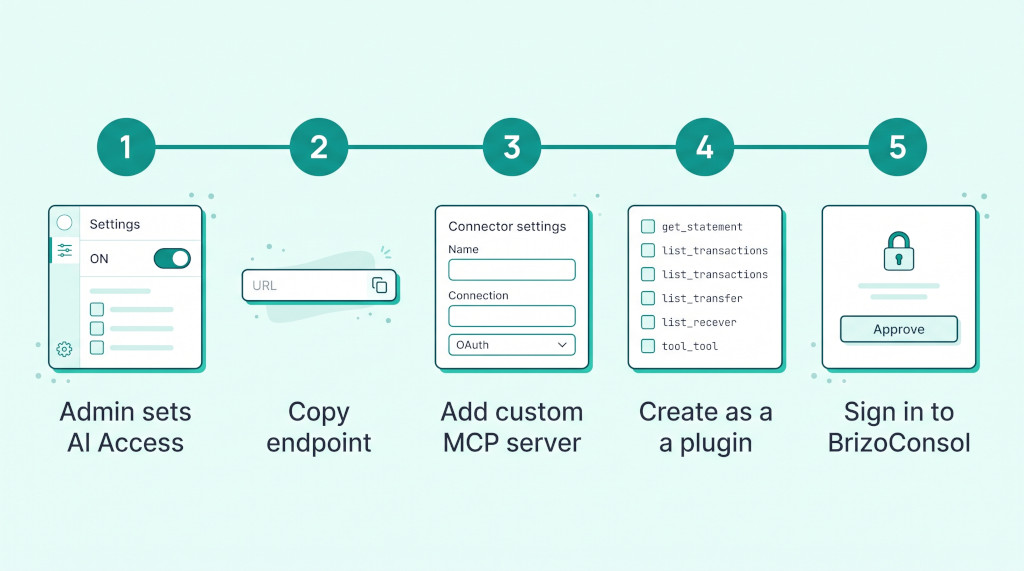
ChatGPT Pro: add it yourself
- In BrizoConsol, go to Settings → Organisation Settings → AI Access and copy the MCP endpoint URL.
- On ChatGPT web, open Plugins (chatgpt.com/plugins).
- Select the + button, then Add custom MCP server.
- Enter a name, such as BrizoConsol, and an optional description.
- Under Connection, paste the endpoint URL.
- Set authentication to OAuth, review the risk warning, and tick the confirmation box.
- Select Create as a plugin. ChatGPT lists the BrizoConsol tools it finds. Sign in to BrizoConsol and approve the connection when prompted.
ChatGPT Business, Enterprise or Edu: publish it for the workspace
- A workspace admin or owner follows the Pro steps above to create the plugin, then tests it in a new conversation. On Business, only admins and owners can create it; on Enterprise and Edu, admins can also allow selected members to create it.
- In the Admin Console (admin.openai.com), select the workspace and go to Plugins → Manage Legacy Apps → Drafts.
- On Enterprise or Edu, use Configure Access to choose which groups can use BrizoConsol.
- Select Publish. BrizoConsol appears in the workspace’s approved list.
- Each member goes to Settings → Plugins, finds BrizoConsol, connects it, and signs in with their own BrizoConsol login.
What happens when you sign in
No keys or secrets are entered anywhere. ChatGPT registers itself with BrizoConsol and sends you to BrizoConsol’s sign-in page, where you sign in as you normally do — two-factor authentication, passkeys, or Google or Zoho sign-in all work. BrizoConsol then issues ChatGPT a short-lived access token that it renews in the background. Only approved AI client callback addresses, including ChatGPT’s, are accepted, so an authorisation code can’t be sent to an arbitrary website.
Using BrizoConsol in a conversation
ChatGPT does not query BrizoConsol on every message. You call it in explicitly:
- Start a new conversation.
- Type @ in the prompt box and select BrizoConsol.
- Ask your question.
The @-mention applies only to that message. Follow-up questions about data ChatGPT has already read in the conversation work without it. When ChatGPT needs new data — a different company, month or report — mention BrizoConsol again.
ChatGPT keeps a snapshot of BrizoConsol’s tools from when the plugin was created. When new tools are released, open the connection on the Plugins page and select Refresh. On workspace plans, an admin must then publish the refreshed version.
Get answers from the consolidation, not a copy of it
See how BrizoConsol consolidates your entities, then lets your AI tools read the results under your controls. See It In Action
Worked example: explaining a translation effect
Take an illustrative group: a Singapore parent presenting in SGD, with a Malaysian subsidiary reporting in MYR. The administrator has ticked both companies and the Reference data, Statements and Exchange rates scopes. The finance manager types:
“@BrizoConsol The Malaysian subsidiary says revenue grew from Aug-2026 to Sep-2026. Why is it lower in SGD?”
ChatGPT calls list_organisations to find the subsidiary’s id, get_statement for its revenue in both months, and get_exchange_rate for the MYR→SGD rate in each month. From those answers it can set out the explanation:
| Aug-2026 | Sep-2026 | Change | |
|---|---|---|---|
| Revenue (MYR) | 580,000 | 600,000 | +20,000 |
| MYR→SGD rate | 0.3050 | 0.2900 | −0.0150 |
| Revenue (SGD) | 176,900 | 174,000 | −2,900 |
Splitting the SGD movement into its volume and rate parts shows where the decline comes from:
| Volume effect: 20,000 MYR × Aug rate 0.3050 | 6,100 |
| Rate effect: 600,000 MYR × (0.2900 − 0.3050) | (9,000) |
| Total change in SGD revenue | (2,900) |
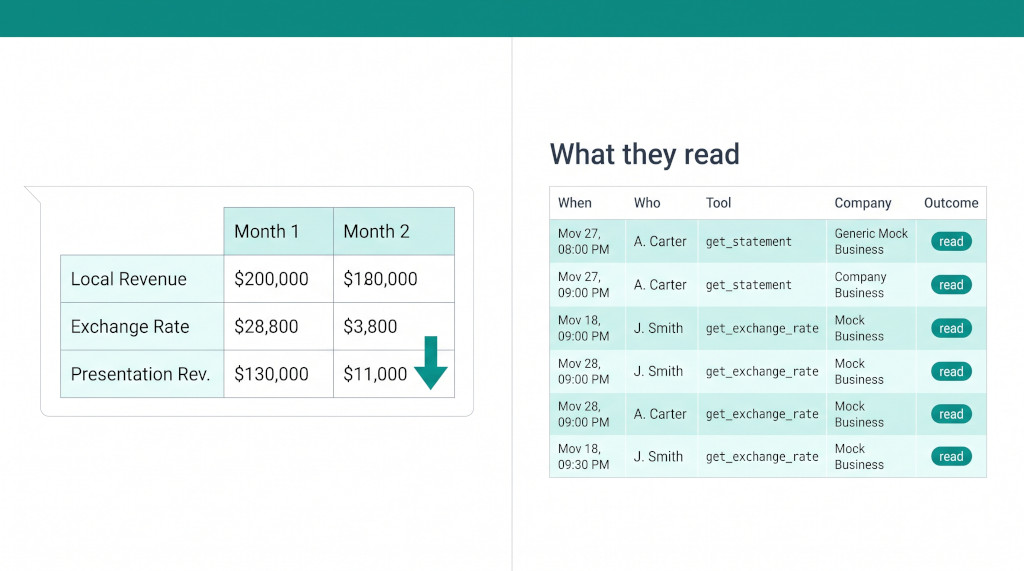
The local team is right: revenue grew by 20,000 MYR, adding 6,100 SGD. A weaker ringgit took away 9,000 SGD, so the presentation-currency figure fell. The figures ChatGPT uses are the ones in BrizoConsol — the same statement balances and the same rates used in translation — not numbers typed into a chat.
If the manager then asks, “Which customers drove the MYR increase?”, ChatGPT would need Invoices (read) or Journal lines (read). If those scopes are not ticked, the tools are not offered, and ChatGPT can only say that it cannot see that data.
Oversight and revoking access
The AI Access page gives administrators two views of AI activity.
Connected clients lists every AI client approved by a user in the group — ChatGPT and any others — with who approved it and when it last read data. A client that has made no calls since approval shows as never read. Selecting End beside a connection revokes it immediately: ChatGPT is refused on its next call and its tokens are invalidated. To reconnect, the user must approve it again.
What they read logs recent calls from any AI client, including refused ones, with the time, the user, the tool called, the company requested and the outcome. Approvals and revocations are also recorded in BrizoConsol’s audit trail. If a question ever arises about what an AI tool accessed, the answer is already on record.
If you also use Claude, the same AI Access settings apply. Our companion post on connecting BrizoConsol to Claude covers the Claude setup steps.
Checklist: connect ChatGPT for the first time
- Confirm you are on a ChatGPT Pro, Business, Enterprise or Edu plan, and use ChatGPT web.
- As a BrizoConsol group administrator, open Settings → Organisation Settings → AI Access.
- Tick Allow AI connections, at least one company, and at least one scope — start with Reference data (read) and Statements (read).
- Click Save and copy the MCP endpoint URL.
- In ChatGPT, open Plugins, select + then Add custom MCP server, paste the URL under Connection, and set authentication to OAuth.
- Tick the confirmation box, select Create as a plugin, and check that ChatGPT lists the BrizoConsol tools.
- Sign in to BrizoConsol and approve the connection.
- On a workspace plan, publish the plugin from the Admin Console and have members connect from Settings → Plugins.
- In a new conversation, type @, select BrizoConsol, and ask “Which companies can you see?” Check that the list matches the companies you ticked and can report on.
- Ask for a figure you already know and compare it with the BrizoConsol report.
- On the AI Access page, confirm the connection appears under Connected clients and the calls appear in What they read.
- After a BrizoConsol release adds tools, select Refresh on the plugin (and republish on workspace plans).
Ready to ask your group numbers a question?
Start a free trial of BrizoConsol, consolidate your entities, and connect ChatGPT in minutes. Start Free Trial