Text Placeholders: Write Your Financial Commentary Once, Read It Every Month
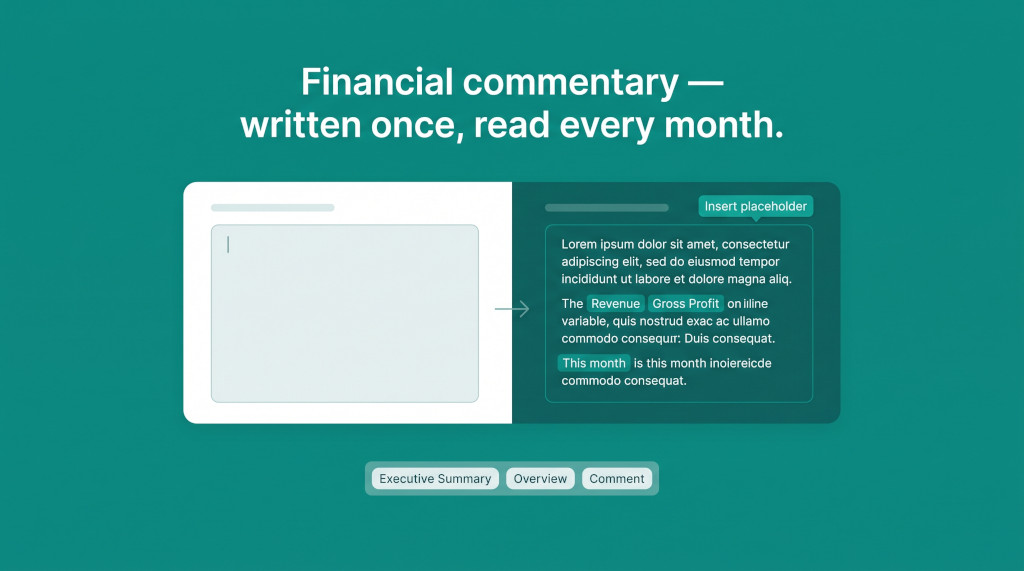
The month-end reporting cycle arrives on schedule, but the prose never does. A financial controller sitting down to complete the consolidation pack opens the Executive Summary text card and finds it blank — again. Last month’s numbers are gone, the structure is gone, and the only thing carried forward is the blinking cursor. So they write: “Revenue for October was…” — the same opening sentence they wrote in September, and August, and every month before that. The figures change. The structure of what needs to be said rarely does.
This is the blank-page problem for financial commentary, and it compounds across every text card in the pack. An Executive Summary, an Overview, a Cash and Working Capital note — three blank cards multiplied by twelve months is thirty-six occasions in the year when a finance team member has to locate the right figures, construct a sentence around each one, and choose how to express the same story in slightly different words. The result is commentary that is inconsistent in structure, inconsistent in tone, and inconsistent in which figures it actually cites.
BrizoConsol now solves this with Text Placeholders: a wording library that lives at the subscription level, maps pre-written commentary to each text type, and auto-fills any unwritten card with the right wording and live figures for the month it is showing. The commentary is written once. The figures are read every time.
Automate NCI calculations across all your entities.
BrizoConsol handles non-controlling interest automatically — no manual adjustments required.
What Text Placeholders Are
A text placeholder is a named block of commentary that your subscription holds in a central library. Each placeholder is written like any other rich text in BrizoConsol — it can contain financial variable chips that pull live figures, reference the reporting month, and follow your group’s own account mappings. What makes it a placeholder rather than a saved piece of text is that it is written once and then copied onto whichever cards pick it up: the library holds the canonical wording, but the card holds its own independent copy, so a later edit to the library does not rewrite cards that have already been authored.
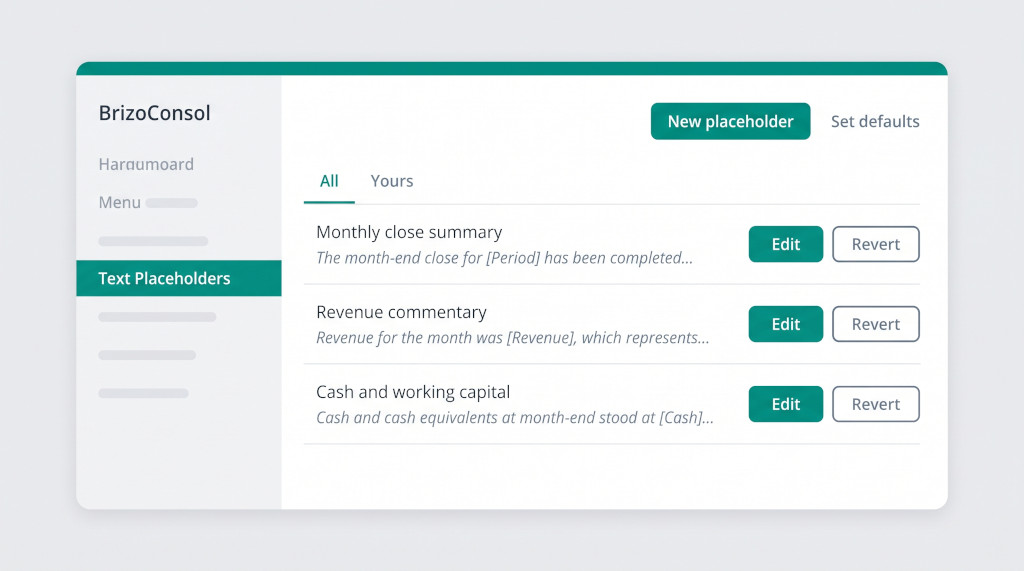
The library is split into two tiers. BrizoConsol ships five system templates that cover the commentary a group needs first — a monthly close summary, a revenue line, a cost line, a profit line, and a cash and working capital note. These are immediately available to every subscription without any setup. Alongside them, your subscription can write its own templates, in whatever structure and language your group uses. If the shipped wording is close but not quite right, you can customise it — creating your own version that overrides the system one — and revert back to the original at any point.
The five text types the dashboard editor offers — Comment, Executive Summary, Note, Overview, and Summary — each map to one placeholder from the library. A text card nobody has written yet reads as the placeholder mapped to its type, with figures resolved for the month the card is showing. An author who opens that card for the first time sees the wording already there: a complete, correctly-structured paragraph with the right numbers in it. Their job is to adjust or extend, not to start from nothing.
Setting Up the Library
The placeholder library is accessed through Settings → Text Placeholders on the top organisation in your subscription. This is the organisation the BrizoConsol administrator manages — the system holds the library at the subscription level so it is available across every group.
Opening the screen shows the full library: system-shipped templates first, marked as “Included with the app”, followed by any templates your subscription has written. Each row shows the template’s name and a one-line preview of its wording. Three filter options at the top let you see all templates, only the built-in ones, or only your own. A search box narrows by name or by the actual words in the wording, so finding a specific template in a large library is straightforward.
To write a new template, click New placeholder. The dialog opens a full rich-text editor — the same one used in text cards elsewhere in BrizoConsol — with the financial variable picker available in the toolbar. You name the template, write the wording, and save. The template immediately appears in the library and in the picker that editors see when they open a text card.
To customise a system template, click the Customise button on any built-in row. The dialog opens on the system wording as a starting point, so you adjust rather than write from nothing. The customised version overrides the system one and the override is tracked: a Revert button on the row restores the original system wording whenever you want it back.
Mapping Placeholders to Text Types
Once the library contains the wording you want, the next step is connecting placeholders to text types. Click Set defaults at the top of the Text Placeholders screen. A dialog opens with one row per text type: Executive Summary, Overview, Note, Comment, Summary. Each row has a dropdown listing the full library — system templates in one group, your own in another. Select the placeholder each type should start from, and save.
From this point, any dashboard text card of that type that has not yet been written will read as its mapped placeholder. The figures inside it — revenue, gross profit, net profit, cash — are read for the month the card is set to, using your group’s own account mappings. A card showing October 2026 reads October’s figures; the same template read in November reads November’s automatically.
A text type set to “No default” behaves as it always did: the card starts empty until an author writes it. This is appropriate for commentary that should only appear when there is something specific to say — a material variance explanation, for example, that should not be present every month.
Inserting a Placeholder Manually
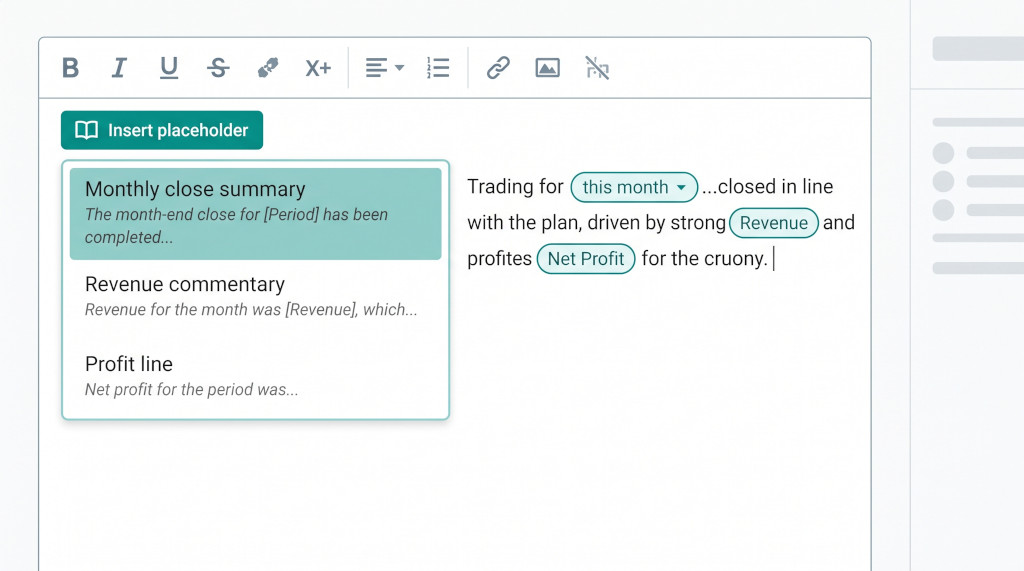
Beyond the default mapping, any author can insert a placeholder directly while editing a text card or a Free Canvas text block. The text editor’s toolbar includes an Insert placeholder button. Clicking it expands a compact picker beneath the button showing every template in the library, with a one-line preview of each. Choosing one copies the wording into the editor at the caret position.
This is useful for cards where the default has already been written and overridden, but an author wants to use the library as a starting point for new wording, or for Free Canvas text blocks that are not associated with a specific text type. The insertion is a copy — once the wording is in the editor, it is independent of the library entry it came from.
See text placeholders in action
Watch how the placeholder library and text type defaults work together in a live consolidation pack. See It In Action
How It Looks in Practice
Consider a group that reports monthly across five subsidiaries. The financial controller maps the following defaults:
| Text Type | Mapped Placeholder |
|---|---|
| Executive Summary | Monthly close summary |
| Overview | Profit line |
| Note | Cash and working capital |
| Comment | Revenue commentary |
| Summary | No default |
At the close of October 2026, the financial controller opens the consolidation dashboard. The Executive Summary card — which nobody has written for October yet — already reads:
“Trading for October 2026 closed in line with the plan the group set for the period. Revenue was $4,820,000, gross profit $1,930,000 and net profit $280,000.”
The controller opens the card to edit it. The wording is there; the figures are correct for October (pulled from the group’s own financial statements). They add one sentence explaining what drove the result — a strong month in the engineering division, for example — and save. The card is now authored. BrizoWriter, BrizoConsol’s AI writing assistant, recognises that this card was authored from a placeholder and will not overwrite it automatically, since the human author has already placed their adjustment on top of the template wording.
The cost commentary card, mapped to “Cost commentary”, reads: “Operating expenses for October 2026 were $1,190,000. The movements were in the same lines as the previous period…”. If expenses ran above plan, the controller overwrites that second sentence. If not, the card can be left as-is and the pack is complete.
The mechanism behind this is straightforward. The placeholder is stored in the card as actual HTML wrapped in a data-text-placeholder element that names the template it came from. The financial variable chips inside the wording are live — they carry the same JSON payload as any other variable in BrizoConsol. When the card is rendered for a reader, the system resolves each variable for the month the card is showing and strips the wrapper element, so the reader sees clean prose with the correct figures. The template key stored on the wrapper is what lets the card report afterwards that it was written from a placeholder, rather than purely by hand.
What Changes for the Monthly Close
The effect on the monthly reporting cycle is cumulative. In a consolidation pack with five text cards, mapping four of them to placeholders means the controller arrives at month-end with four cards already presenting complete, correctly-figured commentary. Their task is to review each one, add any month-specific observation, and save — rather than write from a blank card. For a straightforward trading month where the numbers ran close to plan, the pack can be substantially complete in a single sitting, with no need to look up figures and construct sentences around them.
The wording itself is consistent across months — same structure, same vocabulary, same choice of which figures to cite — because it comes from the same template. Stakeholders reading the pack over time see commentary that is comparable month-on-month, which makes variance easier to spot when it appears. A month where the controller has had to substantially rewrite the Executive Summary stands out as unusual, which is exactly what it should be.
The Summary text type remains on “No default” in the example above, meaning that card only appears in the pack when someone writes it. This is appropriate for a field intended for non-recurring observations: an acquisition, a major contract, a restructuring. Not every month warrants a Summary entry, and the absence of a default prevents the card from auto-filling with placeholder prose on a month when nothing needs to be said there.
First-Time Setup Checklist
- Sign in as an administrator and navigate to the top organisation in Settings.
- Open Settings → Text Placeholders and review the five system-shipped templates. Read the wording and note which ones match your group’s reporting language.
- For any system template whose wording needs adjustment, click Customise, edit the wording in the rich-text editor, and save. The override replaces the system version for your subscription only.
- If your group uses commentary structures not covered by the shipped templates, click New placeholder and write them from scratch. Use the variable picker to insert financial figures and the reporting month as live variables rather than typed numbers.
- Click Set defaults and assign one placeholder to each text type your dashboards use regularly. Leave text types on “No default” where the commentary should only appear when there is something specific to say.
- Open a dashboard for the current reporting month and check each mapped text type. Confirm that the cards read as the correct placeholders and that the figures resolve as expected for your group.
- For teams using the Insight Package, open a text section in the editor and verify that the Insert placeholder button appears in the toolbar and the picker lists the library correctly.
- Communicate the change to authors: they will see pre-filled cards for the first time at next month-end. Brief them that the wording is a starting point — they should adjust the month-specific detail and save, rather than clearing and rewriting from scratch.
Ready to stop writing from a blank page?
Set up your placeholder library today — the five built-in templates are ready the moment you log in. Start Free Trial