Automate Month-End Alerts with BrizoConsol and Zapier’s MCP Client
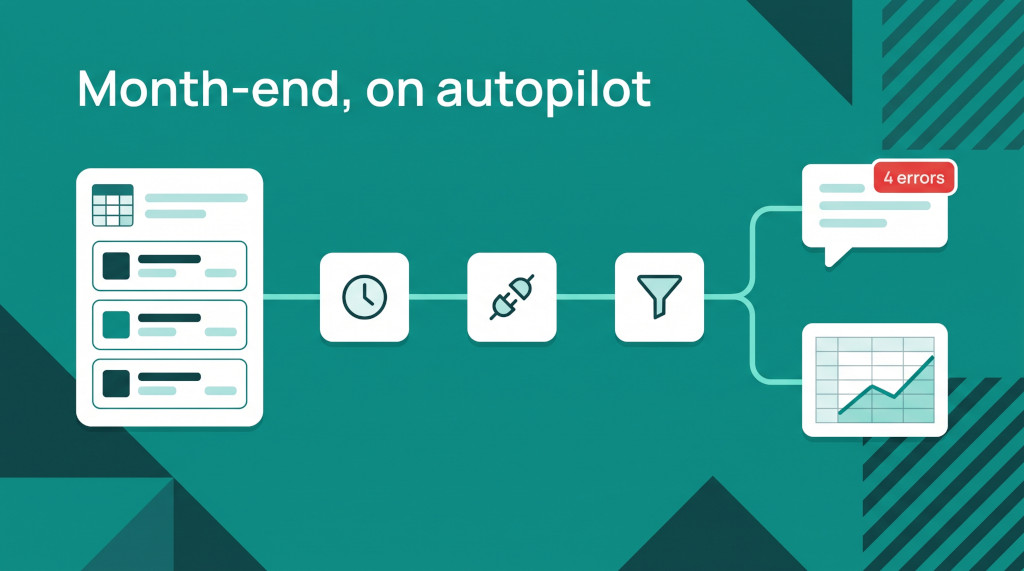
Every group finance team has a few checks that someone has to remember to run. Has every intercompany pair been reconciled before the consolidation is reviewed? Is group cash still above the level the board agreed? What was receivables days for each of the last six months, for the slide nobody wants to rebuild? These checks are simple. They get missed because they depend on a person logging in, exporting, and pasting the result somewhere.
Most teams already have the destination for these checks — a Slack or Teams channel for the close, a Google Sheet the CFO looks at, an inbox. What’s been missing is a safe way to move consolidation figures there on a schedule, without handing a third-party tool an API key with write access to the ledger.
BrizoConsol’s MCP server now works with MCP Client by Zapier. Zapier signs in to BrizoConsol through the same browser approval used by Claude and ChatGPT, reads the same live data, and can pass it to any of the apps Zapier connects to. This post covers the setup and two workflows you can build in an afternoon: an intercompany exceptions alert during close, and a monthly KPI history sheet.
Close your books faster every month.
BrizoConsol streamlines your month-end consolidation so your team spends less time on manual work.
What you need
- BrizoConsol AI Access switched on. A group administrator opens Settings → Organisation Settings → AI Access, ticks Allow AI connections, ticks the companies Zapier may read, and ticks the scopes the workflows need. For the two recipes below: Reference data (read), Consolidation (read) and KPIs (read). Click Save and copy the MCP endpoint URL.
- A Zapier account with access to the MCP Client by Zapier app. Zapier describes MCP Client as a beta feature. The workflows below use more than one action step plus a filter, so check that your Zapier plan supports multi-step Zaps.
- A destination — Slack, Microsoft Teams, Gmail, Outlook or Google Sheets.
The connection is read-only. Zapier can read what your administrator allows. It cannot post journals, change mappings or write anything to BrizoConsol.
Connecting Zapier to BrizoConsol
- In Zapier, go to Apps and click + Add connection.
- Search for MCP Client, select it, and click Add connection.
- On the Connect an Account page, enter:
- Server URL: your BrizoConsol MCP endpoint URL
- Transport: Streamable HTTP
- OAuth: Yes (leave Bearer Token empty)
- Click Yes, Continue to MCP Client. A browser window opens at BrizoConsol. Sign in as you normally do and the connection is approved.
- Rename the connection to something recognisable, such as BrizoConsol – Group Finance.
To confirm it works, start a Zap with any trigger, add an MCP Client by Zapier step with the Run tool action, and open the Tool dropdown. You should see BrizoConsol’s tools by name — List Organisations Tool, Get Trial Balance Tool, Get Kpi Value Tool and so on. Choose List Organisations Tool and test the step. The result lists every company you can read, with its id, currency and reporting_month. Note the ids — the other tools ask for them.
Three settings worth getting right
Each Run tool step has the same three options above the tool’s own fields:
- Parse content: True. BrizoConsol answers in JSON. With parsing on, Zapier turns the answer into separate fields — Structured Content Data Name, Structured Content Data Currency and so on — that later steps can map. With it off, you get one block of text.
- Filter result: structuredContent. Keeps only the parsed data in the step output.
- Handle errors: True. If BrizoConsol refuses a call — for example, a company that isn’t ticked in AI Access — the step fails visibly instead of passing an empty result down the Zap.
Below those, Zapier shows the tool’s own inputs using BrizoConsol’s descriptions, such as “The company id, as list_organisations answers it.” and “The month, `Mon-YYYY` such as `Sep-2026`… Answers the company’s reporting month when it is not given.”
Leave the month empty in scheduled Zaps. BrizoConsol then answers for the company’s current reporting month, so when you roll the reporting month forward in BrizoConsol, every Zap follows automatically. A hard-coded
Sep-2026would keep reading September forever.
Recipe 1: intercompany exceptions alert during close
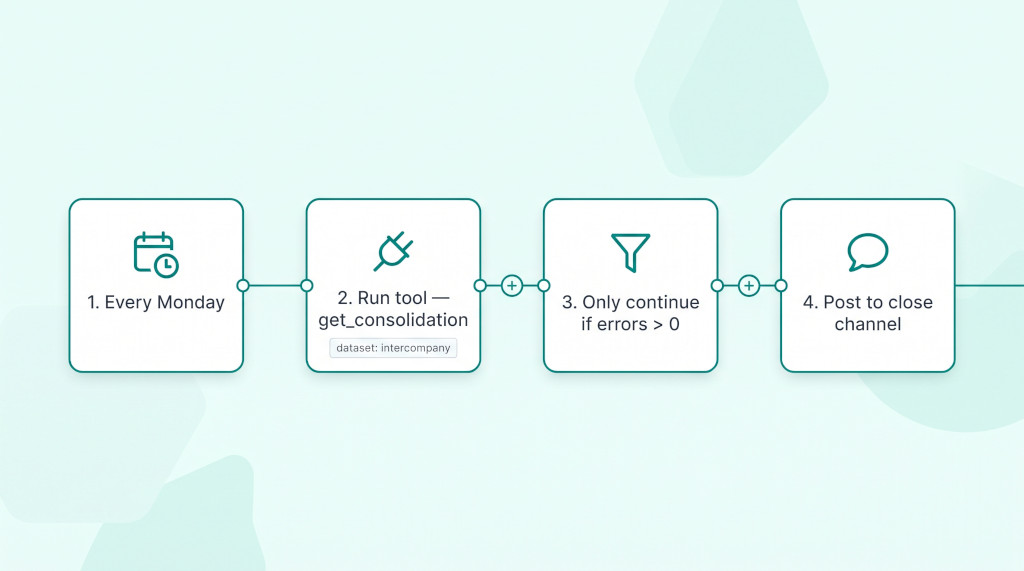
The job: during the close window, tell the close channel each morning if BrizoConsol’s intercompany analysis still finds errors, so unreconciled pairs are chased before review rather than at review.
- Trigger — Schedule by Zapier. Every Day, at 8:00 am. If you only want it during close, use Every Week or a custom schedule for the first working days of the month.
- Action — MCP Client by Zapier → Run tool. Tool: Get Consolidation Tool. Set
organisation_idto your group’s id anddatasettointercompany. Leave the period empty. Parse content: True. - Filter by Zapier. Only continue if the summary errors field is greater than 0.
- Action — Slack, Teams or email. Map the summary fields into the message.
The intercompany dataset returns each detected pair, an entity-pair matrix, a list of anomalies with a suggested action for each, and a summary. These are the summary fields for the Demo Group in our test environment, for Sep-2026:
| Field | Value | Use in the message |
|---|---|---|
pair_count | 7 | Pairs found this month |
pair_amount | 329,864.86 | Total intercompany value in those pairs |
total_anomalies | 10 | Items to look at |
errors | 4 | The filter condition |
warnings | 6 | Lower-priority items |
A message built from those fields reads:
Intercompany check, Demo Group, Sep-2026: 4 errors and 6 warnings across 7 pairs (329,864.86). Review Intercompany in BrizoConsol before sign-off.
The anomalies themselves are specific. In the test data, one says both sides of the pair between accounts G-1300 and SA-IC-AP-SE have the same sign, and suggests: “Check whether one side was posted to the wrong side or mapped to the wrong account.” Use Zapier’s line-item fields if you want each anomaly’s explanation and suggested_action in the message, or keep the alert short and send people to BrizoConsol for the detail.
Once the errors are cleared, the filter stops the Zap and the channel goes quiet. That’s the point: the alert only appears when there is something to do.
See the intercompany analysis behind the alert
Walk through pair detection, anomaly rules and eliminations on a live group. See It In Action
Recipe 2: monthly KPI history in Google Sheets
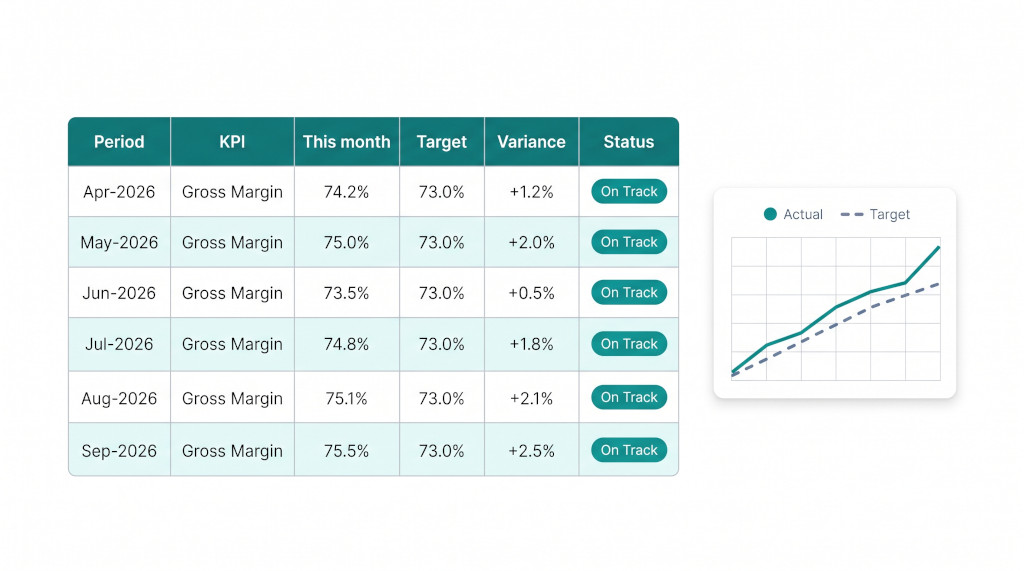
The job: every month, add one row per KPI to a Google Sheet, so the board pack and the trend charts never have to be rebuilt by hand.
- Trigger — Schedule by Zapier. Every Month, on the day after you normally roll the reporting month.
- Action — MCP Client by Zapier → Run tool. Tool: Get Kpi Value Tool. Set
organisation_idto the group andmetricto a KPI name exactly as BrizoConsol lists it — for exampleCash Balance. Leave the period empty. - Action — Formatter by Zapier → Numbers → Format Number. BrizoConsol returns full-precision figures (853536.04059041), so round them before they reach the sheet.
- Action — Google Sheets → Create Spreadsheet Row. Map
period,metric,this_month,target,varianceandspotlightinto columns.
Repeat steps 2–4 for each KPI you track, or build one Zap per KPI. To see the exact names your group uses, run List Kpis Tool once — the test group defines 56, from Cash Balance and Current Ratio to EBITDA Margin % and Receivables Days.
For Cash Balance in the Demo Group, Sep-2026, the tool returned:
| Cash Balance — this month | 853,536.04 |
| Less: target | (616,308.41) |
| Variance (variance_sign “+”) | 237,227.63 |
The same answer includes last_month (834,464.76), change_from_last_month (+19,071.28), change_from_last_year, year-to-date equivalents and progress (138.5% of target). After six months the sheet is a ready-made trend line for the board.
Add a threshold alert
The same Zap can warn as well as record. Add a Filter by Zapier after the Run tool step — only continue if variance_sign is - — followed by an email to the CFO. For a KPI where higher is better, such as Cash Balance or Current Ratio, a negative variance means it is below target.
For a KPI where lower is better — Receivables Days, Payables Days, Debt Ratio — reverse the condition. A positive variance means it is worse than target. Base the filter on
this_monthagainsttargetrather than onspotlight.
Other workflows worth building
- Monthly P&L snapshot to leadership. Get Statement Tool with
statement=profit-lossreturns each section — Revenue, Direct Costs, Expense and so on — with the month’smovementand the year-to-datebalance. Send it as an email, or write it to a sheet with Google Sheets’ multiple-rows action. - Subsidiary trial balance archive. Get Trial Balance Tool per subsidiary, each month, to a Google Sheet or a file in shared storage. Every account comes back with
debit,credit,movement,balanceand year-to-date figures — useful as an audit trail outside the system. - Currency translation reserve check. Get Consolidation Tool with
dataset=ctato send the group controller the translation reserve movement each month.
Staying in control
Zapier runs as the person who connected it, so it can only read what that person can report on, within the companies and scopes the administrator ticked. If an administrator unticks a scope or a company later, Zapier loses access to it on its next call. No connection needs updating.
In BrizoConsol, the AI Access page lists Zapier under Connected clients, with who approved it and when it last read data. What they read shows every call it makes — the tool, the company and the outcome, including refusals. Clicking End stops the connection on its next call. That’s worth knowing for a scheduled Zap: if its owner leaves the company, end their connection and reconnect the Zap under a current team member.
Checklist: your first BrizoConsol Zap
- In BrizoConsol AI Access, tick Allow AI connections, the companies, and the scopes Reference data, Consolidation and KPIs (read). Click Save and copy the endpoint URL.
- In Zapier, add an MCP Client connection: Server URL = endpoint, Transport = Streamable HTTP, OAuth = Yes.
- Sign in to BrizoConsol when the window opens, and rename the connection.
- Create a Zap with Schedule by Zapier as the trigger and test it.
- Add MCP Client by Zapier → Run tool, choose List Organisations Tool, set Parse content to True, and test. Note your group’s id.
- Change the tool to Get Consolidation Tool (dataset
intercompany) or Get Kpi Value Tool, enter the group id, leave the period empty, and test again. - Add the filter and the destination step, and map the fields.
- Make sure every step shows a green tick, then click Publish.
- In BrizoConsol, open AI Access → What they read and confirm the test calls are listed with outcome read.
- After the first scheduled run, check the message or sheet row, and check that the period is the reporting month you expected.
Put your consolidation to work after close
Start a free trial of BrizoConsol, consolidate your entities, and connect Zapier to send the results where your team already works. Start Free Trial