Bulk Import Exchange Rates and Forecast Data in BrizoConsol
Every multi-currency consolidation hits the same wall at period close. The finance team has a spreadsheet — built by the treasury function, or downloaded from a rate provider — listing closing rates and average rates for a dozen currencies across twelve months, split between actuals, forecast, and budget scenarios. BrizoConsol needs those rates to translate subsidiary trial balances into the group’s reporting currency. The only way to get them in was to enter them one by one through the exchange rate screen. For a group running six currencies across three scenarios, that meant typing in over two hundred rate entries per year.
The forecast side had its own problem. Importing a budget or forecast trial balance was a multi-step wizard that parsed the CSV client-side, asked the user to confirm column positions, and saved the data under a legacy csv data type. When a finance analyst later edited individual forecast cells directly in the report view — a completely normal thing to do — the report engine could end up summing both the imported CSV value and the manually edited cell value for the same account in the same month, producing inflated figures that were difficult to trace.
Both of these are now fixed. BrizoConsol has a file import for exchange rates and a rebuilt file import for forecast and budget movements. Both use drag-and-drop upload, both accept CSV and Excel formats, and both trigger an automatic recalculation of the consolidation as soon as the data lands.
Stop building consolidations in spreadsheets.
BrizoConsol automates multi-entity consolidation — setup in minutes, reports the same day.
Exchange Rate File Import
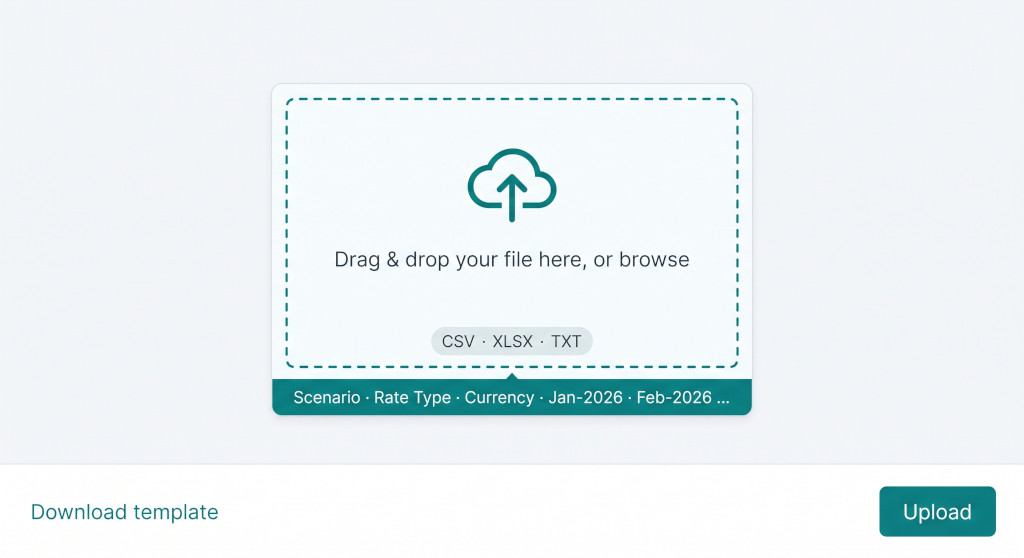
The exchange rate import is accessed from the Exchange Rates page. An upload button opens a drop zone panel. You drag your file onto it, or browse to select it, and click Upload. No column mapping step — the file structure is fixed, and the system validates it on arrival.
File structure
The required column order is: Scenario, Rate Type, Currency, then one column per period. Period headers can be in any of these formats: Jan-2026, Jan-26, 2026-01, or 01/2026. The system recognises all of them, so you do not need to reformat your existing treasury spreadsheet if it uses a different date style.
| Scenario | Rate Type | Currency | Jan-2026 | Feb-2026 | Mar-2026 |
|---|---|---|---|---|---|
| Actual | Closing Rate | GBP | 1.8120 | 1.8045 | 1.7990 |
| Actual | Average Rate | GBP | 1.8055 | 1.8010 | 1.7960 |
| Actual | Closing Rate | EUR | 1.4830 | 1.4790 | 1.4750 |
| Forecast | Closing Rate | GBP | 1.8000 | 1.7950 | 1.7900 |
Accepted Scenario values are Actual, Forecast, and Budget. A single file can contain rows for all three — the import processes them together and recalculates whichever scenarios were affected.
Accepted Rate Type values include Average Rate, Closing Rate, and their common aliases: Profit & Loss Rate maps to Average Rate; Balance Sheet Rate maps to Closing Rate. If your treasury uses either of those labels, the file will import without modification.
What happens to each row
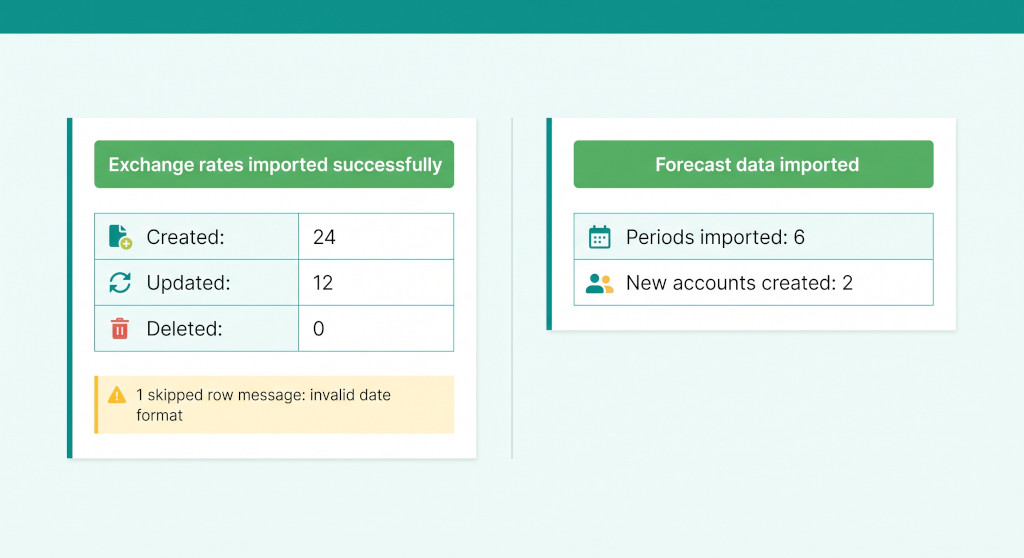
Each rate cell is processed against its combination of organisation, rate type, currency, scenario, and month-end date. If a rate already exists for that combination, it is updated. If it does not exist, it is created. A rate value of 0 is treated as a deletion instruction — it removes the existing rate for that period rather than storing a zero, which keeps your exchange rate table clean.
Rows are skipped — not rejected — if the system cannot process them, and the reason is reported in a warnings list after the upload completes. Common skip reasons include: an unrecognised scenario, an unrecognised rate type, an attempt to import an actual rate for a period beyond the current reporting month (the system blocks this to prevent overwriting finalised period data), or a negative rate value.
The import does not require every period to have a value. Blank cells in a period column are simply skipped, leaving any existing rate for that period unchanged. Only the cells you fill in are processed.
What happens after upload
Once the rates are saved, BrizoConsol automatically drops the trial balance cache and dispatches a recalculation for every scenario that was touched by the import. You do not need to manually refresh any reports — the translated figures update in the background and the next time you open a report, the new rates are already applied.
The import also records an audit log entry — Exchange Rates: Imported — with the file name, and counts of how many rate records were created, updated, and deleted. This is visible in the organisation’s financial audit log for compliance and review purposes.
Forecast and Budget Movement Import
The forecast and budget import has been rebuilt from the ground up. The old upload lived on the Data Load page and required a multi-step client-side process: upload a CSV, inspect the parsed columns, confirm the account code and name positions, and submit. It also saved data under a separate csv data type, which caused a silent double-counting problem when analysts later edited individual cells in the report view.
The new import is a single drag-and-drop upload, accessible directly from the Report view when you are viewing a Forecast or Budget report. An Import button opens a dialog with the drop zone. You upload your file and the server does the rest.
File structure
The file must contain an Account Code column and an Account Name column, followed by one column per period. The same flexible period header formats apply — Jan-2026, 2026-01, 01/2026. Rows with a zero or blank amount for a period are ignored for that period; only non-zero values are imported.
| Account Code | Account Name | Jan-2026 | Feb-2026 | Mar-2026 |
|---|---|---|---|---|
| 4000 | Revenue | 280,000 | 295,000 | 310,000 |
| 5000 | Cost of Sales | 140,000 | 147,500 | 155,000 |
| 6100 | Staff Costs | 62,000 | 62,000 | 62,000 |
| 6200 | Rent & Occupancy | 18,500 | 18,500 | 18,500 |
The scenario — Forecast or Budget — is determined automatically from the report you are viewing when you open the import dialog. You do not select it manually; the import inherits the context of the current report view.
The data type fix: why this matters
The most important change in the rebuilt import is under the hood. All imported forecast and budget rows are now saved with data_type = "input" — the same data type used by direct cell edits in the report view and by the AI forecast feature. The old import used a separate data_type = "csv".
That separation caused a problem. If an analyst imported a forecast file and then later edited a cell for the same account in the report view, the consolidation engine could sum both the csv row and the input row for that account and period, producing a doubled figure. The problem was silent — there was no visible indication that two data sources were in conflict, and the error only surfaced when someone cross-checked the report against the source file.
The new import resolves this at the point of upload. For each period in the file, the system first removes any existing input and csv rows for that organisation, scenario, and month before inserting the new data. The import file becomes the single authoritative source for that period. Any subsequent cell edits in the report view then write to the same input layer, so there is never more than one source contributing to a given account balance.
The import replaces, not appends, data for each imported period. If you upload a file covering January through June, all existing forecast input data for those six months is cleared before the new data is written. Periods not included in the file are not touched. This is the correct behaviour for a forecast refresh — you are replacing the model for those months, not adding to it.
Auto-creating missing accounts
If an account code in the import file does not exist in the organisation’s Chart of Accounts, BrizoConsol creates it automatically. The new account is given the name from the Account Name column, assigned to the first available system account type, and marked Active. A list of all newly created accounts is returned in the import result so you can review them and assign the correct account class and type in the Chart of Accounts afterwards.
Tired of entering exchange rates one by one?
See how BrizoConsol handles multi-currency, multi-scenario data import in a live walkthrough. See It In Action
A Worked Example: Monthly Close with Imported Rates
Consider a group with three subsidiaries — one in the UK (GBP), one in Europe (EUR), and one in Australia (AUD) — reporting to a Singapore dollar (SGD) parent. At each month-end, the treasury team provides a rate sheet covering closing and average rates for all three currencies.
Previously, the group controller manually entered those rates — 2 rate types × 3 currencies × 12 months = 72 actual rate entries per year, plus another 72 for the forecast scenario and 72 for budget. 216 manual entries in total, all of which had to be re-entered whenever the treasury team revised their assumptions.
With the exchange rate import, the entire matrix is uploaded in one file:
| Currencies in scope | 3 (GBP, EUR, AUD) |
| Rate types per currency | 2 (Closing, Average) |
| Scenarios in the file | 3 (Actual, Forecast, Budget) |
| Periods covered | 12 months |
| Total rate cells in one upload | 216 |
The upload takes under a minute. The system processes all 216 cells, upserts the rates, drops the translation cache, and dispatches recalculation for all three scenarios in parallel. By the time the controller opens the consolidated P&L report, the translated figures are already current.
When the treasury team revises its Q3 forecast rates two weeks later, the controller uploads an updated file covering only July through September in the Forecast scenario. The 36 revised cells are processed; the actuals and budget scenarios are untouched.
Downloading the Template
Both imports provide a Download template link inside the upload dialog. The exchange rate template is a pre-formatted file with the correct column headers — Scenario, Rate Type, Currency — and month columns pre-populated for the current year. The forecast/budget template is similarly pre-formatted with Account Code and Account Name columns and the same period structure.
Using the template is the fastest way to get started, particularly for the exchange rate import, where the column order is strict and must match exactly.
Practical Checklist
To import exchange rates:
- Navigate to Exchange Rates in BrizoConsol.
- Click the Import button to open the upload dialog.
- Click Download template to get a correctly formatted starter file, or use your existing rate sheet if it follows the Scenario / Rate Type / Currency / [periods] structure.
- Populate the file with your rates. Use
Actual,Forecast, orBudgetin the Scenario column. UseClosing RateorAverage Rate(or their aliases) in the Rate Type column. - Drag the file onto the drop zone, or click to browse, then click Upload.
- Review the result — confirm the created/updated/deleted counts, and check any row-level warnings for skipped entries.
- Open a translated consolidated report to confirm the new rates are reflected.
To import forecast or budget movements:
- Open a Forecast or Budget report in the Report view.
- Click the Import button in the report toolbar to open the upload dialog.
- Click Download template to get a pre-formatted file, or prepare your own with Account Code, Account Name, and period columns.
- Ensure amounts are entered as positive numbers — the system determines debit/credit treatment from the account type in your Chart of Accounts.
- Drag the file onto the drop zone and click Upload.
- Review the result — note the number of periods imported and any new accounts that were auto-created.
- If new accounts were created, go to Chart of Accounts and assign the correct account class and type.
- Refresh the forecast/budget report to confirm the imported movements appear correctly.
Ready to streamline your consolidation data workflow?
Start a free trial and see how BrizoConsol handles bulk import, multi-currency translation, and forecast consolidation in one platform.Start Free Trial