Connect BrizoConsol to Claude: Ask Your Consolidated Financials Questions in Plain English
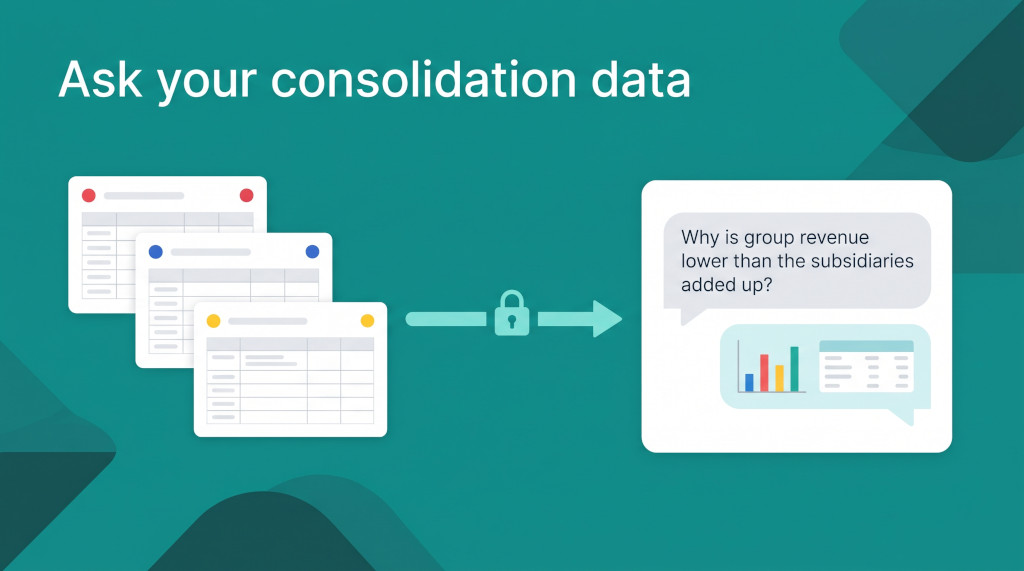
It is the second week after month-end. The consolidation is closed, the pack is out, and the CFO has a question that isn’t on any page of it: why did group revenue come in below the sum of the subsidiaries, and which intercompany flows explain the gap? Answering it usually means opening the consolidation, exporting the intercompany schedule, pulling each subsidiary’s statement into a spreadsheet, and writing a short explanation by hand. None of it is difficult. All of it takes time that the finance team does not have.
Many teams have tried to speed this up by pasting exports into an AI chat. That creates a different problem: a copy of group financial data now sits outside the system of record, nobody knows exactly what was shared, and the figures are frozen at the moment someone hit “export”. The answer may be quick, but it is not controlled, and it is not current.
BrizoConsol now offers a better route. Through a Model Context Protocol (MCP) server, Claude can read your group’s financial data directly from BrizoConsol — trial balances, statements, journal lines, KPIs, exchange rates, consolidation results and intercompany postings — when you ask it a question. Access is read-only, limited to the companies and data types your administrator chooses, and every call is recorded.
Automate NCI calculations across all your entities.
BrizoConsol handles non-controlling interest automatically — no manual adjustments required.
What the MCP connection gives you
MCP is an open standard that lets an AI assistant call tools exposed by another system. BrizoConsol’s MCP server publishes one tool per type of financial data. When you ask Claude a question, it decides which tools it needs, calls them against your live BrizoConsol data, and builds its answer from what comes back.
The tools Claude can be given include:
| Tool | What it answers | Scope in AI Access |
|---|---|---|
list_organisations, list_periods, list_currencies, list_kpis and other lists | The companies, months, currencies, sections, tags and years Claude can ask about | Reference data (read) |
list_accounts | The chart of accounts | Accounts (read) |
get_trial_balance | A company’s trial balance for a month | Trial balance (read) |
get_statement | Financial statements | Statements (read) |
list_transactions | Journal lines behind a balance | Journal lines (read) |
get_exchange_rate | Rates used for translation | Exchange rates (read) |
get_kpi_value | A KPI’s figure and its target | KPIs (read) |
list_invoices, list_bills | Receivable and payable documents | Invoices (read), Bills (read) |
list_operation_datasets, get_operation_data | Operational (non-financial) data | Operational data (read) |
get_consolidation | Consolidated results for the group | Consolidation (read) |
list_intercompany_transactions | Elimination entries between companies for a month | Intercompany transactions (read) |
Each tool returns exactly what BrizoConsol’s read API returns for the same resource, because both use the same underlying reader. Claude is not working from a simplified copy or a separate AI dataset: a trial balance figure it quotes is the figure you would see from the API for that company and month.
The connection is read-only. Claude can look at your BrizoConsol data; it cannot post journals, change mappings, or write anything back.
Control sits with the administrator
The feature is built around one principle: what an AI client may read is decided once, in settings, by a group administrator — not by whichever user happens to connect a client. The page is at Settings → Organisation Settings → AI Access, and it has four parts.
1. The master switch
The Allow AI connections checkbox turns AI access on or off for the whole group. When it is off, every AI client is refused, including clients users have already connected. The page shows when the switch was last turned on.
2. Companies
Tick each entity AI clients may read. A company that is not ticked cannot be read, even if a user approves a client. If Claude asks for an unticked company, BrizoConsol answers as though it does not exist rather than confirming that it is forbidden.
3. Scopes
Tick the categories of data you want to expose — for example Trial balance (read) and Statements (read), but not Journal lines (read) or Invoices (read). Claude is only ever offered the tools that match the ticked scopes, so it cannot attempt to call a tool outside them. If a request for one is attempted anyway, it is checked again and refused.
4. The MCP endpoint
The endpoint URL is shown at the bottom of the form. It is the address you paste into Claude. Click Save after changing the switch, companies or scopes.
Turning the switch on is not enough on its own. You must also tick at least one company and at least one scope — with nothing selected, every call is still refused.
AI Access is available on the editions that include API access (Pro and above). If a group moves to an edition without it, existing connections and settings are kept but stop answering, and resume if the edition returns.
How the connection works
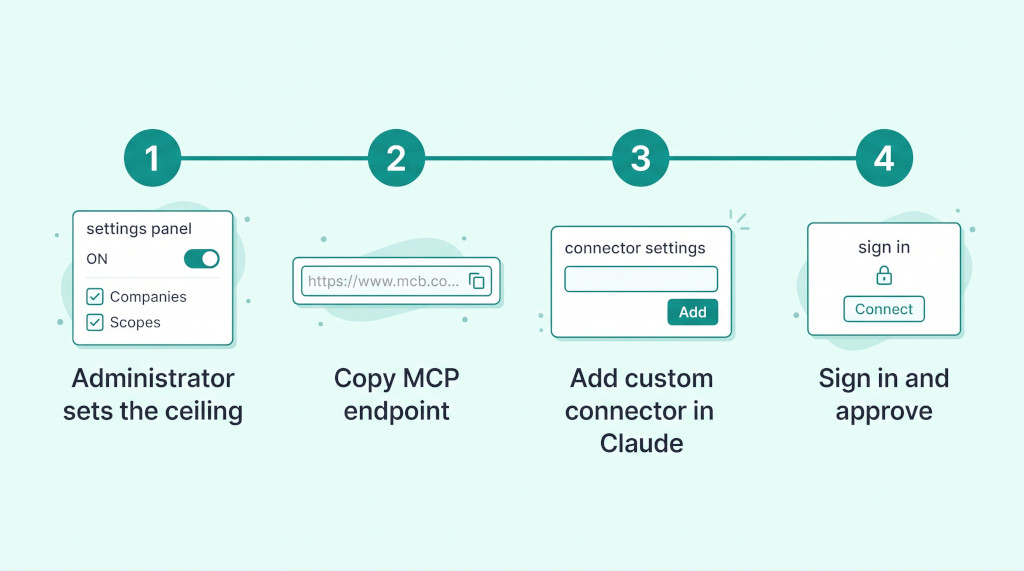
Once the administrator has saved the AI Access settings, connecting Claude takes a few minutes. The steps differ slightly depending on your Claude plan.
Individual Claude plans (Pro or Max)
Each user adds the connector to their own Claude account. It then works in the Claude desktop app and on claude.ai.
- In BrizoConsol, go to Settings → Organisation Settings → AI Access and copy the MCP endpoint URL.
- In Claude, go to Settings → Connectors.
- Click Add custom connector, enter a name such as BrizoConsol, paste the endpoint URL, and click Add.
- Click Connect. A browser window opens at BrizoConsol. Sign in and approve the connection.
- Ask Claude a financial question about one of the permitted companies.
Claude Team or Enterprise
Members cannot add custom connectors themselves, so a Claude Owner adds BrizoConsol once for the organisation:
- The Owner goes to Admin settings → Connectors, clicks Add custom connector, enters a name, pastes the BrizoConsol endpoint URL, and clicks Add.
- Each member then goes to Settings → Connectors, finds BrizoConsol, clicks Connect, and signs in with their own BrizoConsol login.
What happens behind the scenes
You do not configure any keys or secrets. When Claude first contacts the endpoint, BrizoConsol tells it where to authenticate, Claude registers itself as a client, and your browser is sent to BrizoConsol’s sign-in. You sign in exactly as you normally do — including two-factor authentication, passkeys, or Google or Zoho sign-in. BrizoConsol then issues Claude a short-lived access token, which Claude renews in the background.
Only known AI client callback addresses are accepted, so an authorisation can’t be redirected to an arbitrary website. Calls are also rate-limited per minute at your group’s own API limit.
What each user actually receives
There is no separate consent screen where a user picks companies or scopes. When you approve, your connection receives the group’s ceiling narrowed to the companies you are already allowed to report on in BrizoConsol. A user can never grant Claude more than the administrator allowed, and never more than they could open themselves.
| Company | Ticked in AI Access | User can report on it | Claude can read it |
|---|---|---|---|
| Holdco Pte Ltd (group) | Yes | Yes | Yes |
| Subsidiary Sdn Bhd | Yes | Yes | Yes |
| Subsidiary Ltd (UK) | Yes | No | No |
| Dormant Co Pte Ltd | No | Yes | No |
If none of the permitted companies are ones the user can report on, the approval stops before Claude receives anything, and the user is told why. Once the setting is corrected, the user can retry the same request.
Put AI on top of a consolidation you can trust
Close in BrizoConsol, then ask Claude about the results — with your controls, not around them. See It In Action
Worked example: explaining a consolidation gap
Take an illustrative group: a Singapore holding company with one Malaysian subsidiary. The administrator has ticked both companies and the Statements (read), Consolidation (read) and Intercompany transactions (read) scopes. The financial controller asks Claude:
“For Sep-2026, why is consolidated revenue lower than Holdco’s and the subsidiary’s revenue added together?”
Claude calls list_organisations to find the companies it can read, get_statement for each company’s revenue, get_consolidation for the group figure, and list_intercompany_transactions for the eliminations that month. From those answers it can lay out the reconciliation:
| Holdco revenue (Sep-2026) | 420,000 |
| Subsidiary revenue (Sep-2026) | 185,000 |
| Sum of the companies | 605,000 |
| Less: management fee charged by Holdco to Subsidiary | (35,000) |
| Consolidated revenue | 570,000 |
The intercompany tool returns the elimination behind the difference, naming the two companies, the amount and the accounts it touches:
| Account | Dr | Cr |
|---|---|---|
| Revenue — management fees (Holdco) | 35,000 | |
| Administrative expenses — management fees (Subsidiary) | 35,000 |
Illustrative figures. The elimination is the one already recorded in BrizoConsol’s consolidation — Claude reads it; it does not calculate or post it.
The answer Claude gives is grounded in the elimination entries your consolidation already contains. If the controller follows up with “show me the journal lines behind the subsidiary’s management fee expense”, Claude would need Journal lines (read). If that scope is not ticked, the tool is not offered, and Claude says it cannot see that data — it does not guess.
Every call is logged
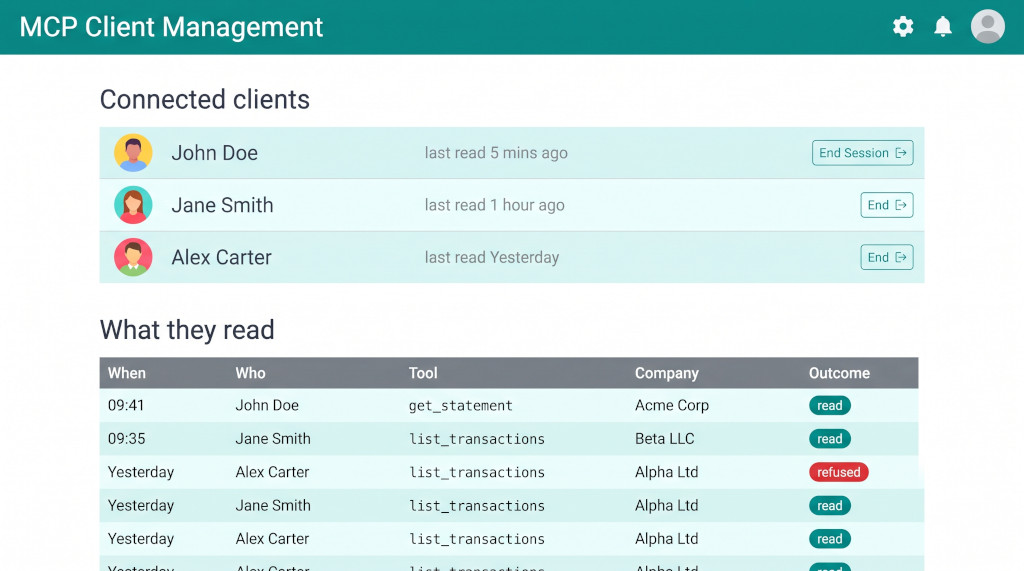
The AI Access page also lets administrators review and manage what has happened.
Connected clients lists every AI client approved by a user in the group, who approved it, and when it last read data. A client with no calls since approval shows as never read. On Claude Team and Enterprise, each member’s connection appears as a separate row.
Clicking End revokes a connection immediately. The client is refused on its next call — not when its token would have expired — and every token it holds is invalidated. To reconnect, the user approves the client again. Ending a connection doesn’t change the group settings. A user can also disconnect from Settings → Connectors in Claude.
What they read is the activity log. It shows the most recent calls from any AI client, including refused ones:
| Column | Shows |
|---|---|
| When | Date and time of the call |
| Who | The user whose connection made the call |
| Tool | The MCP tool called, such as get_statement or list_transactions |
| Company | The entity requested, or a dash if none was specified |
| Outcome | read for a successful call, or a red label for a refused or failed one |
Refusals are logged alongside the decision, so an attempt to read an unticked company or a missing scope is visible rather than silently disappearing. Approvals and revocations, with the companies and scopes involved, are also written to BrizoConsol’s audit trail. For an auditor or a data-protection review, this answers not just whether an AI tool had access, but what it read and when.
Checklist: connect Claude for the first time
- Confirm your BrizoConsol edition includes API access (Pro and above).
- As a group administrator, open Settings → Organisation Settings → AI Access.
- Tick Allow AI connections.
- Tick the companies Claude may read — start with the group and one or two subsidiaries.
- Tick the scopes to expose — Reference data (read) plus, for example, Statements (read) and Trial balance (read).
- Click Save, then copy the MCP endpoint URL.
- In Claude, add a custom connector with that URL (Settings → Connectors on Pro or Max; Admin settings → Connectors for a Team or Enterprise Owner).
- Click Connect, sign in to BrizoConsol, and approve.
- Ask a simple first question, such as “Which companies can you see in BrizoConsol?”, and check that the list matches the companies you ticked and can report on.
- Ask for a figure you already know — for example, a subsidiary’s revenue for last month — and compare it with the BrizoConsol report.
- Back on the AI Access page, confirm your connection appears under Connected clients and the calls appear in What they read with the outcome read.
- Ask for a company or data type you did not tick, and confirm the call is refused and logged.
Ready to ask your group numbers a question?
Start a free trial of BrizoConsol, consolidate your entities, and connect Claude in minutes. Start Free Trial