Deeper Zoho Books Integration: From Report Figure to Source Posting, and P&L by Reporting Tag
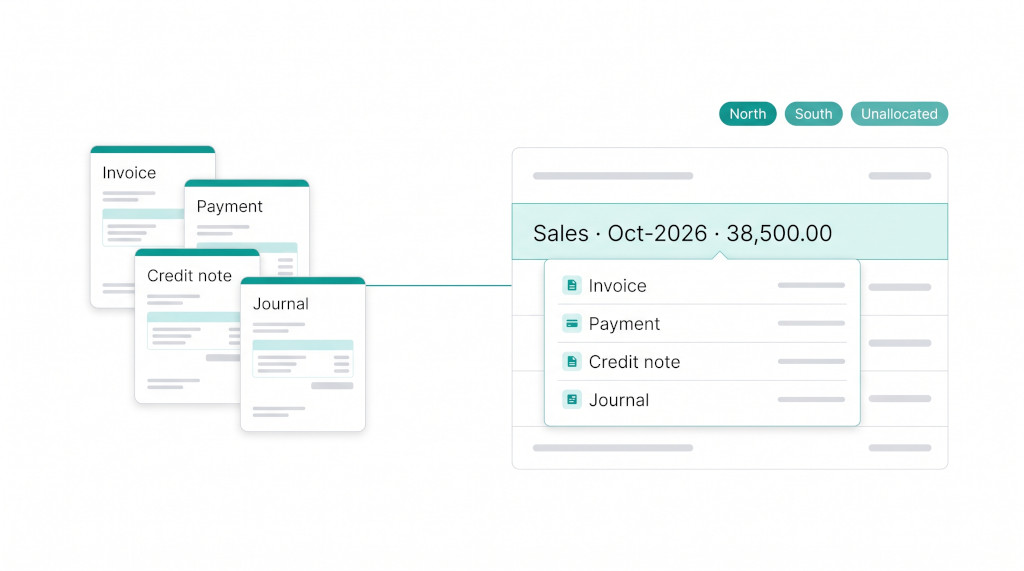
Until now, a Zoho Books company connected to BrizoConsol brought across its trial balance, chart of accounts, invoices and bills. That was enough to consolidate, but not always enough to explain the numbers. Click into October’s sales and you saw the trial balance figure, with nothing underneath it to show which invoices made it up. Cash, receivables and tax accounts couldn’t be explained at all, because the money that moved them came from payments, credit notes, expenses and journals the connection didn’t read.
This release closes that gap. With your approval, BrizoConsol now reads the rest of the accounting activity in Zoho Books. A report figure drills down to the dated postings Zoho made to that account. Documents show how each invoice and bill was actually settled. Zoho reporting tags come across as their own P&L, ready for dashboards and reports.
Report totals still come from the imported trial balance. The new data explains those totals; it is never added to them a second time. The connection only reads Zoho Books and never writes anything back.
BrizoConsolGroup consolidation for Zoho Books — fast and accurate.
Connect your Zoho Books organisations and consolidate into one clean group view.
What’s new
| Capability | What you get |
|---|---|
| Transactions | Each month’s journals, expenses, customer and vendor payments, credit notes and refunds, plus Zoho’s own dated postings to every account |
| Source drilldown | From any Zoho trial balance row in a report drill, open the postings behind the movement and follow each one to its invoice, bill, credit, payment, expense or journal |
| Settlements on documents | Each invoice and bill shows what was paid in cash, what was settled by credit notes, what was written off and what is still outstanding |
| Reporting tags | Zoho reporting tags imported and loaded as a monthly P&L by tag option, available to dashboards, KPIs, tables and custom reports |
| Fresher documents | Invoices and bills refresh every night at 02:00, so a payment made in Zoho updates the outstanding balance without reloading the month |
Step 1: approve the additional access once
The new data needs read permissions your existing connection doesn’t have yet:
- customer payments and vendor payments;
- customer credits and vendor credits;
- expenses.
BrizoConsol asks for all of them in a single consent rather than one prompt per module. On the Zoho company’s Data Loading page, choose Enable additional access on the Zoho permission card (Permission details lists exactly what’s included). Zoho asks you to approve, and BrizoConsol then checks that the access works against the same Zoho organisation before switching it on. Your existing connection keeps working the whole time; if anything fails, the current access is kept and the error is shown on the card.
Until the access is approved, the two new loading options stay visible but locked, with the badge Reauth required. On the Standard edition they show Pro only, because Transactions and reporting tags are available on the Pro and Free editions. Everything you already load keeps working either way.
Step 2: load Transactions and reporting tags
In the Data Loading dialog for a connected Zoho company, two new options sit beside General ledger, Invoices and Bills:
- Transactions — “Load each selected month’s journals, expenses, payments, credits and refunds.”
- P&L by Reporting Tag — “Load monthly Zoho profit and loss amounts by reporting tag for dashboards and reports. Transactions are not required.”
Select the months and load. The period table then has a column for each source, so you can see month by month what’s loaded, what’s in progress and what failed, with the actual error.
Each month is replaced in one step. A month is marked loaded only when every page of it has been read and checked; if a load fails partway, the previous complete month stays in place.
After that first load, there’s little to do by hand:
- A new connection loads recent months straight away and queues older ones in the background.
- Invoices and bills refresh every night at 02:00.
- The existing overnight backfill fills in older months, one at a time, within your history limit.
Zoho limits how many requests a company can make each day. BrizoConsol paces its requests to Zoho’s per-minute limit. If the daily allowance runs out, the load stops and says so, rather than marking a partial month as complete. It continues once the allowance resets.
Drill a report figure to its Zoho postings
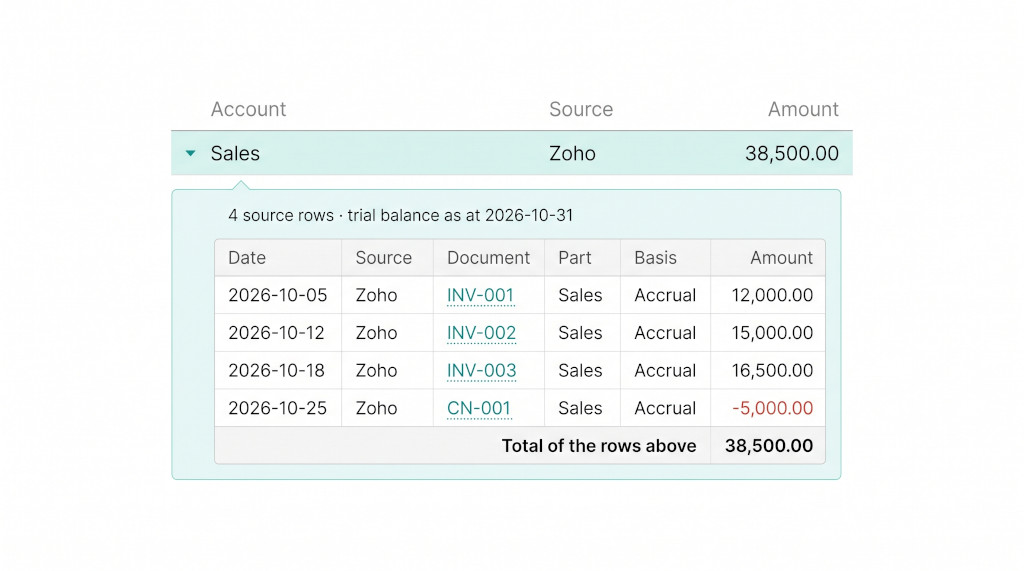
Open any report and click a figure for a Zoho company. The drill opens exactly as before: the trial balance rows behind the figure, with their totals unchanged. The difference is that the Zoho row can now be clicked open.
Expanding it shows the dated postings Zoho made to that account in the period:
- Header line: the number of source rows, the date the trial balance is as at, and when it was imported.
- Columns: Date, Source, Document, Part, Basis and Amount.
- Footer: the total of the rows above.
- Balance sheet accounts: the opening balance, the month’s movement (or the YTD movement on a year-to-date report) and the closing balance, so you can see that the postings explain the movement and not the whole balance.
Every row can be followed:
- An invoice, bill or credit note number opens that document in the Documents view.
- A journal, payment or expense opens in place with Show the entry behind this row, showing every line of it.
- A payment shows the documents it settled and any refund taken from it.
Write-offs, withholding tax, exchange gains and losses, and tax all appear on the accounts Zoho actually posted them to. BrizoConsol doesn’t guess them from account names.
Worked example
These figures are illustrative. October’s Sales for a Zoho company reads 38,500.00. Expanding the Zoho row shows:
| 03-Oct-26 Invoice INV-000101 | 12,000.00 |
| 14-Oct-26 Invoice INV-000102 | 18,000.00 |
| 28-Oct-26 Invoice INV-000103 | 10,000.00 |
| 30-Oct-26 Credit note CN-00012 | (1,500.00) |
| Total of the rows above = Sales, Oct-2026 | 38,500.00 |
Drilling into the bank account the same month gives a different mix:
- a customer payment that settled INV-000098;
- a vendor payment against a bill;
- an expense paid from the account;
- a manual journal.
Each row links to its own record.
If any part of the movement isn’t matched by a posting, the drill says so in a line under the rows: “…of the movement in the row above is not reconciled to a document here”. It doesn’t hide the gap or invent a balancing line.
When a month’s Transactions haven’t been loaded, the drill says that too and offers Load Transactions for that month. The button appears for data administrators. If the connection hasn’t been given the additional access, the drill offers Enable additional access instead.
See your Zoho figures explained line by line
Connect a Zoho Books company and we’ll drill a real month with you, from the report down to the payment. See It In Action
See how each invoice and bill was settled
With Transactions loaded, each invoice and bill in the Documents view shows how it was settled. Cash, credit notes and write-offs are listed separately, followed by what is still outstanding. A cash row carries the exchange rate the payment came in at; a credit row uses the document’s own rate.
For example, a 1,000 invoice settled by 400 in cash and 100 of credit notes, with 50 written off, shows 450 outstanding, not 550 of cash received.
Two details are stated plainly on the document:
- Withholding tax reduces the amount due before settlement and isn’t counted as cash or credit.
- Zoho records no date for a write-off, so the document notes that.
Draft and void documents remain visible in the document list but are marked “Not posted, so it is excluded from current receivables/payables”.
Analyse by reporting tag
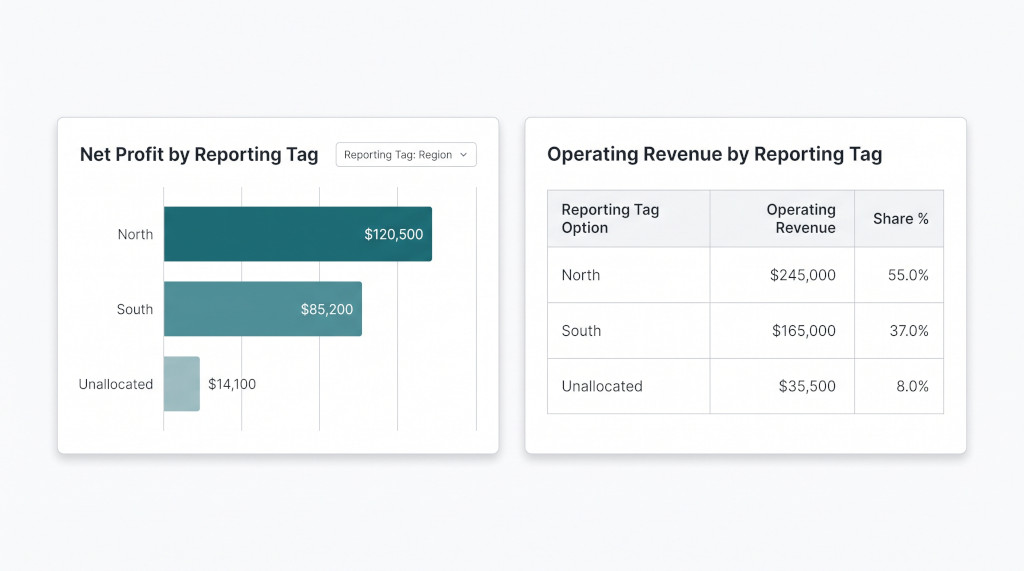
Many Zoho Books users tag transactions by region, department, store or project line. BrizoConsol now imports those reporting tags and loads each tag’s monthly P&L directly from Zoho.
Set up the tags
From Data Loading, open Reporting Tag Setup. It lists every tag imported from Zoho with its options, and suggests what each tag represents: Store, Department, Regional Division, Product Line, Service Line, Project Tracking, Client Tracking, Team/Staff or Other. Confirm the mapping and save. Mapping a tag as Department or Store switches on the shared dashboard templates for those dimensions, and every tag is also available as a data source of its own. Use Refresh from Zoho when tags or options change, and View P&L by Reporting Tag to see the loaded amounts.
Use them on dashboards and in reports
Once P&L by Reporting Tag is loaded for a month, three sources appear under the Zoho group of the dashboard editor:
- Operating Revenue by Reporting Tag;
- Operating Expenses by Reporting Tag;
- Net Profit by Reporting Tag.
Each source is read for one tag at a time and lists that tag’s options. They work as a chart, a table (Reporting Tag Option, the amount and Share %), a KPI metric or a custom report row. Amounts are stored monthly in the company’s base currency.
Two rules keep the numbers honest:
- Unallocated stays visible. Revenue or cost that wasn’t tagged isn’t dropped or spread across options. It appears as Unallocated, so the options plus Unallocated add up to the company’s total.
- Tags aren’t added together. Each read uses one tag, so a company with a Region tag and a Product Line tag isn’t counted twice.
| Net Profit by Reporting Tag “Region” — North | 30,000.00 |
| South | 20,000.00 |
| Unallocated | 30,000.00 |
| Company net profit (illustrative) | 80,000.00 |
Reporting-tag amounts load for a single Zoho company, not a consolidated parent, and don’t require Transactions to be loaded.
What this release does not do
- It doesn’t change how reports are totalled: the trial balance stays authoritative, and the new data explains it.
- It doesn’t write anything to Zoho Books or send consolidation journals back.
- It doesn’t yet support Zoho locations or projects, or confirm intercompany customers and suppliers from Zoho contacts.
Checklist
- On the Zoho company’s Data Loading page, choose Enable additional access and approve it in Zoho.
- When the Reauth required badge clears, select the months and load Transactions and P&L by Reporting Tag.
- Check the period table: each month shows loaded, or the actual error.
- Open a report, drill a Sales figure, expand the Zoho row and confirm the total of the rows above equals the movement.
- Open an invoice in Documents and check its cash, credit, write-off and outstanding split.
- In Reporting Tag Setup, confirm each tag’s mapping, then add a “Net Profit by Reporting Tag” chart to a dashboard.
Consolidate Zoho Books with every figure explained
Start a free trial, connect your Zoho Books companies and drill your first month today. Start Free Trial