Exchange Rate Imports, Display Currency Switching, Budget & Forecast Uploads, and Insight Package Templates — All Shipped
If your group reports in Singapore dollars but your subsidiaries close their books in euros, US dollars, and Australian dollars, you know the friction. Every month someone pulls spot rates from a central-bank feed, pastes them into the consolidation model, adjusts the average rate column, and then re-runs the reports — only to discover that the presentation currency on the dashboard is still showing last month’s numbers because nobody updated the rate file in time. When a budget cycle opens, the same exercise repeats for Forecast and Budget scenarios, sometimes in a different spreadsheet maintained by a different person.
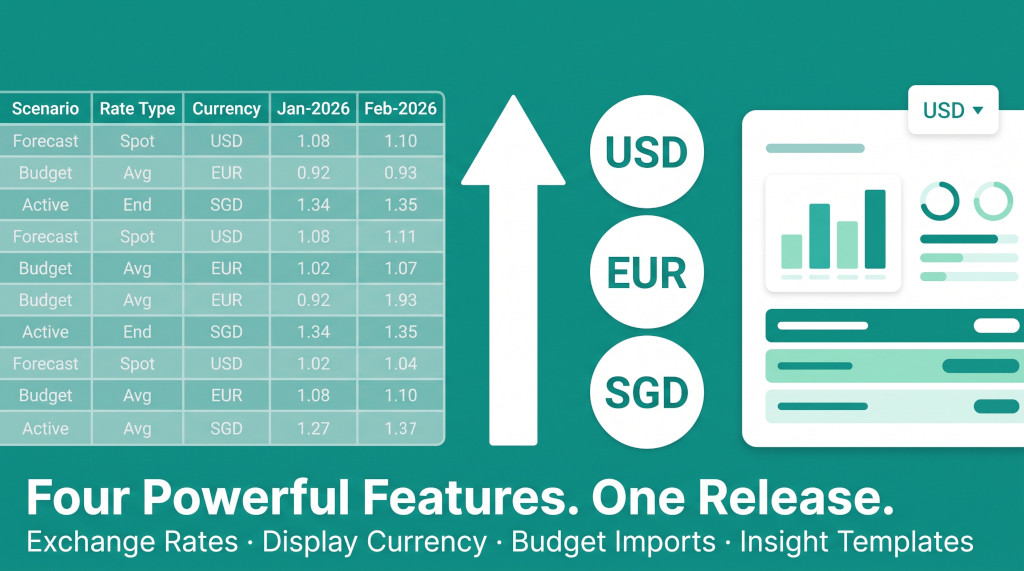
These four new features in BrizoConsol are a coordinated answer to that friction. You can now import exchange rates directly from a structured CSV or Excel file, switch the presentation currency on any dashboard or pulse view with a single dropdown, import budget and forecast trial balances the same way you import actuals, and spin up a new insight package from a pre-built template rather than assembling it section by section from scratch. Each feature works independently, but together they close the loop between your planning data, your translation rates, and your reporting output.
Importing Exchange Rates from a File
Exchange rates in BrizoConsol are managed at the group level — the top-level organisation that owns the consolidation. Until now, rates had to be entered or edited one by one in the rate table. The import feature lets you maintain your rates in a spreadsheet and push them up to the system in one operation.
Stop building consolidations in spreadsheets.
BrizoConsol automates multi-entity consolidation — setup in minutes, reports the same day.
The upload accepts CSV, Excel (XLS and XLSX), plain text (.txt) and tab-delimited (.tab) files. The column structure is fixed: the first four columns must be Scenario, Rate Type, Currency, followed by one column per month in the format Jan-2026, Feb-2026, and so on. Any month column whose header does not match that pattern is ignored, so you can leave future months blank or include a full year at once.
To get started without building the file by hand, use the Download template link on the Exchange Rates page. The template is pre-filled with your existing rates for the selected year, scenario, and rate type — you get a working file that reflects the current state of your rate table, ready to edit and re-upload.
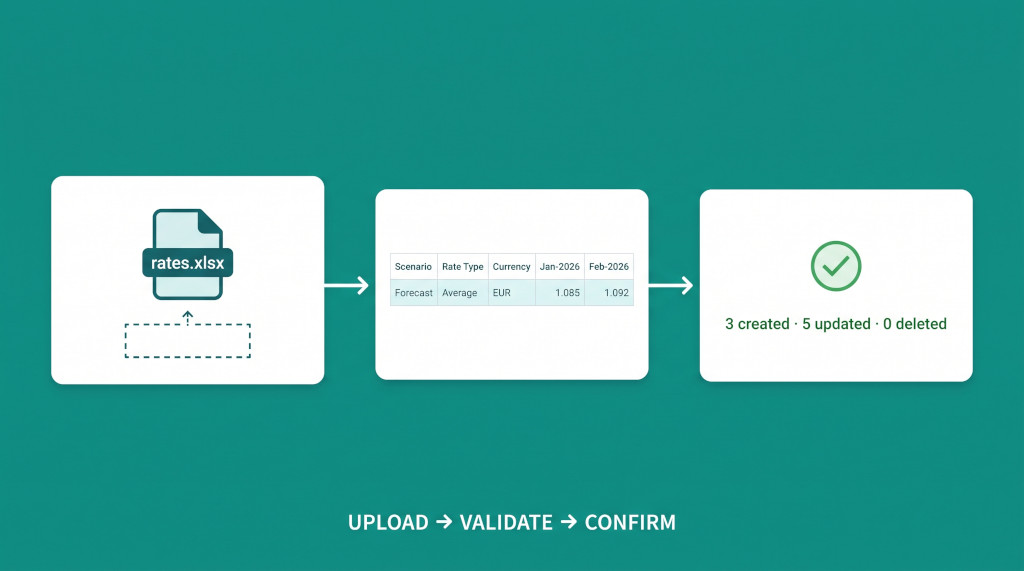
When you upload a file, BrizoConsol processes each row against the combination of Scenario, Rate Type, Currency, and month. Rows that match an existing rate update it; rows for combinations that do not yet exist create new rates; rates that exist in the system but are absent from the file are deleted for the months covered by the upload. After the import completes, the system displays a count of records created, updated, and deleted, and up to five warnings for rows it could not parse.
Behind the scenes, every successful import triggers a recalculation of all affected trial balance data. This means your reports automatically reflect the new rates as soon as the import finishes — there is no separate “apply rates” step.
Example: uploading a Forecast average rate for EUR
| Scenario | Forecast |
| Rate Type | Average |
| Currency | EUR |
| Jan-2026 | 1.0850 |
| Feb-2026 | 1.0920 |
| Mar-2026 | 1.0875 |
| Upload result | 3 created |
If you then upload an amended file that changes Feb-2026 to 1.0900 and omits Mar-2026, the system will update Feb-2026 (1 updated) and delete Mar-2026 (1 deleted). The Jan-2026 row, unchanged and still present, counts as 1 updated. Detailed audit logs capture each import event so your compliance trail stays intact.
Switching Display Currency on Dashboards and Pulse
BrizoConsol dashboards and pulse views now include a currency picker in the page header. This is a display currency setting — it controls how numbers are presented on screen, translated using the exchange rates already in the system for the selected scenario. It does not change the underlying data.
The available currencies in the dropdown are the currencies your group has exchange rates for. When you select a currency, BrizoConsol saves your choice in a browser cookie, clears the dashboard request cache, and immediately re-renders the numbers in the chosen currency. On subsequent visits, your last selection is restored automatically.
The behaviour differs slightly between the Dashboard and Pulse pages in one detail: on Pulse, changing the display currency triggers a lightweight server reload to re-fetch the pulse data translated into the chosen currency, because pulse metrics can involve server-side aggregations. On the main Dashboard, the switch is handled client-side against already-loaded data. Either way the experience is seamless — the numbers update in place without a full page navigation.
Display currency selection is per-browser, not per-account. If two team members open the same dashboard simultaneously, each sees the currency they personally selected. This is intentional — different stakeholders (a Singapore CFO and a US subsidiary controller) can view the same underlying data in their preferred presentation currency.
Example: a USD-denominated group viewed in SGD
| Group base currency | USD |
| Subsidiary revenue (AUD) | AUD 1,200,000 |
| AUD → USD closing rate | 0.6520 |
| Revenue in USD | USD 782,400 |
| USD → SGD closing rate | 1.3450 |
| Revenue displayed in SGD | SGD 1,052,328 |
The translation uses the exchange rates entered for the applicable scenario (Actual, Forecast, or Budget) and the reporting month selected on the page. No manual conversion is required.
See Multi-Currency Reporting in Action
Watch how BrizoConsol handles exchange rates, currency switching, and consolidated reporting across multiple entities and currencies. See It In Action
Importing Budget and Forecast Trial Balances
BrizoConsol has always supported importing actual trial balance data from connected cloud accounting systems (Xero, QuickBooks, MYOB, Zoho). The new budget and forecast import extends that capability to planning data that lives outside those systems — typically in Excel models, ERP exports, or planning tool outputs.
The import is found on the Data Load page for the relevant entity. You select a file, choose the scenario (Forecast or Budget), and specify which report the data belongs to. The file formats supported are the same as the exchange rate import: CSV, XLS, XLSX, TXT, and TAB files up to the system’s configured size limit.
The scenario field accepts exactly “Forecast” or “Budget” — Actual data continues to come through the connector sync process, not through this import. This separation is deliberate: actual data has a reconciliation and audit trail tied to the source system; planning data is inherently managed outside the GL and benefits from a flexible file-based import.
Once imported, forecast and budget data participates in all the same consolidation calculations as actual data. You can run variance reports comparing actuals to budget, apply exchange rates to translate subsidiary forecasts into the group currency, and include planning data in pulse metrics and dashboards using the scenario selector already built into those views.
Supported file structure
The import file should follow the standard BrizoConsol trial balance format for the selected report. The system validates the file on upload and returns clear error messages if required columns are missing or the file type is not supported. As with exchange rate imports, the result screen shows how many records were created, updated, or rejected.
If your planning model is maintained in Excel, you do not need to restructure it for this import — use Save As to export the relevant sheet as CSV, check that the column order matches the template, and upload. The two-minute export is now the entire “push to BrizoConsol” workflow.
Starting an Insight Package from a Template
Insight packages are BrizoConsol’s composable reporting output — a named collection of dashboards, reports, pulse views, rich text sections, imported documents, and custom charts that you assemble into a consolidated reporting pack. They are powerful, but building one from scratch requires adding each section individually, configuring its data source, and arranging the layout. For teams that produce the same style of package every period, that setup cost was paid repeatedly.
The Template Start feature eliminates that repetition. On the Insight Packages page, a new Template Start button opens a dialog listing the available templates. Each template is a predefined configuration — a curated set of sections, layout, and source connections — that your administrator has set up as a reusable starting point. You choose a template, confirm, and BrizoConsol creates a new insight package pre-populated with all the sections from that template. From there you can rename it, customise individual sections, and fill in the content for the current period.
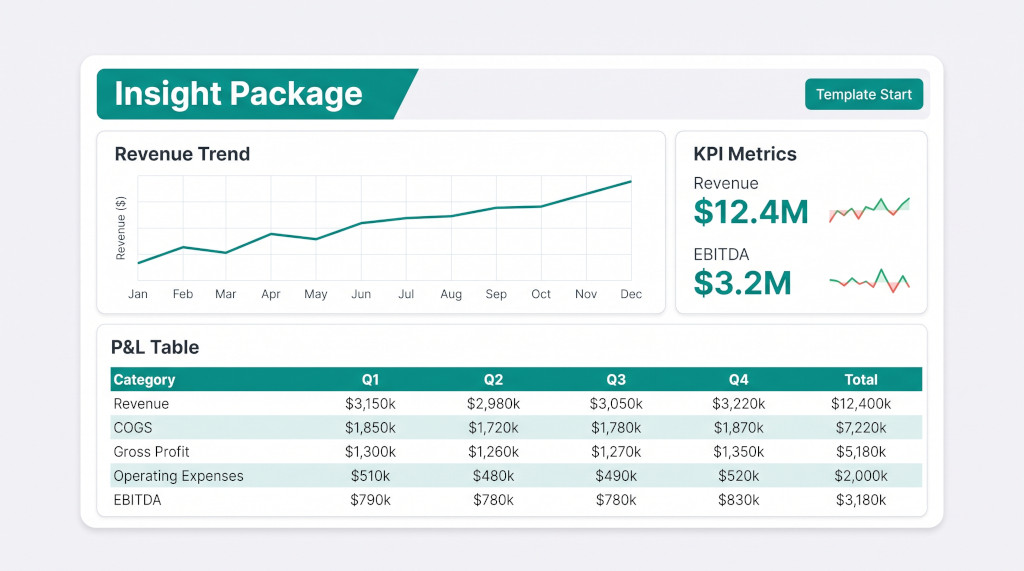
The dialog also shows your existing packages if you prefer to start by duplicating one (the existing “Duplicate Existing” workflow) or build from nothing (the “Add a new insight package” option). Template Start is a third path that sits alongside these — appropriate when you have a standardised reporting format your whole team uses.
Templates are created and managed by administrators. If you need a new template or want to modify an existing one, your BrizoConsol administrator can set it up from the back-end configuration. Existing templates appear in the dropdown as soon as they are active; the Template Start button is disabled if no templates have been configured yet.
Practical impact: monthly board reporting
Consider a group that produces a monthly board pack with a fixed structure: a cover page title, a revenue dashboard, a P&L pulse view, a three-entity comparative report, and a commentary section. Previously, someone created this package once and duplicated it each month, then updated dates and commentary. With Template Start, a new period’s package is created in two clicks — selecting the “Board Pack” template and confirming. Every section is wired to live data automatically. Only the commentary text needs to be updated.
Activating the New Features: A Checklist
- Exchange rate import: Navigate to Exchange Rates in your group organisation. Click Download template to get a pre-filled file for the current year. Edit the rates for your required scenarios (Actual, Forecast, Budget), rate types (Average, Closing), and currencies. Save as CSV or XLSX and use the upload drop zone to import. Confirm the created/updated/deleted counts match your expectations.
- Display currency: Open any Dashboard or Pulse view. Locate the currency dropdown in the page header (it appears only when your group has exchange rates configured for at least one additional currency). Select your preferred presentation currency. The page re-renders immediately. Your selection persists across browser sessions for that device.
- Budget/forecast import: Navigate to the Data Load page for the entity whose planning data you want to import. Select your file, choose the scenario (Forecast or Budget), and select the target report. Upload and review the result summary. Verify the imported data in the entity’s trial balance view before running consolidated reports.
- Insight package templates: Contact your BrizoConsol administrator to confirm whether templates have been configured for your organisation. If not, ask them to set up at least one template for your standard reporting pack. Once templates are active, go to Insight Packages, click Template Start, select the appropriate template from the dropdown, and confirm. Review the generated package sections and customise as needed for the current period.
- End-to-end check: After completing all imports, open a dashboard, set the display currency to your group’s presentation currency, and verify that the consolidated numbers — including translated subsidiary amounts — look correct for at least one key metric before distributing the pack.
Ready to Simplify Your Consolidation Workflow?
BrizoConsol handles multi-entity consolidation, multi-currency translation, and stakeholder-ready reporting packs — without the manual spreadsheet work. Start Free Trial