Find What Matters Fast: Advanced Filters for BrizoConsol Reports
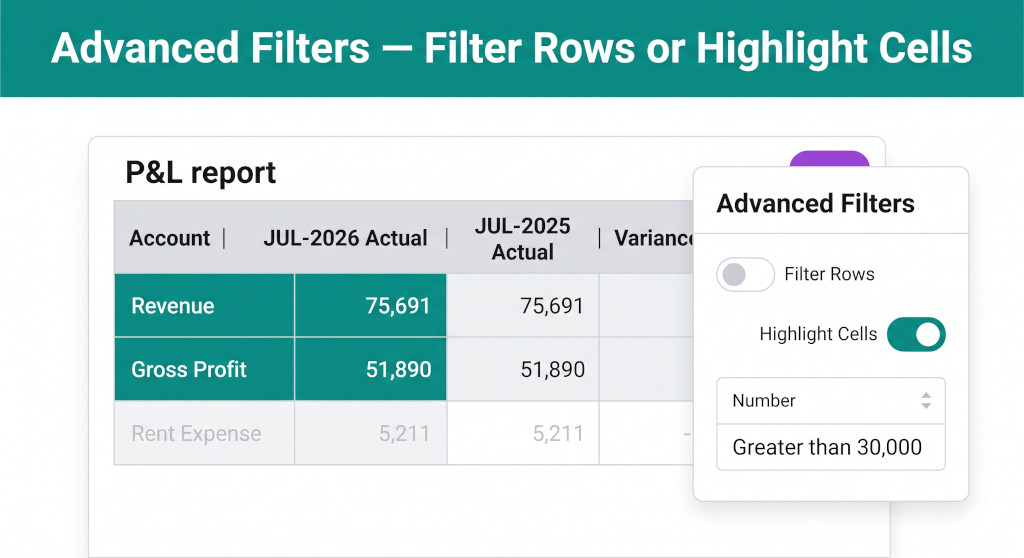
Every monthly close produces the same ritual: pull the P&L, export it to Excel, apply a filter to find rows with variances above a certain threshold, colour-code the ones that matter, send a version to the CFO. The information was in the consolidation platform all along. The export was just the only way to slice it.
BrizoConsol’s Advanced Filters change that. From any report — P&L, Balance Sheet, Variance — you can now filter or highlight rows directly in the platform, using criteria based on account name, account code, account type, or a numeric threshold against any column. The result appears instantly, with an active filter tag showing exactly what is applied. No export required.
Two Modes: Filter Rows and Highlight Cells
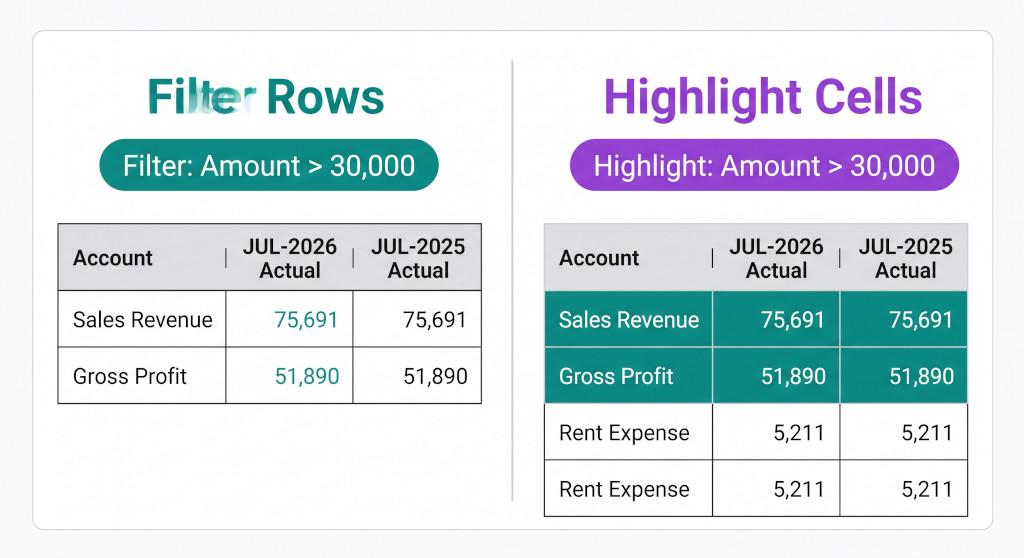
Filter Rows strips the report to matching rows only. Highlight Cells keeps everything visible and marks the cells that match.
Stop building consolidations in spreadsheets.
BrizoConsol automates multi-entity consolidation — setup in minutes, reports the same day.
When you open the Advanced Filters panel, the first choice is the result mode. There are two options, and they serve different purposes:
Filter Rows
Only rows that match all active criteria are displayed. Every other row is hidden. The report becomes a focused list — useful when you want to review a specific subset of accounts, present a clean view to a stakeholder, or check that a particular account type behaves as expected.
Highlight Cells
All rows remain visible. Cells in matching rows that satisfy the numeric criterion are filled with a solid colour. The report retains its full context — you can see where the highlighted figures sit relative to the rest of the P&L — while the values that need attention stand out immediately.
Both modes display an active filter tag below the report header — for example,
Filter: Amount: Any visible column > 30,000
or
Highlight: Amount: Any visible column > 30,000 — with an × to clear the filter in one click.
Filter Rows is the right mode when you want a clean, focused output — for a board slide, a follow-up query, or an audit sample. Highlight Cells is the right mode when you want the full picture but with problem areas flagged, so you can see immediately whether a large variance sits in revenue, direct costs, or overheads.
Four Filter Criteria — Use Any Combination
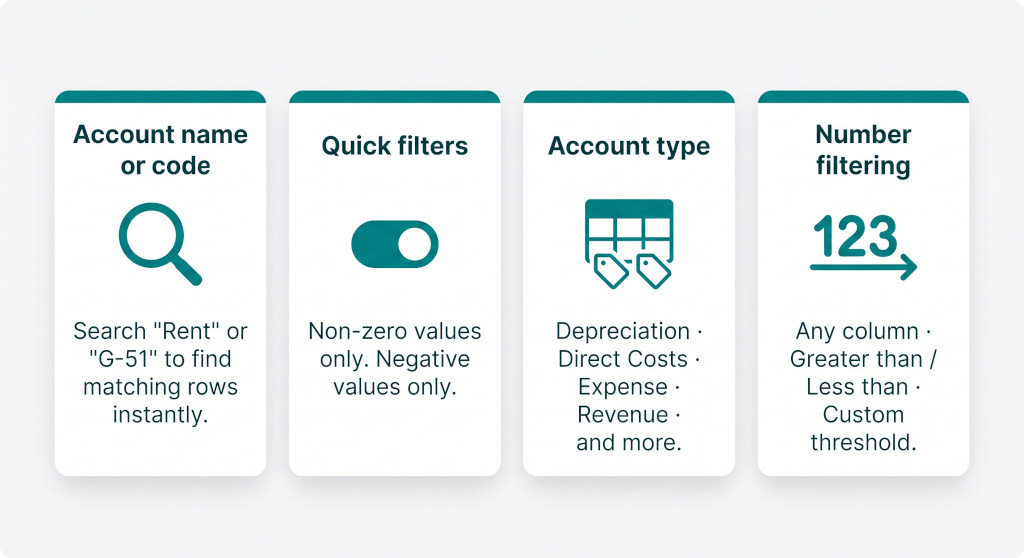
The Advanced Filters panel — four criteria that can be combined to pinpoint exactly the rows you need.
The Advanced Filters panel offers four types of criteria. Any combination can be active at the same time — each one narrows the result further.
- Account name or code A text search field. Type a partial account name (e.g. “Rent” to find Rent Expense) or an account code prefix (e.g. “G-51” to find all accounts in the G-51x range). Matches are case-insensitive and update as you type, so you do not need to know the exact account name in advance.
- Quick filters Two checkboxes for the most common single-click filters: Non-zero values only hides accounts with no activity in the selected period — useful for cleaning up a trial balance view or removing dormant accounts from a presentation. Negative values only surfaces accounts where the balance is negative — useful for spotting credit balances in expense accounts or debit balances in liability accounts.
- Account type A set of toggle buttons — one per account type in BrizoConsol. Available types: Depreciation, Direct Costs, Expense, Interest Expense, Interest Income, Other Expense, Other Income, Revenue, Taxes Expense. Select one or more to restrict the view to those account categories. Useful for isolating all expense accounts for a cost review, or all revenue accounts for a top-line discussion.
- Number filtering Three controls: which column(s) the filter applies to (any single visible column, or “Any visible column” to check all of them), the operator (Greater than, Less than, Equal to, and so on), and the threshold value. The example in the screenshots shows Amount: Any visible column > 30,000 — which surfaces rows where any column in the report exceeds 30,000 in absolute value.
The account type options cover the full classification set used across BrizoConsol reports:
Practical Use Cases
The combination of filter criteria and result modes covers a wide range of reporting situations that previously required an Excel export:
Large variance review
Set Highlight Cells + Amount: Any visible column > [threshold]. Every line with a significant variance is immediately visible in context, without hiding the surrounding P&L structure.
Cost review by type
Select Account type: Expense (and Direct Costs, Depreciation as needed) + Filter Rows. The report shows only cost lines — a clean input for a cost reduction review or budget reforecast discussion.
Dormant account check
Enable Non-zero values only. Removes accounts with no activity in the period, making it easy to confirm which accounts are active and whether any unexpectedly dormant accounts need investigation.
Specific account lookup
Type an account name or code into the search field. Instant match — no scrolling through a long trial balance. Useful when a stakeholder asks about a specific line item during a review call.
Negative balance alert
Enable Negative values only + Account type: Expense. Surfaces any expense account with a credit balance — a common sign of a posting error or a reversal that did not complete correctly.
Board-ready subset
Filter Rows + Account type: Revenue + Amount: Variance column > [materiality threshold]. A concise revenue variance view ready to screenshot or present directly — no reformatting needed.
Applying and Clearing Filters
Open the Advanced Filters panel from the report header. Set the result mode first, then configure whichever combination of criteria applies to the task. Click Apply filters to run the filter — the report updates immediately and the active filter tag appears below the header, showing exactly what is applied.
To remove the filter, click the × on the active filter tag or open the panel and click Clear all. The report returns to its full unfiltered view. Filters are not saved between sessions — each time you open a report, it opens in its default unfiltered state, so there is no risk of a stakeholder receiving a pre-filtered view without realising it.
Because filters apply to the live consolidated data in BrizoConsol, the results are always current. There is no need to re-export and re-filter after a data refresh — open the report, apply the same criteria, and the updated figures are already there.
Stop exporting to filter
Advanced Filters are available now across BrizoConsol reports. Try Filter Rows and Highlight Cells on your next monthly P&L review and see how much of the post-export work disappears. Start Free Trial