The Daily Brief: Every Login Starts with the Numbers That Matter
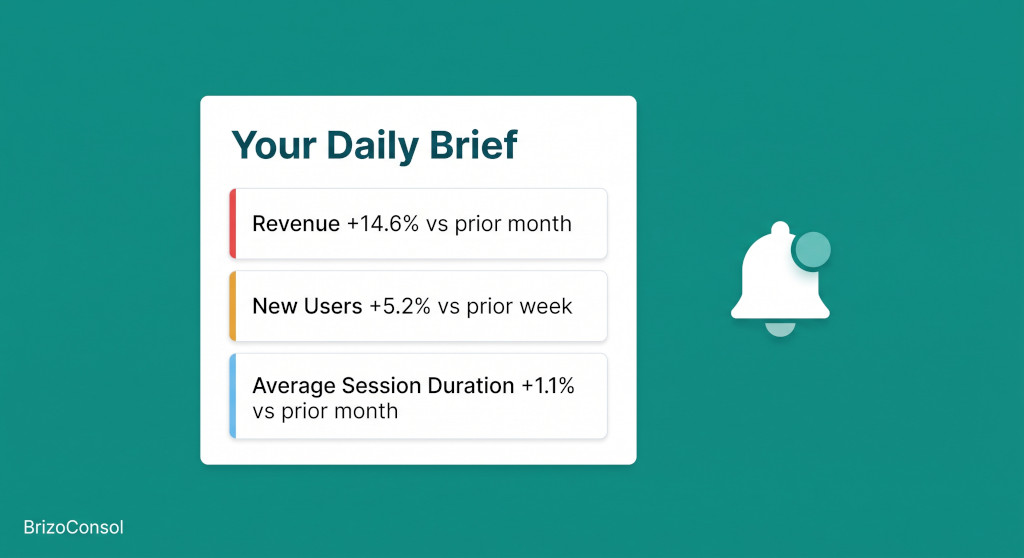
Every finance team that runs a multi-entity group has the same Monday morning ritual. You log into your consolidation tool, open the main dashboard, scan for anything unusual, click into the P&L, check whether the budget variance has moved, pull up the intercompany panel, wonder whether that receivable balance is still unmatched — and all of that happens before you have read a single email. It is not analysis. It is reconnaissance, and it takes time you did not budget for it.
The Daily Brief is BrizoConsol’s answer to that reconnaissance problem. It is a structured, materiality-filtered summary of what changed in your consolidated group since the last comparable period. It opens automatically when you log in — once per day, or once per week, or once per month, depending on how you want it — and it tells you, in plain terms, whether anything moved enough to warrant your attention. When nothing material changed, it says so. When something did, it tells you what, by how much, and which entity drove it.
This post covers exactly what the Daily Brief checks, how it decides what to surface, and how to configure it so the output is specific to the way your group is structured.
Stop building consolidations in spreadsheets.
BrizoConsol automates multi-entity consolidation — setup in minutes, reports the same day.
What the Daily Brief is not
Before getting into what it covers, it is worth being precise about what it is not. The Daily Brief is not a chat interface, not an AI narrative, and not a dashboard. It does not summarise text or generate commentary. Every finding it shows is a concrete number — an amount in the group’s presentation currency, a percentage movement, a period label, and the entities involved. If the number did not move by at least 5% against the prior comparable period and by at least 5,000 in the group’s presentation currency, the brief does not mention it. Both thresholds must be cleared.
That design choice matters because most financial summaries err in the direction of too much. A brief that surfaces a 0.3% revenue movement because it happened to clear an absolute threshold, or flags a balance sheet line because of a rounding entry, trains users to ignore it. The dual threshold keeps the output signal rather than noise.
Every figure in the Daily Brief comes from the same engines that power BrizoConsol’s dashboards and reports. No financial calculation is introduced for the brief — it reads from the KPI engine, the consolidated trial-balance, the budget/forecast scenario data, and the intercompany detection tools.
How it appears at login
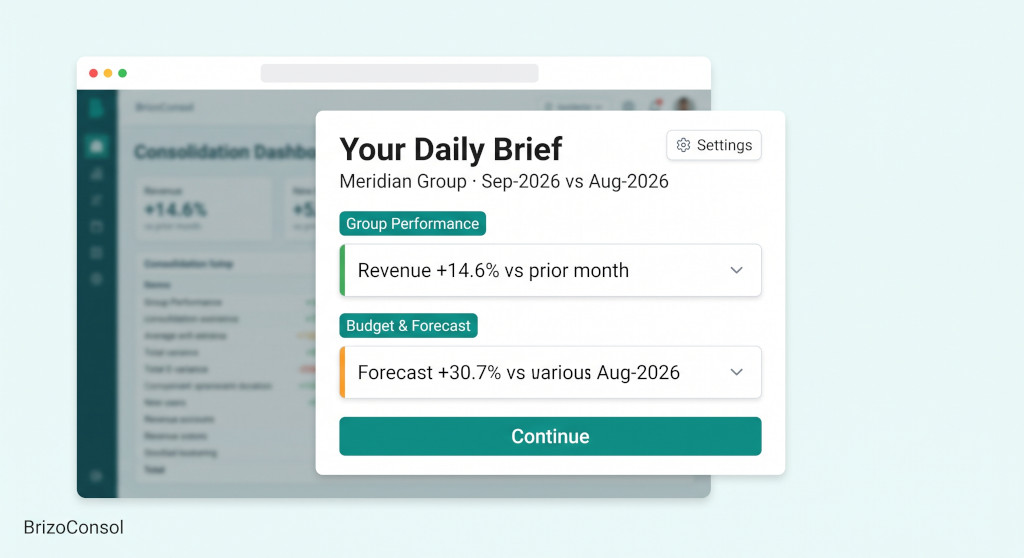
The Daily Brief opens as a modal dialog on your first authenticated page load of the chosen period. The dialog appears immediately — it never blocks login — and the findings populate in the background as the brief is generated. If you land on the dashboard while notifications are still loading, the brief waits until both are ready before it opens, so it always shows a complete picture.
The brief is offered once per period: once per calendar day if you are on the daily setting, once per ISO week on weekly, once per calendar month on monthly. The first request of the period claims the brief; subsequent page loads within the same period do not re-open it. That claim is atomic — if you have two tabs open, only one fires the dialog.
Once the period’s brief has been claimed, you can still open it again at any time. The notification bell in the top-right corner of BrizoConsol now carries a “Daily Brief” link at the top of the dropdown. Clicking it opens the same dialog on demand, without waiting for the next period.
What it covers
The brief is organised into seven categories. Each category represents a different lens on the consolidated numbers, and each one can be toggled on or off individually. Within most categories, individual line items can be toggled as well, so a group that does not track depreciation in its brief can turn off that one line without affecting the rest of the Budget & Forecast category.
Group Performance
Material movements in consolidated revenue, gross profit, operating profit and net profit against the comparable period. This category is on by default. It is the P&L summary lens — the first four KPIs most finance leads check on arrival — and it covers the group’s consolidated position, not any individual entity’s.
Budget & Forecast
Variances between consolidated actuals and the budget or forecast scenario held in BrizoConsol. Covers revenue, gross profit, operating profit, net profit, operating expenses, depreciation, interest expense and other expenses. Also on by default. This category only produces findings when a budget or forecast scenario has been loaded into the system — if no scenario data exists, the category stays silent rather than showing empty rows.
Entity Impact
When a consolidated P&L or balance sheet line moves materially, the brief can name the entities that drove it. But it only does so when a single entity’s own movement accounts for at least 20% of the consolidated movement. That threshold exists for a specific reason: below 20%, there is no dominant driver — the movement is spread across the group — and naming entities at that point would be misleading rather than useful. Entity Impact is on by default and is available only in group scope (not for entity-deployed users).
Intercompany
Intercompany differences, unmatched accounts, elimination exceptions, eliminations posted in the current month, and outstanding elimination reviews that have not been confirmed. This category is off by default and is available on the Pro and Premium editions. It draws on the same intercompany detection engine that powers BrizoConsol’s intercompany module, so the findings here are the same exceptions that appear in that module — surfaced at login rather than requiring a separate navigation step.
Balance Sheet
Material movements in consolidated cash, trade receivables, inventory, trade payables, borrowings, equity and retained earnings. Off by default. Most groups review balance sheet positions weekly or monthly rather than daily, so this is designed to be turned on when the reporting cadence calls for it — typically during month-end close or when a specific balance is under scrutiny.
Consolidation
CTA / FCTR movements, NCI allocation changes, ownership structure changes, and consolidation adjustment journals posted in the current period. Off by default. Available in group scope only. This category is most useful during close, when confirming that the consolidation mechanics ran correctly is part of the sign-off checklist.
System Warnings
Connector, sync, mapping and account-setup warnings from BrizoConsol’s notification feed. This is the same feed the bell icon already surfaces — the brief makes it available in one place alongside the financial findings when the category is on. On by default.
See the Daily Brief in your group
Connect your entities, load your trial balances, and the Daily Brief generates automatically on your next login — no setup beyond that required. See It In Action
How findings are classified and displayed
Each finding carries a severity level: High, Medium, or Low. A filter strip at the top of the brief lets you narrow to one severity tier — useful when the brief is long and the priority is to action the high-severity items before the morning stand-up.
Findings are collapsed by default: the title is the brief, and you expand a card to see the supporting detail. The expanded view shows the amount in the presentation currency, the percentage movement, the comparison period, the entities involved where applicable, and a direct link to the relevant report or dashboard. That link takes you to the exact view the finding came from — the group P&L for a revenue movement, the intercompany panel for a difference, the consolidation adjustment journal for an adjustment finding.
The brief also shows a “generated” timestamp in the footer. Because generation is on-demand, the timestamp reflects how recently the underlying data was read — relevant when you are checking the brief mid-morning and want to know whether a recalculation that ran after your login is reflected.
A worked example: what the brief looks like for a typical month-end
Consider a group that closes September against August as the comparable period. The group has four entities: a Singapore holding company and operating subsidiaries in Australia, Malaysia, and the UK. Here is what a September brief might show, using Group Performance and Entity Impact with all other categories off:
| Group Performance findings | |
| Revenue — Sep-2026 vs Aug-2026 | |
| Consolidated revenue (Sep) | 9,420,000 |
| Consolidated revenue (Aug) | 8,200,000 |
| Movement | +1,220,000 |
| Movement % | +14.9% |
Both thresholds cleared: 14.9% ≥ 5% · SGD 1,220,000 ≥ SGD 5,000 → finding produced
| Entity Impact — Revenue | |
| Australia subsidiary movement | +940,000 |
| Australia share of consolidated movement | 77.0% |
| Threshold (20% minimum) | ✓ Named |
Malaysia: +180,000 (14.8%) — below 20% threshold, not named individually
The brief would show two findings: one under Group Performance (Revenue, severity Medium or High depending on the calibration) and one under Entity Impact (Australia driving the revenue movement). The Malaysia subsidiary’s contribution is below the 20% entity threshold, so it is not surfaced as a separate finding — it is implied by the gap between the Australia figure and the consolidated total.
If you expand the Revenue finding card, you see the amount (+1,220,000 SGD), the percentage (+14.9%), the period (Sep-2026 vs Aug-2026), and a link directly to the Group P&L report. If you expand the Entity Impact card, you see Australia named with its contribution amount and a link to the entity-level P&L.
Configuring what you see
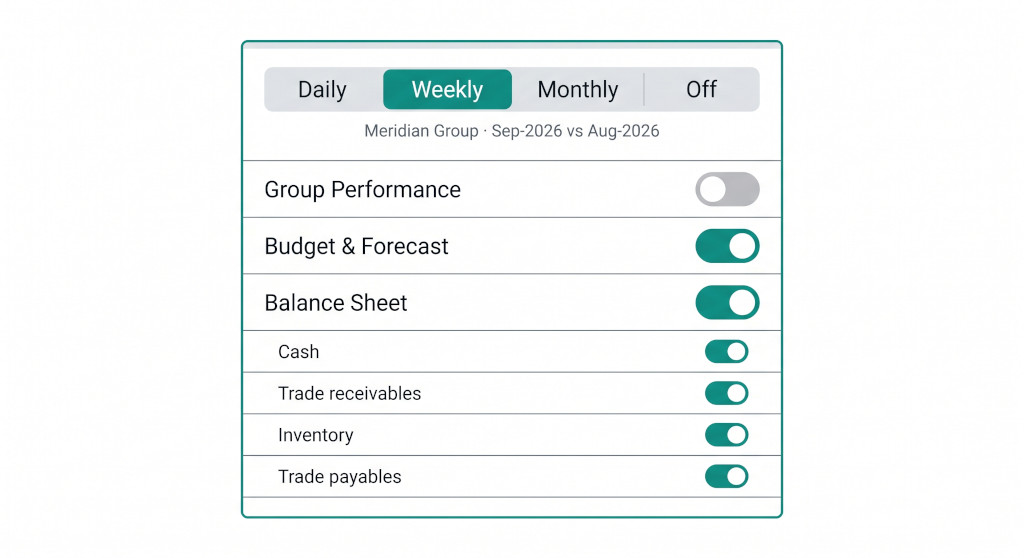
The Settings button in the top-right corner of the brief opens the configuration panel. Every setting is per-user — your configuration does not affect what other members of your organisation see.
At the top of the settings panel is the Open automatically frequency selector: Daily, Weekly, Monthly, or Off. Choosing Off means the brief never opens itself at login; the “Daily Brief” link in the notification bell still works, so you retain on-demand access. Switching from Off back to any frequency offers the brief on the very next page load, without waiting for the next period boundary — so switching from Off to Daily does not make you wait until tomorrow.
Below the frequency selector, each category appears as a row with a toggle switch on the right. Categories the subscription edition does not include are shown as locked with a clear label — “Group” for the group-scope categories, “Pro” for the Intercompany category — rather than hidden. That way you can see what is available at a higher tier without navigating elsewhere to find it.
When a category is active, its individual items expand below the toggle. You can turn off specific items — for example, keep the Balance Sheet category on but exclude Inventory and Borrowings — and the brief will only run checks for the items you have left enabled. Saving the settings regenerates the brief immediately, so the dialog reflects your new selection without a second load.
Entity-deployed users
Not every BrizoConsol user has access to the consolidating organisation. Users who are deployed to a single entity — typically staff at a subsidiary who are authorised to load data for their entity but are not given group-level access — receive an entity-scoped version of the brief.
In entity scope, the Group Performance category becomes “Performance” and its descriptions refer to the entity rather than the group. Budget & Forecast and Balance Sheet work the same way, reading the entity’s own trial-balance data mapped to the group chart of accounts. The group-only categories — Entity Impact, Intercompany, and Consolidation — are locked out, because they require the consolidated view that entity-deployed users do not hold.
This means an entity CFO who logs into BrizoConsol gets a brief that is genuinely about their entity, not a group summary with most of the findings greyed out.
Access and availability
The Daily Brief is available to users with report-viewer access and above: Report Viewer, Dashboard Admin, Report Admin, Administrator, and the subscription owner. Data-entry-only roles — Data Loading Admin, Journals Admin, Excel Add-in Viewer — do not see it. The brief is a financial output, not an input interface, and those roles are scoped to the input side of BrizoConsol.
All categories except Intercompany are available on every BrizoConsol edition. The Intercompany category requires Pro or Premium. No administrator configuration is needed to enable the Daily Brief — it appears for eligible users on their next login after this release. Individual users can configure their own categories and frequency from the Settings panel inside the dialog.
First-time setup checklist
The following steps cover everything a finance lead or BrizoConsol administrator needs to do to get the most out of the Daily Brief on day one.
- Log in — the Daily Brief opens automatically on your first login if you have Report Viewer access or above and the subscription is active. No action required beyond logging in.
- Review the default categories — Group Performance, Budget & Forecast, Entity Impact, and System Warnings are on by default. If these are the four categories that matter most for your morning check, the brief is immediately useful with no changes.
- Open Settings from the brief header if you want to adjust. Turn on Balance Sheet if you are in close and want to track that movement daily. Turn on Intercompany (Pro/Premium) if your group runs intercompany transactions that need daily exception monitoring.
- Set your frequency — if daily is too frequent for your review cadence, switch to Weekly. Monthly is appropriate for groups whose P&L moves are primarily driven by month-end close entries rather than day-to-day trading.
- Turn off individual items within categories where the default is not relevant. For example, if your group does not carry inventory, remove that item from Balance Sheet so the category does not surface a zero-movement line.
- Save and review — saving the settings regenerates the brief immediately. You see your configured output in the same session.
- Bookmark the bell — for on-demand access between periods, use the “Daily Brief” link in the notification bell dropdown. This is the access path for the rest of the day after the period’s first-login dialog has already appeared.
Ready to start every login with the numbers that matter?
The Daily Brief is available now in BrizoConsol. Start a free trial to see it in your group from the first login. Start Free Trial