Global Search in BrizoConsol: Find Any Entity, Account, or Report in Seconds
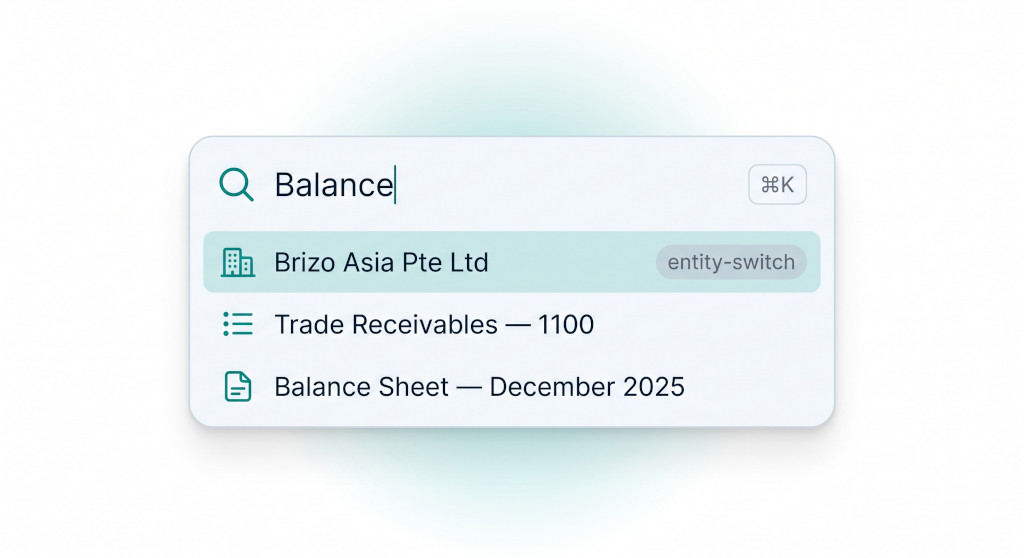
Anyone who works inside a multi-entity consolidation group knows the drill. You need to check a specific subsidiary’s trial balance upload, or navigate quickly to the intercompany elimination rules, or pull up a custom report you built three weeks ago. The destination exists — you just have to click through the sidebar, switch entities, remember which section the setting lives under, and arrive at the right screen. Multiply that by thirty interactions a day and the overhead is real.
That navigation friction is gone. BrizoConsol now includes a global search dialog that opens anywhere in the application with a single keyboard shortcut. One keystroke, a few characters, and you are looking at the result — whether it is an entity, an account code, a financial report, an invoice reference, a dashboard, or a navigation page buried four levels into the settings menu.
This post walks through exactly what the feature covers, how it ranks and surfaces results, and a first-use checklist to make sure you are getting the most out of it from day one.
Stop building consolidations in spreadsheets.
BrizoConsol automates multi-entity consolidation — setup in minutes, reports the same day.
Opening the Search Dialog
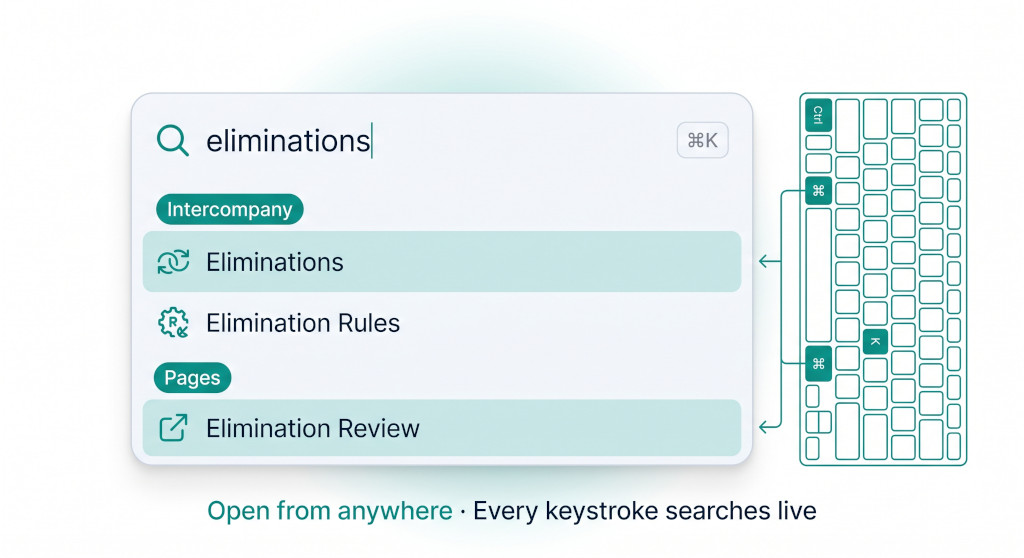
Press Ctrl + K on Windows or Linux, or ⌘K on a Mac, from any screen inside BrizoConsol. The search dialog opens as an overlay. Press Esc to close it, or click anywhere outside the panel.
If you prefer the mouse, a Search button sits in the application header. Clicking it opens the same dialog. The button also displays the keyboard shortcut badge so the prompt stays visible as a reminder.
The dialog is a portal rendered at the root of the page — it sits outside the sticky header’s stacking context, which means it overlays every screen correctly regardless of the layout you are on, including reports with fixed columns or dashboards with pinned chart panels.
What the Search Covers
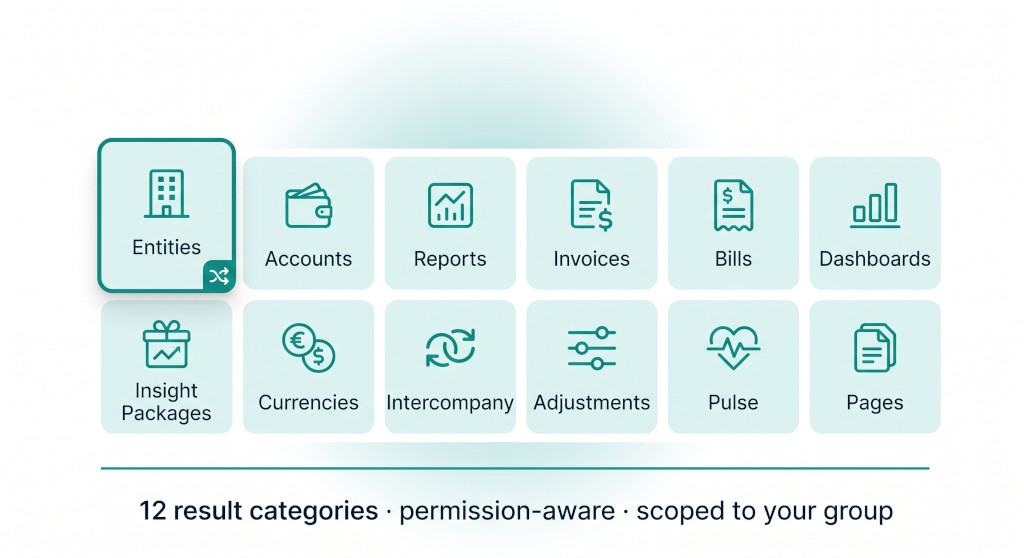
The search runs across twelve distinct result categories simultaneously. Each category is permission-gated, so a result only appears if you have access to the destination page. You will never see a link to a screen you cannot open.
| Category | What it searches |
|---|---|
| Entities | Organisation names and connected accounting shortcodes across your entire accessible group |
| Accounts | Chart of accounts names and account codes in the current entity |
| Reports | Standard and custom financial reports saved in the current entity |
| Invoices | Invoice references and customer names (most recent 500 records) |
| Bills | Bill references and supplier names (most recent 500 records) |
| Dashboards | Custom dashboards configured in the current entity |
| Insight Packages | Board packs and published insight packages |
| Currencies | Currency codes and names used across the group |
| Intercompany | Intercompany transaction references and counterparty names |
| Adjustments | Consolidation journal and adjustment entries |
| Pulse | Key Metrics, Cashflow Analysis, Receivables, and Payables pulse reports |
| Pages | Curated shortcuts to 40+ application screens, with intelligent keyword aliases |
The search is scoped to the entity you are currently working in, plus every entity in your accessible group. Entity results that belong to a different organisation include an automatic context switch — clicking the result changes your active entity before opening the destination, the same way the sidebar entity switcher works.
Encrypted fields — organisation names and chart-of-account names — are decrypted in memory before matching. The search never attempts a SQL LIKE query against an encrypted column, which means production data is matched correctly without ever exposing plaintext in the database query layer.
How the Ranking Works
The search is fully deterministic — no AI, no fuzzy logic. Every character you type is compared against the stored values using a four-level scoring hierarchy:
| Exact match | 1,000 pts |
| Starts with query | 800 pts |
| Word boundary match (e.g. “rec” matches “Trade Receivables”) | 600 pts |
| Contains match anywhere in the field | 400 pts |
Multi-word queries apply an AND rule: every word in your query must match somewhere in the result, but not necessarily in the same field or in order. Typing “account standard” will find “Accounting Standards” because both words appear. A multi-word match is scored slightly lower than a single phrase match of equivalent weight (a 5% damping factor per token) so that a clean phrase hit still ranks above a scattered two-word hit on the same result.
Results are grouped by category, capped at six per group and forty in total, and the group order is determined by the best-scoring result in that group. If your query produces an exact entity-name hit, the Entities group rises to the top regardless of how other categories score.
The Pages Category: Navigation Without the Sidebar
The most immediately useful category for many users will be Pages. It contains over forty curated shortcuts to screens throughout BrizoConsol, each with a hand-written set of keyword aliases that capture the natural language people use for those screens.
A few examples of what this looks like in practice:
- Typing gaap surfaces “Accounting Standards”
- Typing mapping surfaces “Account Mapping”
- Typing kpi surfaces “KPI Setup”
- Typing 2fa surfaces “Two-Factor Authentication”
- Typing upload or actuals surfaces “Data Load”
- Typing board pack surfaces “Create Insight Package”
- Typing period lock or month end surfaces “Month End Status”
- Typing home or overview surfaces “Dashboard”
Pages results are also permission-gated. A user without admin access will not see “User Deployments” or “Backup & Restore” in their results, even if they type the keywords. System administration screens only appear for system-level users.
Invoice and Bill Drilling
The Invoices and Bills categories let you search by reference number, customer name, or supplier name. Clicking a result opens the document list pre-filtered to that specific record. This is useful during a review cycle when a counterpart queries a specific invoice — rather than navigating to Documents, selecting the invoice tab, and applying a filter, you type the reference in the search dialog and land directly on that row.
The invoice and bill search scans the most recent 500 records per entity. For firms processing high document volumes, the intent is to reach current-period records quickly — historical lookups are better served by the full filter panel in the Documents screen.
A Worked Example: Navigating a Month-End Close
Consider a group with four subsidiaries — Brizo Asia, Brizo Europe, Brizo Australia, and the top-level Brizo Holdings. It is month-end. The consolidation accountant needs to: check the CTA balance for Brizo Europe, verify the NCI calculation, then review the intercompany elimination log before locking the period.
Without global search, each of those is a multi-step sidebar journey that requires switching entities between the CTA and NCI screens. With global search:
| Query typed | Result opened | Steps saved |
|---|---|---|
brizo europe | Entities → Brizo Europe (switches entity automatically) | Sidebar entity scroll + click |
cta | Adjustments → CTA (Currency Translation Adjustment) | Adjustments menu → CTA submenu |
nci reconcile | Adjustments → NCI Reconcile | Adjustments menu → NCI → Reconcile |
elimination log | Intercompany → Elimination Review | Intercompany menu → review submenu |
period lock | Pages → Month End Status | Adjustments menu → Month End Status |
Five navigations that previously required sidebar drilling and entity switching are now five typed queries. The time saving is modest per action, but across a full close cycle involving multiple rounds of review and correction across four entities, it is material.
Try Global Search on Your Consolidation Group
Open BrizoConsol, press Ctrl+K (or ⌘K on Mac), and type any entity name, account, or screen. No setup required — it works the moment you log in. Start Free Trial See It In Action
How Search Results Stay Accurate
Two design decisions are worth noting for users who care about data consistency.
First, the search makes a live API call on every keystroke (with a 180-millisecond debounce). There is no cached index to refresh — the results always reflect the current state of your data. If you rename an entity or add a new account, it appears in search immediately on the next query.
Second, in-flight requests are aborted when you type the next character. A slow server response for an earlier query cannot overwrite a more recent one. The loading spinner disappears only when the result set matches your current input, so you will never see stale results from a previous query.
Keyboard Navigation Inside the Dialog
The search dialog is fully keyboard-navigable. Once the dialog is open:
- Arrow Down / Arrow Up — move the highlight through all results across all groups
- Enter — open the highlighted result
- Esc — close the dialog and return to where you were
- Ctrl/⌘ + K again — toggles the dialog closed if it is already open
One edge case: rich-text editors in BrizoConsol (such as the Tiptap-based comment editor) already use Ctrl+K to insert a link. The global search shortcut is suppressed inside any content-editable element so the two shortcuts do not conflict.
First-Use Checklist
- Log in to BrizoConsol and press Ctrl+K (Windows/Linux) or ⌘K (Mac) to open the search dialog.
- Type the name of any subsidiary entity in your group and confirm it appears in the Entities category. Click it to verify the entity switch works correctly.
- Type an account code or partial account name — for example the first three digits of a balance sheet account — and confirm the Accounts category shows the relevant entries.
- Type gaap, mapping, or kpi and confirm the Pages category surfaces the correct screen.
- Type a known invoice reference (or the first few characters of a customer name) and confirm the Invoices category shows the record. Click through to verify the document list opens pre-filtered.
- Type month end or period lock and navigate to Month End Status to confirm your period status is current before continuing with your close.
- Share the shortcut with your team: Ctrl+K on Windows/Linux, ⌘K on Mac. No administrator setup is required — the feature is enabled for all users on every plan.
Ready to See the Full Platform?
Global search is one part of a consolidation platform built for multi-entity accounting teams. Book a personalised walkthrough to see how BrizoConsol handles your group structure. See It In Action Start Free Trial