Insight Packages: Insert Supporting Files and Publish a Locked Snapshot for Any Reporting Period
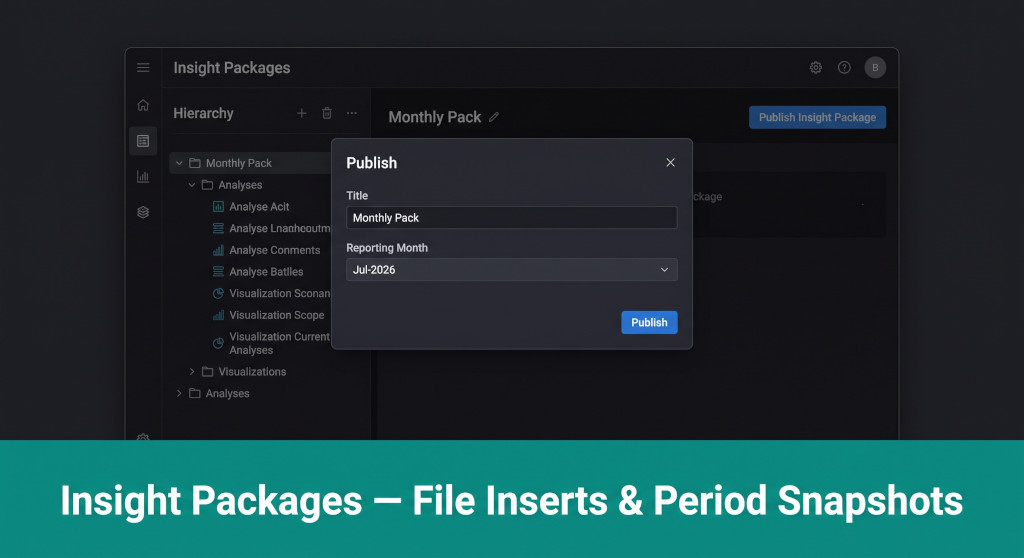
A management pack is rarely just charts and tables. A complete monthly or board pack typically includes a narrative commentary written by the CFO, a budget-versus-actual variance analysis exported from the budgeting tool, a copy of the latest investor agreement, or a due diligence summary prepared in Word. Until now, these supporting documents lived outside BrizoConsol — attached to emails, linked from shared drives, or appended manually to a PDF after export.
Two new features change this. Insight Packages in BrizoConsol now support inserting Excel, Word, and PDF files directly as sections within the package, sitting alongside the live consolidated data. And once the pack is ready, it can be published as a locked snapshot for a specific reporting period — a static, distributable version of the full pack as it stood at that moment in time, with a custom title and a selected reporting month.
Feature One: Insert a File as a Package Section
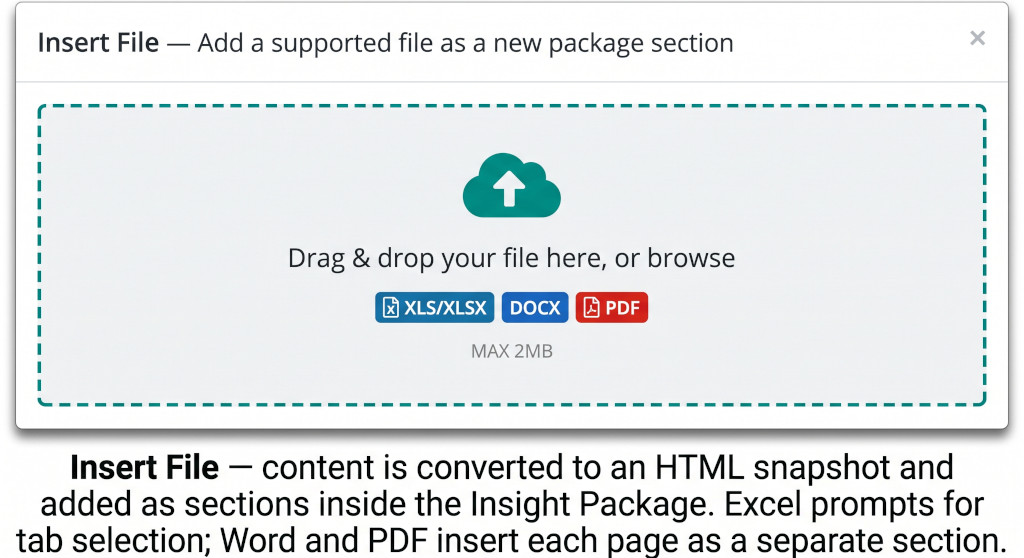
The Insert File modal — drag and drop or browse to add a supported file as a new section inside the Insight Package.
Stop building consolidations in spreadsheets.
BrizoConsol automates multi-entity consolidation — setup in minutes, reports the same day.
The Insert File feature lets you add any supported document as sections inside an Insight Package, positioned alongside the live report sections in the package’s table of contents. When a file is uploaded, BrizoConsol converts its content to HTML — creating a snapshot of the file as it was at the time of upload. That snapshot is included in the package’s page numbering, the table of contents, and any published export — rather than linking to an external attachment that may change or move.
Supported file types
Three formats are supported: XLS/XLSX, DOCX, PDF. The file size limit is 2MB. Files are uploaded via drag-and-drop or the file browser.
Excel (XLS / XLSX)
Upload a budget model, a five-year forecast, or a headcount summary. BrizoConsol prompts you to select which tab to import. The selected tab’s content is converted to an HTML snapshot and inserted as a single section in the package.
Word (DOCX)
Upload a CFO commentary, a risk register, an audit committee paper, or a board resolution. Each page of the Word document is converted to HTML and inserted as a separate section — so a three-page commentary becomes three sequentially numbered sections.
Upload a signed legal agreement, a regulatory filing, or a valuation report. Each page of the PDF is converted to HTML and inserted as a separate section, preserving the document’s layout as a snapshot within the package.
Positioned in the table of contents
All inserted sections appear numbered in the package’s table of contents alongside the live data sections — so the complete pack, including supporting documents, is navigable from the cover page.
How to insert a file
- Open the Insight Package editorGo to Insight Packages in the left navigation and open the package you want to add the file to (e.g. Monthly Pack). Click “Manage sections.”
- Add a new sectionClick “Add section” in the Manage Section panel. Select the file insert option to open the Insert File modal.
- Upload the fileDrag and drop your file into the upload zone, or click to browse. Supported types are XLS/XLSX, DOCX, and PDF (maximum 2MB). For Excel files, BrizoConsol will prompt you to select which tab to import. For Word and PDF files, each page is converted to HTML and added as a separate section automatically.
- Name the sectionGive the section a label that will appear in the table of contents — for example, “CFO Commentary”, “Budget vs Actual”, or “Board Resolution.”
- Set the section positionDrag the section to the correct position in the section list. Configure page orientation (portrait or landscape) and whether to start from a new page.
- Save changesClick Save changes. The HTML snapshot of the file content is now part of the package and will be included in any subsequent PDF export or published snapshot.
What this replaces
Before — manual assembly
- Export BrizoConsol pack as PDF
- Export budget model from Excel separately
- Open Adobe Acrobat or equivalent
- Merge PDFs manually
- Recheck page numbering
- Email the merged file to the board
After — single package
- Insert budget model as a section in BrizoConsol
- Insert CFO commentary as a DOCX section
- Publish the package for the reporting month
- Share the published snapshot link
Feature Two: Publish a Period Snapshot
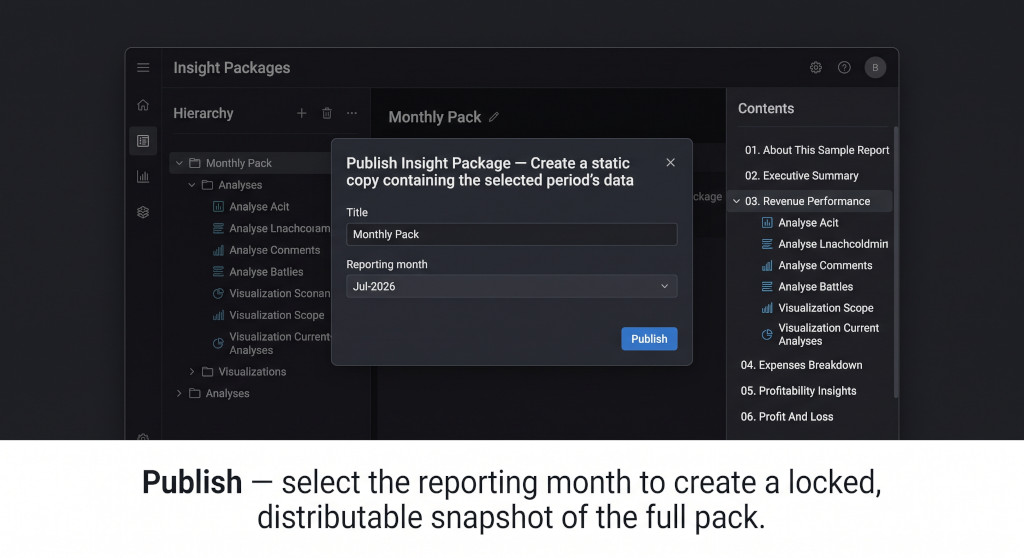
Publish — select a reporting month to create a static snapshot of the full Insight Package as it stood for that period.
Publishing an Insight Package creates a static snapshot — a locked copy of the full package containing the data for the selected reporting period. Once published, the snapshot does not update when new data arrives or when the underlying package template is edited. It represents a precise point-in-time record of what the group’s consolidated position looked like for that month.
What the publish dialog collects
The Publish dialog asks for two inputs:
Publish Title
A custom name for the published snapshot — for example, “Monthly Pack — July 2026” or “Board Pack Q3 FY2026.” This title distinguishes published snapshots from each other in the archive.
Reporting Month
The period whose data the snapshot will contain — selected from a dropdown. The snapshot locks in all figures, charts, and calculations as they stood for that month, including any inserted files.
Once you click Publish, BrizoConsol generates the snapshot in the background. The published pack includes every section in the Insight Package for the selected period: live data sections (revenue, expenses, profitability, consolidation adjustments) and any inserted files (Excel, Word, or PDF), all in one document with consistent page numbering and the table of contents from the cover.
A complete, locked management pack
The value of the publish feature is that the snapshot is immutable. The July 2026 board pack published on 15 August will still show July 2026 data when someone opens it in March 2027. It cannot be accidentally overwritten by a subsequent data load or by edits to the package template. For groups with audit, regulatory, or investor reporting obligations, this matters: the pack that was distributed to the board is permanently accessible in the form it was distributed.
Each published snapshot is a static copy tied to a specific reporting month. Editing the Insight Package template after publishing — adding sections, changing the cover theme, inserting new files — does not affect previously published snapshots. Prior packs remain exactly as they were at the time of publication.
What a published Monthly Pack contains
A typical Monthly Pack in BrizoConsol covers all the major reporting areas in a single document. With inserted files added alongside the live sections, a published pack for July 2026 might look like this:
Everything in one document, one page count, one share link. No assembly required.
Package Customisation Options
Insight Packages offer a range of presentation options that apply to both the live package and any published snapshots:
Orientation
Portrait or landscape, set at package level. Individual sections can override with their own page orientation — useful for wide financial tables that need landscape while the rest of the pack is portrait.
Cover Pattern & Theme
Six cover patterns (Dual Orbit, Matrix, Radiate, Signal, Grid, Woven Circles) and five colour themes (Teal, Midnight Blue, Navy, Charcoal, Burgundy) let you match the pack to your group’s brand or the audience’s preference.
Table of Contents
Automatically generated from the section list. Toggle whether to include it on the first page. Inserted file sections appear in the contents alongside live data sections.
Page Numbering & Footer
Optional page numbering and a configurable footer text (e.g. a confidentiality notice) run consistently across all sections — including inserted files — in both the live package and published snapshots.
Build your next management pack in BrizoConsol
Add your supporting documents, set the reporting month, and publish — a complete, locked, distributable pack in minutes. No PDF merging. No version confusion. See It In Action