Introducing BrizoConsol Premium and Enterprise / Partner: Two New Editions for Integrated Groups and Accounting Firms
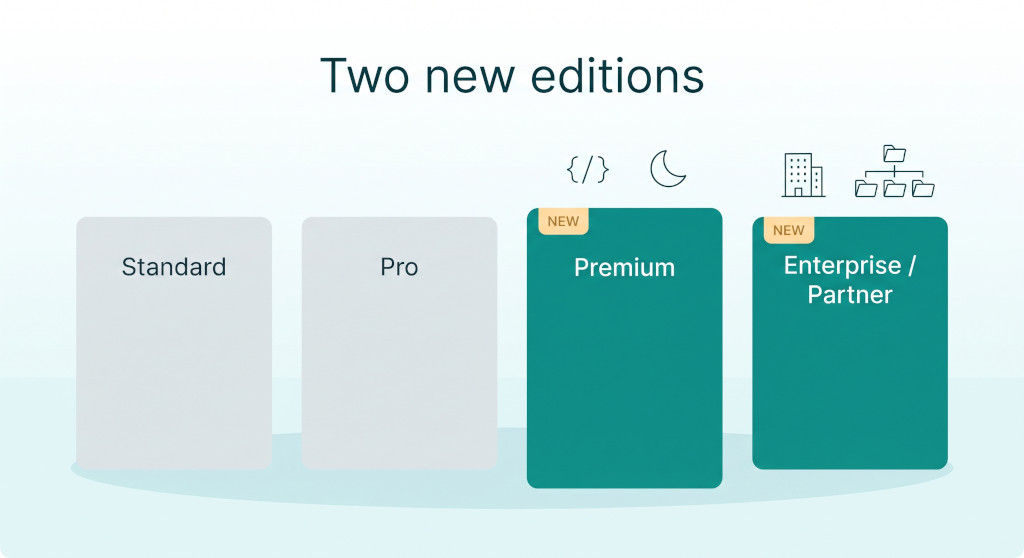
Two kinds of customer have been working around the edges of BrizoConsol. The first is the finance team whose trial balances already live in a system of their own — an ERP, a data warehouse, an in-house ledger — and who want the consolidation to happen without anyone exporting a file and uploading it each month. The second is the accounting firm running consolidations for a dozen clients, juggling separate logins, separate subscriptions and no single place to see who is working on which group.
Until now, both had to fit into a plan built for a single in-house team. The first group re-keyed or re-uploaded data that already existed in machine-readable form. The second managed each client as an unrelated workspace, with no firm-level view and no clean way to hand a client to a colleague without handing over the whole account.
BrizoConsol now has two new editions aimed squarely at those needs: Premium, at $65 per entity per month, and Enterprise / Partner, on custom pricing. Standard ($15) and Pro ($35) are unchanged. This post walks through what each new edition adds, how it works inside the product, and how to get started.
Stop building consolidations in spreadsheets.
BrizoConsol automates multi-entity consolidation — setup in minutes, reports the same day.
The four editions at a glance
Each edition includes everything in the one before it. All paid editions include unlimited users and MCP server access, and all are billed per leaf-level entity — the entities at the bottom of your group hierarchy. Holding or intermediate parent entities are not charged.
| Edition | Price | Adds |
|---|---|---|
| Standard | $15 / entity / month | Multi-entity consolidation, basic intercompany eliminations, single-currency reporting, Xero / QuickBooks / MYOB / Zoho Books, CSV upload, 2 years of data |
| Pro | $35 / entity / month | Multi-currency and CTA, NCI, Local GAAP / SFRS / IFRS / US GAAP / UK GAAP / AASB, full eliminations with AI detection, AI-assisted upload, budgeting and forecasting, cell-based reports, 5 years of data |
| Premium (new) | $65 / entity / month | REST API access, API-triggered consolidation (overnight), MCP write tools for Zapier, higher AI usage limits |
| Enterprise / Partner (new) | Custom | Partner deployment with a firm console, dedicated server, private cloud or VPN connectivity, larger capacity, priority support |
Premium: the API edition
Premium is for groups that want BrizoConsol to sit inside their own data pipeline rather than beside it. It keeps everything in Pro — multi-currency, CTA, NCI, every supported accounting standard, five years of data — and adds programmatic access to the platform.
REST API access
The BrizoConsol REST API is available only on Premium. API tokens are issued from inside the product, and a request made with a token from any other edition is refused with a clear message that the API is a Premium feature. Developer documentation is published at developer.brizoconsol.com.
Through the API you can write trial balances and supporting data into an entity, and read consolidated results back out — so a month-end can be driven from your own system rather than from the upload screen. Downgrading from Premium stops the API answering; it does not delete anything that was written through it.
API-triggered consolidation, overnight
The second Premium capability is the ability to ask for a consolidation through the API. The design is deliberately simple and predictable:
- Your system writes the month’s trial balance through the API.
- It posts a consolidation request for the group. BrizoConsol records the request and answers 202 Accepted straight away.
- The request waits for the overnight consolidation run, which processes the written data and the request together.
- Your system can check the request’s status through the same endpoint and read the consolidated figures once the run has completed.
Two details matter in practice. First, a trial balance written through the API does not kick off its own recalculation; it waits for the same overnight run, so a sequence of writes for several entities produces one consistent consolidation rather than several partial ones. Second, only one pending request is held per group — if your integration retries, the retry adds nothing, so you do not need to guard against duplicate consolidations on your side.
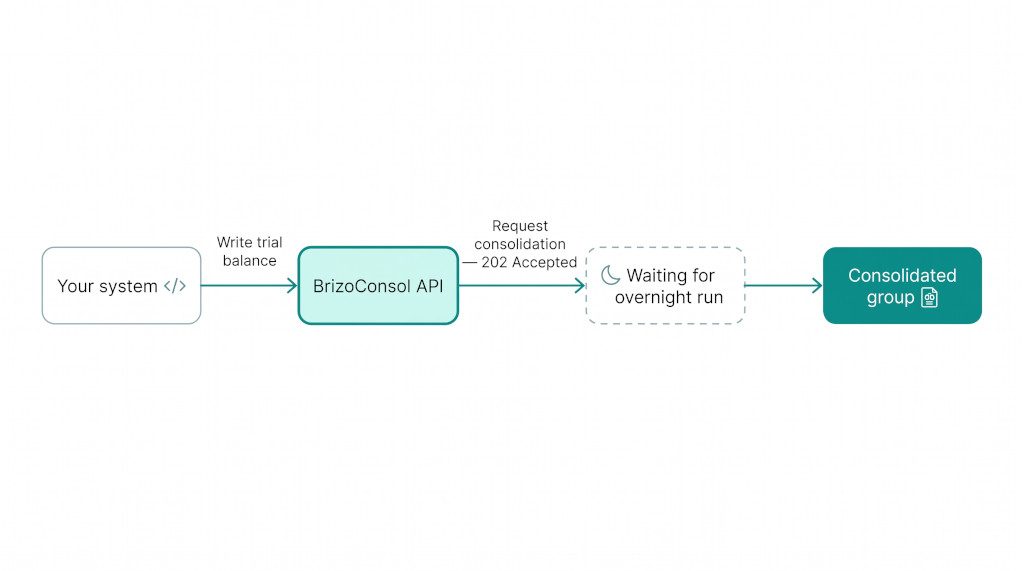
Overnight-only is a design choice, not a limitation to work around: data written during the day lands together, and the group is consolidated once, in full, before the morning.
MCP write tools for Zapier
The BrizoConsol MCP server is available on every edition for reading data with Claude, ChatGPT or Zapier. On Premium, Zapier can also write. The write tools cover six imports — accounts, trial balances, invoices, bills, transactions and operational data — plus a seventh that requests the group’s overnight consolidation. Each tool writes exactly what the matching REST API endpoint writes, so a Zap and a direct API integration put the same data into BrizoConsol by the same route.
That makes scheduled and event-driven imports possible without writing code: a Zap can load a trial balance on a schedule, push operational data when a row is added to a spreadsheet, or request the overnight consolidation once the month’s data is in. Claude and ChatGPT stay read-only and are never offered a write tool.
Writes are controlled from the AI settings screen. An administrator chooses which write scopes the group allows and, separately, which companies may be written to — a group can let its AI clients read eight companies while allowing imports into only two. The companies allowed for writing must be among those allowed for reading, and the person who approved the Zapier connection must have data-loading rights on the company a write reaches. If the group moves off Premium, the write tools stop answering on the next call; the settings are kept, so returning to Premium restores them without reconfiguration.
Higher AI usage limits
Premium carries higher AI usage limits than Standard and Pro, which matters for groups that lean on AI-assisted upload, BrizoMap account mapping and intercompany elimination detection across many entities each month.
Moving to Premium
Premium is reachable from Pro in the in-app Subscriptions screen. The upgrade dialog lists only the plans above your current one, with the features each adds, so a Pro customer sees Premium as the next step. Per-entity billing carries over unchanged — the entity count you pay for remains the cap on how many leaf entities the group can hold.
See Premium on your own group
Start on a free trial and explore the full consolidation engine before deciding which edition fits. Start Free Trial
Enterprise / Partner: the firm console
Enterprise / Partner is built for accounting firms that run consolidations for clients, and for organisations that need infrastructure arrangements beyond the shared platform. Its centrepiece is a firm console: a separate workspace mode in BrizoConsol where a firm manages all of its client groups from one place.
Firm roles and client roles
The console separates two questions that a single-company plan never had to ask: what can you do in the firm, and what can you do inside a particular client’s books?
- Firm roles — Owner, Admin and Staff — govern the console itself. Owners and admins create clients, manage the firm’s team, and assign team members to clients. A firm must always keep at least one owner.
- Client roles govern the books. These are the same roles BrizoConsol already uses — Administrator, Report Admin, Dashboard Admin, Report Viewer, Journals & Eliminations Admin, Data Loading Admin and Excel Add-in Viewer — granted per client from the firm’s Team screen.
Belonging to the firm never, on its own, opens a client’s financial data. A team member sees a client’s numbers only when they hold a client role on that client. A client role covers the whole client workspace, so as the group grows from one company to several, the assignment does not need to be repeated per entity.
The firm dashboard
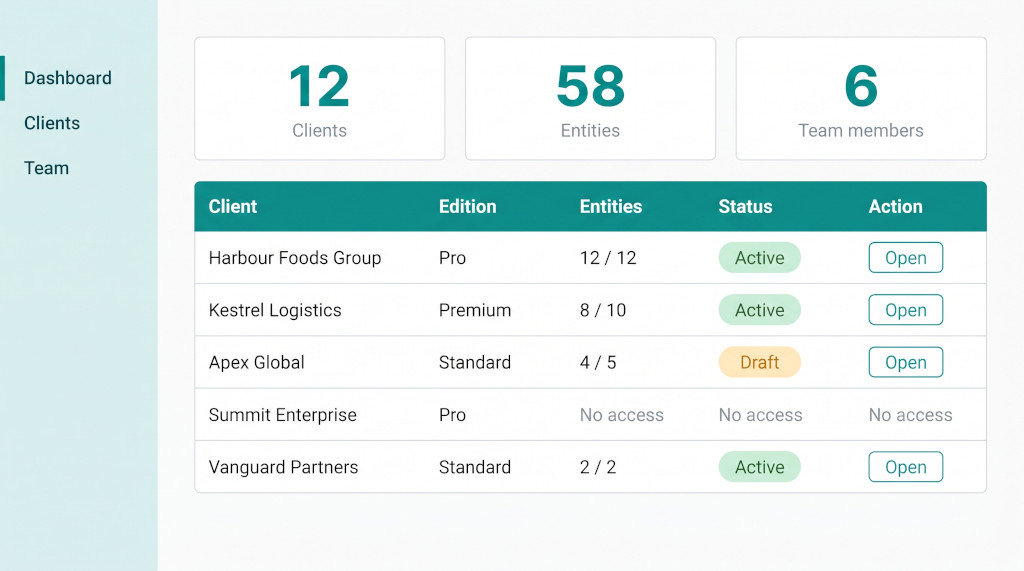
Firm members land on the firm dashboard. Owners and admins see every client the firm manages, with each client’s edition, entities used against entities allowed, and status (Active or Draft). Staff see only the clients assigned to them. Where a member holds a client role, an Open button takes them straight into that client’s group; where they do not, the row reads No access. Summary tiles show the number of clients, total entities across them and, for owners and admins, the size of the firm’s team. A set of guides beneath the table covers the core workflows — getting started, dashboards and reports, closing a client’s month and loading a client’s data.
Creating a client and choosing who pays
An owner or admin creates a client from the Clients screen by giving it a name, choosing its edition (Standard, Pro or Premium), setting the number of entities, and choosing a billing mode:
- Firm pays — the client is active immediately and is billed to the firm.
- Client pays — the client starts in Draft, and a checkout link is emailed to the client’s billing email address. The client’s own subscription then carries the charge.
Because the edition is chosen per client, a firm can put a single-currency domestic group on Standard and a multi-currency group with minority interests on Pro, inside the same console. A client’s plan is not self-service: rename, upgrade and cancel are not available from the client’s own subscription screen, which shows that the plan is managed by the firm.
Infrastructure arrangements
Beyond the firm console, the Enterprise / Partner edition is where dedicated servers, private cloud or VPN connectivity, larger capacity and priority support are arranged. These are agreed with BrizoConsol directly as part of the custom contract.
Worked example: what a group pays on each edition
Consider a group with one listed holding company, two intermediate holding companies and six operating subsidiaries. Only the six operating subsidiaries sit at the bottom of the hierarchy, so six entities are billable on any edition.
| Entities in the hierarchy | 9 |
| Less: holding and intermediate parents (not charged) | (3) |
| Billable leaf entities | 6 |
| Pro: 6 entities × $35 | $210 / month |
| Premium: 6 entities × $65 | $390 / month |
| Monthly difference for API access and higher AI limits | $180 / month |
For that $180 a month, the group stops uploading six trial balances by hand each close and has its system — or a Zap — write them through the API, with one overnight consolidation request covering the whole group. Prices are in USD and exclude tax.
Now take an accounting firm on Enterprise / Partner with three clients: a four-entity domestic group on Standard, a five-entity regional group on Pro, and a three-entity group on Premium whose ERP feeds BrizoConsol directly. All three sit in one firm console, each with its own edition, its own billing mode and its own assigned team, and the firm dashboard shows twelve entities across three clients at a glance.
Getting started: a checklist
For Premium
- Open Subscriptions in BrizoConsol and confirm your group is on Pro.
- Choose Upgrade and select Premium; confirm the entity count matches your leaf entities.
- Review the API documentation at developer.brizoconsol.com.
- Issue an API token from inside BrizoConsol for your integration.
- Write one entity’s trial balance through the API for a test period and confirm it appears against that entity.
- Post a consolidation request for the group and confirm you receive 202 Accepted.
- The next morning, check the request’s status and compare the consolidated statements with your expected figures.
- To import through Zapier instead, open the AI settings screen, tick the write scopes and the companies Zapier may write to, then connect MCP Client by Zapier and approve the connection.
For Enterprise / Partner
- Contact BrizoConsol to agree the Enterprise / Partner arrangement and have your firm set up with its first owner.
- Sign in and open the firm console; confirm the firm dashboard shows your firm’s name.
- Add your team members from the Team screen and give each a firm role.
- Create your first client: name, edition, entity count and billing mode.
- If the client pays, confirm the checkout link reached the client’s billing email.
- Assign a team member to the client with the right client role.
- Sign in as that team member and confirm the client shows an Open button and opens into its group.
Running consolidations for clients?
See how the firm console, per-client editions and per-client billing work on a live walkthrough. See It In Action