QuickBooks Online in BrizoConsol: Drill Every Movement to Its Ledger Lines, See What Settled Each Document, and Report by Class
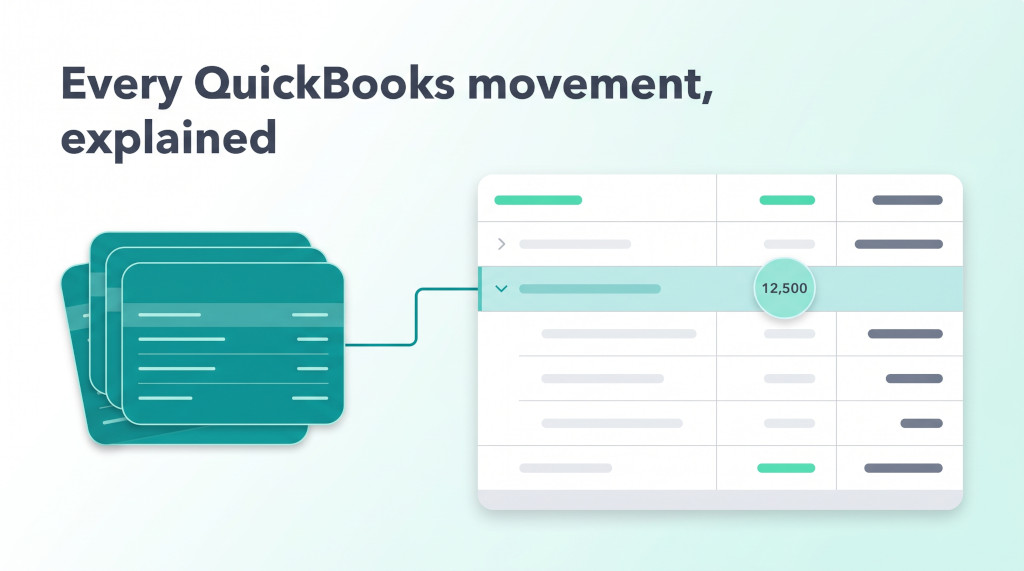
A group controller reviewing the September pack sees that revenue at the US subsidiary rose by 12,500. The subsidiary runs on QuickBooks Online, and the consolidation tool holds only its trial balance. To answer “what made up that 12,500?” someone has to sign in to QuickBooks, run a general ledger report for the right account and dates, export it, and tie it back to the figure in the pack. Then the same question comes up for receivables: which invoices were paid in September, which were credited, and what is still due?
Class reporting creates a third workaround. Teams that track departments or locations with QuickBooks classes usually rebuild a profit and loss by class in a spreadsheet, because the consolidation pack has no class dimension, and that spreadsheet has to be checked against the company total every month.
BrizoConsol’s QuickBooks Online connection now covers all three. The trial balance is still the authoritative figure. The ledger lines, settlements and class segments loaded alongside it explain that figure; they are never added to it.
Multi-entity QuickBooks consolidation, done for you.
Connect all your QuickBooks companies and get consolidated financials instantly.
What is new for QuickBooks Online entities
- Ledger-line drilldown. In a report drill, the QuickBooks row for an account opens into the ledger lines that moved it in the month, read from QuickBooks’ own General Ledger report: date, transaction type and transaction number.
- Settlement evidence on invoices and bills. Each document shows the payments and credit notes applied to it, with dates, and the balance still due.
- Profit and loss by class. An opt-in switch reads QuickBooks’ profit and loss by class once a month. Each class, plus the unassigned column, is stored as its own segment and is available to dashboards.
These reads apply to an individual QuickBooks entity, not to a consolidated parent. They are available on the Free, Pro and Premium editions, and the screens say so where a read is not available on the current plan.
Loading the detail
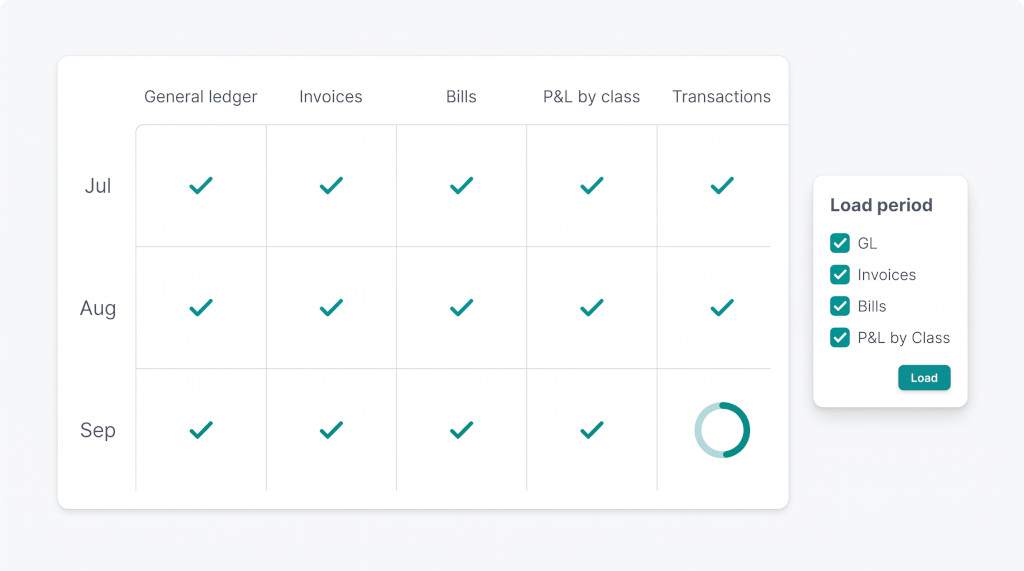
Everything starts on the entity’s Data Loading screen. For a QuickBooks entity the period grid has a column for each data type: General ledger, Invoices and Bills, then P&L by class once the class report is switched on, and Transactions.
Unlike Xero, QuickBooks Online has no separate switch or extra permission for Transactions. Settlements for a month are read together with that month’s invoices and bills, and ledger lines are read together with its trial balance. The Transactions column is filled by the loads you already run. If you choose Load missing on a month where Transactions is incomplete, BrizoConsol asks for the General ledger, Invoices and Bills loads that fill it.
To load a range, use Sync now. It opens the Load periods dialog, which has checkboxes for GL, Invoices, Bills and, when classes are on, P&L by Class. Each period row also has its own Load missing or Reload button.
What happens behind the load
Three rules make the evidence safe to rely on:
- A month is replaced as a whole. A month’s documents and its ledger lines are each written in one database transaction. If a reload fails, the month keeps the rows it already had, and the screen states why the run failed. You never see a half-written month.
- QuickBooks’ own identifiers are kept. Documents keep their native ids, currency and exchange rate. Equal-date, equal-amount and cancelling postings stay as separate rows instead of being merged.
- Rate limits are respected for the whole connection. When QuickBooks throttles a company, every BrizoConsol job for that connection waits out the cooldown together. Jobs do not keep retrying against the limit. Each organisation also has only one initial load, so a second one cannot be queued beside the first.
Drilling a QuickBooks movement to its ledger lines
Open any report, click an account amount and the drill lists the rows behind it as before. Your original drill is unchanged. What is new is that the QuickBooks row for an account, tagged qbo, now has a caret. Click the row and it expands to show the source rows for that account and month.
The expanded panel starts with a line such as “4 source rows · trial balance as at 30-Sep-2026, imported …”, so you know which import the evidence explains. Each source row shows its Date, its Source, the transaction number under Document, the QuickBooks transaction type (for example Sales Receipt, Payment or Journal Entry) under Part, and the Amount. A Total of the rows above line closes the list.
How the movement is measured
QuickBooks publishes its trial balance year to date. The monthly debit and credit columns are zero, and the year-to-date pair carries the balance. BrizoConsol therefore works out a month’s movement as this month’s year-to-date balance less the previous month’s, and the drill states that basis: “The movement is the year-to-date balance at Sep-2026 less the balance at Aug-2026; the ledger lines explain it and any residual is stated rather than absorbed.”
So the previous month must be loaded too. If it is missing, the drill tells you instead of guessing: “The month before Sep-2026 has no imported QuickBooks trial balance, so this period’s movement cannot be stated from the balance. Load that month first.” If the trial balance is loaded but the ledger lines for that account are not, the drill asks you to load that month again to read its ledger.
Ledger amounts come from the General Ledger report, which states them in each account’s normal direction. BrizoConsol turns them into a signed amount using the account type, with liability, equity and revenue accounts treated as credit-normal. Every line therefore adds up in the same direction as the reported movement.
Offsetting postings and balance sheet accounts
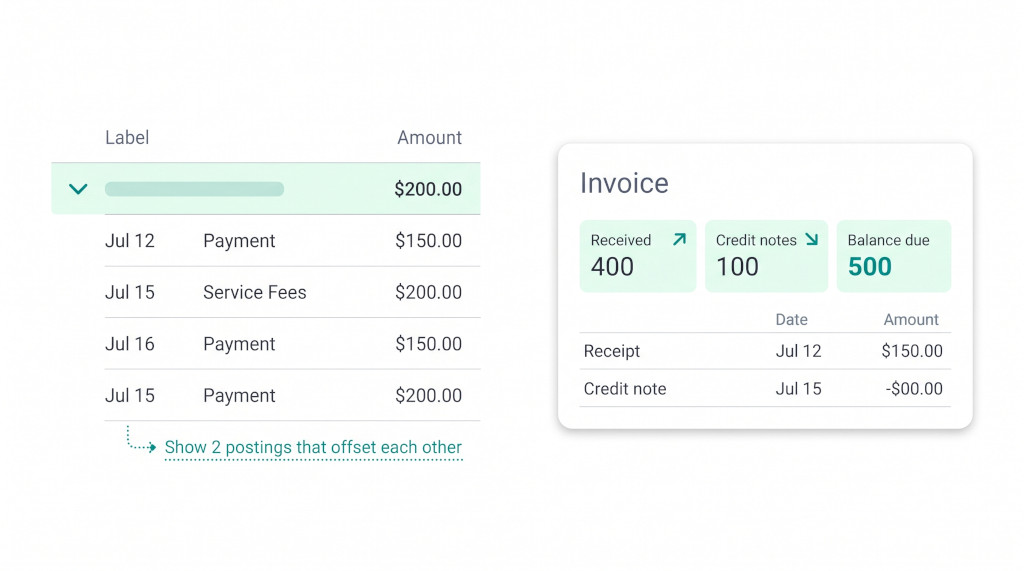
A posting and its reversal in the same month add nothing to the movement but make the list longer. BrizoConsol identifies pairs that cancel each other and hides them by default behind a link: “Show N postings that offset each other”. Click it to show them, and “Hide the postings that offset each other” to fold them away again.
For balance sheet accounts the panel also shows the opening balance, the movement and the closing balance. A receivables or accrual review can then read straight from the opening position, through the month’s lines, to the close.
When the lines and the movement do not agree
If the ledger lines do not add up to the movement, BrizoConsol does not hide the difference. It prints a line in red: “[amount] of the movement in the row above is not reconciled to a document here.” This usually means the trial balance and the ledger were read at different times, for example because something was posted in QuickBooks after the last load. A Reload of that month brings the two back together.
The trial balance stays the figure in your pack. The ledger lines explain it, and anything they cannot explain is stated as a residual. It is never absorbed into the total.
Worked example: September revenue at a QuickBooks subsidiary
The figures below are illustrative. Account 4000 Sales at the US subsidiary shows these year-to-date balances in the imported trial balance:
| Year-to-date credit balance at 30-Sep-2026 | 53,700.00 |
| Less: year-to-date credit balance at 31-Aug-2026 | (41,200.00) |
| September movement shown in the report | 12,500.00 |
Expanding the qbo row for 4000 Sales in the September drill lists the ledger lines that QuickBooks’ General Ledger report holds for that account and month:
| Date | Transaction type | Number | Amount |
|---|---|---|---|
| 03-Sep-26 | Invoice | 1041 | 6,000.00 |
| 11-Sep-26 | Sales Receipt | 1042 | 3,500.00 |
| 22-Sep-26 | Invoice | 1043 | 3,000.00 |
| Total of the rows above | 12,500.00 | ||
Suppose a 750 journal entry was posted to Sales and reversed later in the month. Those two lines cancel each other, so they sit behind “Show 2 postings that offset each other” and do not change the total. The lines add up to 12,500, the same as the movement, so no residual line appears.
Now suppose invoice 1043 was entered in QuickBooks after the September trial balance was imported. The lines then come to 9,500 and the drill says “3,000.00 of the movement in the row above is not reconciled to a document here.” The reviewer sees straight away that the gap comes from timing, not from a mapping error, and reloads September.
See a QuickBooks drill end to end
Watch a consolidation pack open a QuickBooks movement down to its ledger lines and settlements. See It In Action
Settlements on invoices and bills
On the Documents page, QuickBooks invoice and bill rows now expand. An invoice’s Payments panel shows:
- Received (or Paid for a bill), in the document’s currency
- Credit notes applied
- Balance due
- The document’s exchange rate to the company currency, and the amount received converted at that rate
- A dated table of each allocation, typed Receipt (or Payment) or Credit note, with its amount, rate and converted value
QuickBooks records an allocation on the payment, not on the document. A payment line links the invoice it paid. A payment that also links a credit memo is applying credit rather than moving cash. BrizoConsol reads each month’s payments once, inside that month’s own load, and prices every document those payments name. If a payment is read before its invoice’s month has been loaded, the settlement is held and applied when the invoice is written. No extra read is needed, and no settlement gets lost between months.
Example: one invoice, one payment, one credit
This case was measured on a QuickBooks sandbox company. An invoice of 1,000 was settled by one payment of 400 cash, and by a second payment with two lines: 100 linking the invoice and 100 linking a credit note. The second payment therefore applies credit; it does not move cash.
| Invoice total | 1,000.00 |
| Less: Received (payment, cash) | (400.00) |
| Less: Credit notes (applied through the second payment) | (100.00) |
| Balance due | 500.00 |
For foreign-currency documents, QuickBooks states a rate from the document’s currency to the company’s currency, and BrizoConsol converts each allocation at the document’s rate. A document that states no usable rate keeps its own figures, and no converted figure is shown. BrizoConsol never makes up a rate. Document lists give a total per currency instead of adding different currencies together.
Settlement evidence follows the same edition rule as the ledger lines. An organisation that is not on Free, Pro or Premium stores none, so downgrading a plan cannot leave behind evidence that no screen will show.
Profit and loss by class
QuickBooks needs only one accounting consent, so there is no additional permission to grant for classes. Whether to read the class report is your choice, because it costs one report read per month. On the Data Loading screen, a data administrator sees Switch on P&L by class, with the note: “Reading the profit and loss by class makes one report read per month. It stays off until it is switched on here.” Other users are told that a data administrator must switch it on from a working connection. Connections that were already using class reports before this change kept them; new connections start with the switch off.
Class Setup
Open Class Setup and choose Import from QuickBooks. Each top-level class is classified once, and its child classes act as the options inside that reporting dimension. The screen lists each Class Name, its Normalized Name, its Child Classes, a Suggested Mapping and a Confirm Mapping choice. The suggestion only pre-fills your choice; nothing is final until you confirm it and click Save Class Setup. If a suggestion cannot be made, the class is imported unclassified and you classify it yourself, so a company is never blocked from connecting.
How the class figures reconcile
QuickBooks’ class report has one column per class, a Not Specified column for unassigned activity, and a TOTAL column. BrizoConsol stores every class, including an archived class that still has activity, and Not Specified, each as its own segment with its native id. TOTAL is kept as a control figure, not as an extra segment, so the company’s figure is never counted twice. Reading a month again replaces that month’s rows instead of adding to them. The classes plus the unassigned segment add up to the company’s own figure for the same month.
Once loaded, the class data is available as dashboard sources under a QuickBooks group: Revenue by Class, Net Profit by Class and Total Expenses by Class, each with a Class Group selector. The P&L by Class screen, opened from Class Setup, shows the report for a chosen class group and date range, read directly from QuickBooks.
The QuickBooks ledger lines explain the local Actual import only. The drill keeps the selected scenario and accounting standard for everything else. Source rows also attach to a single account, not to a group row that combines several accounts.
First-time checklist
- Confirm the subscription is Free, Pro or Premium, and that the QuickBooks company is an individual entity, not a consolidated parent.
- On Data Loading, load General ledger, Invoices and Bills for the month you want to review and for the month before it.
- Check that the Transactions column is complete for those months. If it is not, use Load missing.
- Open a report, click a revenue or expense amount, and expand the
qborow in the drill. - Check that Total of the rows above equals the movement. If a residual line appears, Reload the month and check again.
- Expand a balance sheet account and confirm that the opening balance, movement and closing balance follow on from each other.
- On Documents, expand a part-paid invoice and confirm that Received + Credit notes + Balance due equals the invoice total.
- If you use classes, choose Switch on P&L by class, run Import from QuickBooks in Class Setup, confirm the mappings, then load P&L by Class for a month.
- Add a Net Profit by Class chart to a dashboard and check that the classes plus Not Specified add up to the entity’s net profit for that month.
Connect your QuickBooks Online entities
Bring your QuickBooks subsidiaries into one consolidation and explain every movement from the trial balance down. Start Free Trial
Multi-entity QuickBooks consolidation, done for you.
Connect all your QuickBooks companies and get consolidated financials instantly.