Insight Package Update: PDF Orientation, Page Numbers, and Financial Notes
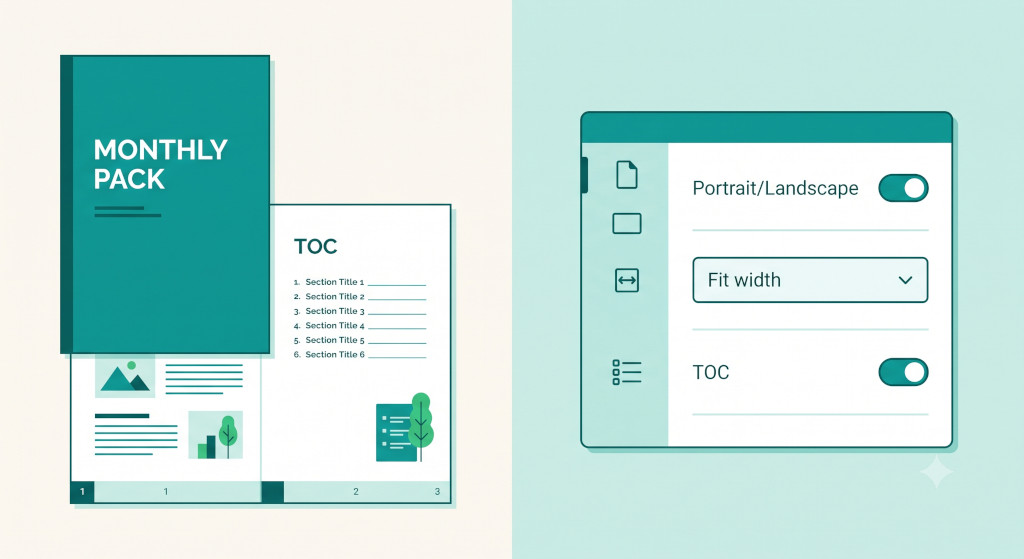
Picture the scene: it is the evening before your monthly board meeting and you are about to send out the consolidated pack. The numbers are right, the eliminations are clean — but the PDF lands in directors’ inboxes with no page numbers, the profit and loss crammed sideways into a portrait layout, and no room anywhere to add the two paragraphs of commentary the chair always asks for. You patch it together in Word, re-export, and paste the whole thing into an email at 11 pm.
That particular pain point is now gone. BrizoConsol’s Insight Package module has been updated with a set of output controls that give finance teams proper command over how their consolidated reports are formatted, structured, and annotated — before the PDF is ever generated.
What Has Changed
The Insight Package editor now exposes four categories of control that were previously fixed or unavailable: PDF orientation, PDF scaling, table of contents behaviour, page numbering, and — most usefully for finance teams — the ability to add one or more custom text sections anywhere in the report.
Automate NCI calculations across all your entities.
BrizoConsol handles non-controlling interest automatically — no manual adjustments required.
These settings sit directly in the package configuration panel alongside the existing section list, so everything about a given pack — its content, its structure, and its presentation — is managed in one place. There is no separate export dialogue or post-processing step required.
Control How Your PDF Looks
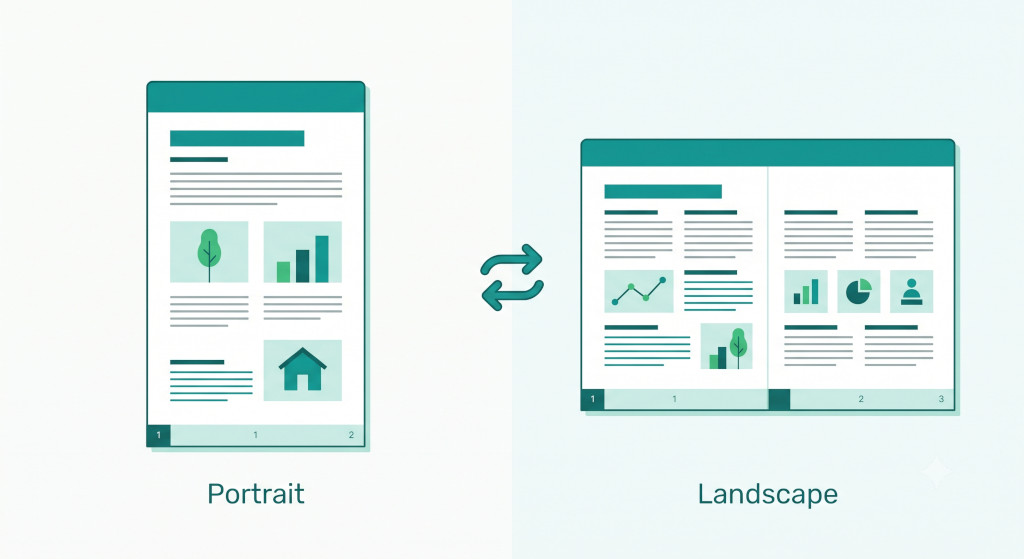
The first set of new controls governs the physical layout of the exported document.
PDF Orientation
Packages can now be set to either Portrait or Landscape at the package level. Portrait works well for narrative-heavy packs or condensed P&L statements; Landscape is the right choice when the balance sheet or a comparative table needs the full width of the page to breathe without the columns squashing together.
Individual sections within the package can also override the package-level orientation. The Main section in the screenshot above, for instance, is set to Landscape regardless of the package default — useful when the cover or dashboard view is designed for a wide format but the narrative sections that follow work better in portrait.
PDF Scaling
The scaling dropdown controls how report content is sized to fit the page when the PDF is generated. The default option, Fit width, ensures that wide tables and charts are never clipped at the right margin — they scale down proportionally to sit within the printable area. This is typically the right setting for board packs where the reader will be scrolling or viewing on screen rather than printing.
If your group uses a fixed-width report template and the numbers need to sit at a specific size for audit or statutory purposes, you can adjust the scaling setting to match. Fit width remains the recommended default for most monthly management packs.
Table of Contents and Page Numbering
Two navigation controls have been added that make a material difference to how usable a longer consolidated pack is for its audience.
Table of Contents Options
The table of contents can now be set to one of three modes. You can include it on a separate page immediately after the cover — the standard choice for any pack that runs to more than four or five sections and will be read non-linearly. You can include it inline on the first page, useful for short two-section packs where a full page feels like overkill. Or you can exclude it entirely for lightweight packs delivered to a single stakeholder who knows the structure.
The section labels that appear in the table of contents are editable directly within the Manage Sections panel, so the TOC reads as it should — “Profit & Loss” rather than a system-generated identifier — without any post-export editing.
Page Numbering
Page numbers are now toggled on or off at the package level. When enabled, they appear in the footer of every page in the exported PDF. For board packs and formal management reports, this is essentially always on — page numbers are what allow a director to say “can we go back to page seven” in a meeting and have everyone land on the same figure.
Add Financial Notes with a Text Section
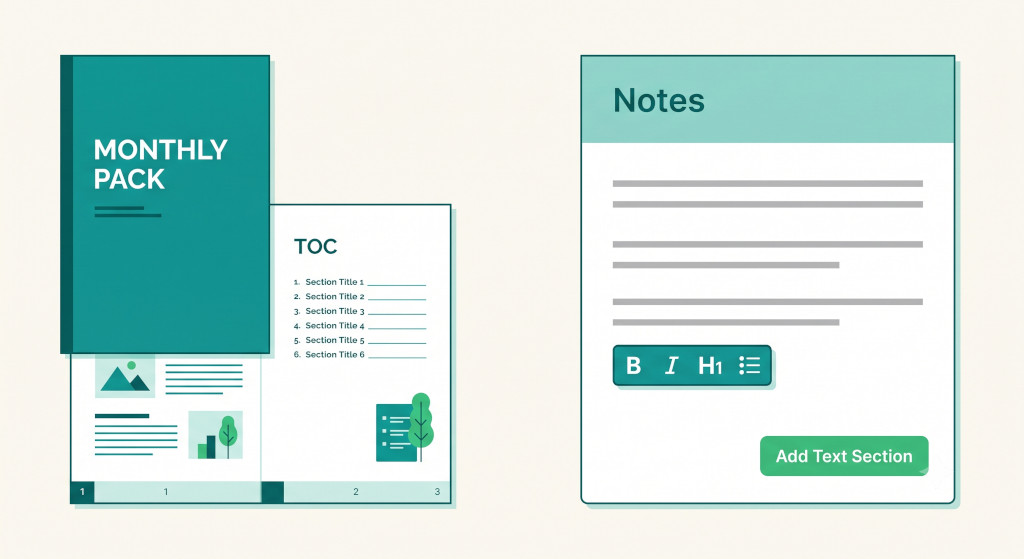
The most significant addition to the Insight Package module is the Text Section — a freeform, rich-text block that finance teams can insert anywhere in the report.
Adding a text section is straightforward: click Add Text Section in the Manage Sections panel, give it a label (the label appears in the table of contents and as the section heading in the PDF), and write directly in the embedded editor. The toolbar supports bold, italic, underline, H2 headings, bullet lists, numbered lists, and blockquotes — enough structure to write coherent, formatted insight package financial notes without needing a separate word processor.
What Finance Teams Are Using Text Sections For
In practice, the text section fills a gap that has existed in automated group reporting since its earliest days: the numbers can be produced automatically, but the narrative that explains them has always had to live somewhere else. Common uses include the following. An executive summary at the front of the pack, immediately after the cover, giving the CFO a place to flag the two or three items board members should focus on before they reach the detailed financials. A variance commentary section placed directly after the P&L, explaining the main drivers of any movement against budget or the prior period. A footnotes or accounting policies page at the back of the pack for entities that need to include standard disclosures alongside their management accounts.
Because the text section is a full section in the package — not a sticky note or annotation layer — it appears in the table of contents, carries a page number, and exports cleanly into the PDF alongside the financial statements.
Managing and Reordering Sections
The Manage Sections panel now shows all sections in the package in a single list: Main, Profit & Loss, Balance Sheet, any text sections, and any additional report sections that have been added. Sections can be dragged into any order using the handle on the left of each row.
Each section also has its own Start from new page toggle. When enabled, that section always begins on a fresh page regardless of where the previous section ends. This prevents the awkward situation where the balance sheet begins halfway down the same page as the last line of the P&L — a small detail, but one that makes a meaningful difference to how professional the finished pack looks.
Multiple text sections are fully supported. A pack that needs an executive summary at the front, a mid-pack commentary after the P&L, and a separate policies note at the back can have all three — each labelled independently, each appearing in the TOC, each toggled to start from a new page.
You can also schedule insight package delivery so the finished PDF — including all text sections and formatting settings — is sent automatically to the right stakeholders at the right time each month.
A Practical Example: The RetailGroup Monthly Board Pack
RetailGroup Holdings operates four retail entities across two countries and produces a consolidated board pack each month. Before these updates, the finance team exported the P&L and balance sheet from BrizoConsol, then manually assembled the pack in a Word document to add the CFO commentary and the disclaimer page, before converting the whole thing to PDF.
With the new Insight Package controls, the pack is now built and exported entirely within BrizoConsol. The package is set to Landscape orientation with Fit width scaling. The section order is: Cover (Main) → Executive Summary (Text Section) → Profit & Loss → Variance Commentary (Text Section) → Balance Sheet → Accounting Policies (Text Section). The table of contents is set to appear on a separate page after the cover, and page numbering is on.
The result is a single, consistent PDF that the finance team can regenerate in seconds each month without touching Word or Acrobat. The CFO updates the two text sections — the executive summary and the variance commentary — directly in BrizoConsol, saves the package, and the scheduled delivery handles the rest.
| Section | Type | Start New Page | Orientation |
|---|---|---|---|
| Cover | Main | Yes | Landscape |
| Executive Summary | Text Section | Yes | Use package setting |
| Profit & Loss | Report | No | Use package setting |
| Variance Commentary | Text Section | Yes | Use package setting |
| Balance Sheet | Report | Yes | Use package setting |
| Accounting Policies | Text Section | Yes | Use package setting |
Available Now
All of these features — PDF orientation, PDF scaling, table of contents options, page numbering, and text sections — are available now in every BrizoConsol account. There is nothing to enable or request. Open any existing Insight Package, click Manage sections, and the new controls are already there.
If you are new to Insight Packages, they are BrizoConsol’s mechanism for assembling, formatting, and distributing consolidated financial reports to different stakeholder audiences. A group with a board, an operations team, and a banking covenant requirement might run three separate packages from the same underlying consolidation — each with a different section set, different orientation, and different commentary — all scheduled to deliver automatically. The new formatting and annotation controls make each of those packages more self-contained and more polished than was previously possible.
Try It in Your Own Pack
Set up a free BrizoConsol account and build your first Insight Package — with orientation controls, page numbers, and financial notes — in minutes. Start Free Trial