Insight Packages Update: Cover Designs, New Section Types, and Per-Section Report Periods
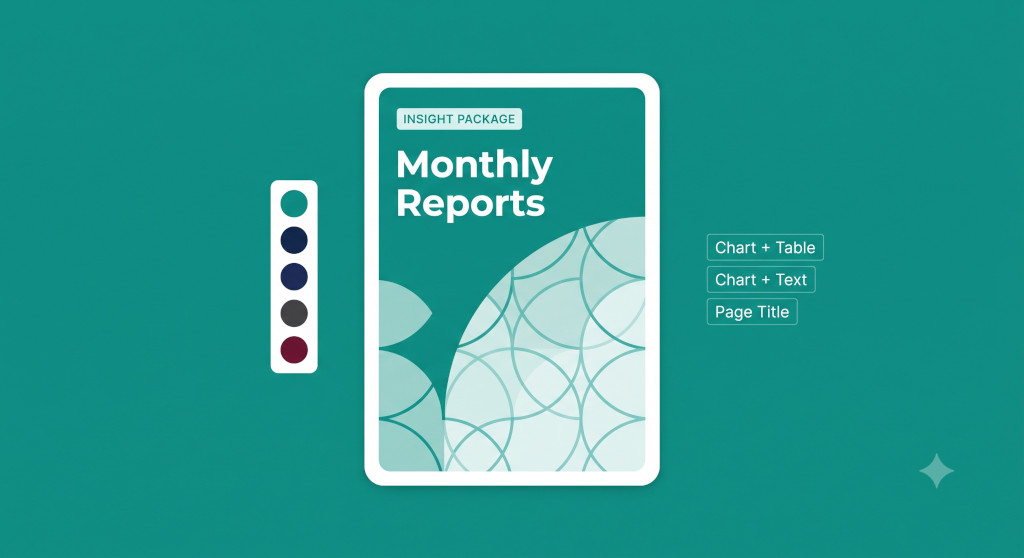
Insight Packages — BrizoConsol’s automated report delivery feature — has received a significant update. Four new capabilities have been added: custom cover patterns, cover and contents colour themes, seven new section types, and the ability to set a different report period for each section in a package. Here’s what each one does and how to use it.
If you’re new to Insight Packages, the Insight Packages overview covers the core concept — how to build a package, schedule it, and send it automatically to stakeholders.
Cover Patterns and Colour Themes
Every Insight Package now has a configurable cover design. Two new settings control the visual appearance of the cover page — and the colour accent used throughout the package’s contents pages.
Stop building consolidations in spreadsheets.
BrizoConsol automates multi-entity consolidation — setup in minutes, reports the same day.
Cover Pattern
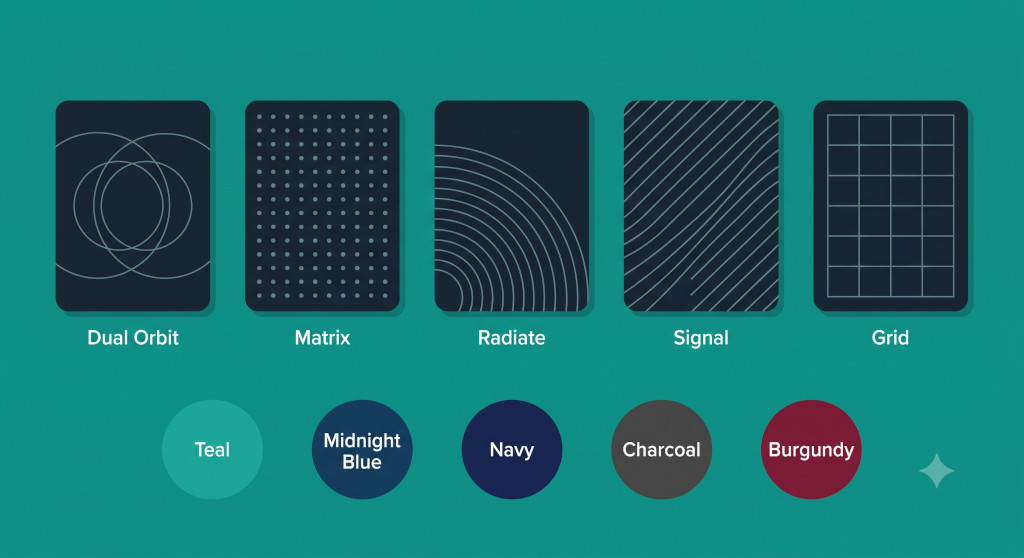
Five geometric patterns are available for the cover background:
Dual OrbitMatrixRadiateSignalGrid
Each pattern is rendered as a subtle graphic element behind the cover title and group name — distinct enough to give the package a professional, designed feel without overwhelming the content. The pattern applies to the cover page only.
Cover & Contents Theme
Five colour themes are available, each controlling both the cover background and the accent colour used in the contents pages (section headers, table header bars, and similar elements):
TealMidnight BlueNavyCharcoalBurgundy
Teal is the default — it matches BrizoConsol’s standard brand palette. The other four options let you match a client’s brand colour, differentiate packages sent to different stakeholder groups, or simply choose a look that suits your organisation’s reporting style.
Both settings are found in the Insight Package editor under Cover Pattern and Cover & Contents Theme. Changes apply to the next generated PDF immediately — open the preview on the right to see the result before saving.
Seven New Section Types
New
Insight Packages previously supported four section types: Report, Dashboard, Pulse, and Text. Seven new types have been added, giving you significantly more control over the structure and content of each package page.
| Section Type | What It Adds to the Package |
|---|---|
| Chart | A single chart — useful for a standalone trend or KPI visual on its own page |
| Table | A data table without an accompanying chart — suits summary data or KPI tables |
| Chart + Table | A chart paired with its underlying data table on the same page — the most data-dense layout |
| Chart + Text | A chart alongside a narrative text block — ideal for pages that need both the visual and a written commentary |
| Table + Text | A data table alongside a text block — useful for variance commentary next to the numbers |
| Page Title | A full-page title/divider — use this to break a long package into named sections (e.g., “Consolidated Group”, “Entity Reports”) |
| Predefined | A pre-built section template — select from a library of standard layouts for common report pages |
The combination types (Chart + Table, Chart + Text, Table + Text) are particularly useful for board packs, where stakeholders expect both the visual summary and the supporting data or commentary on the same page — without having to flip between sections. The Page Title type is a small but meaningful addition for groups delivering large packages: it lets you insert a divider page with a clear heading, so a 20-page board pack has clear navigation without relying solely on the table of contents.
To add any new section, open Manage Sections inside the package editor, click Add Section, and select the section type from the dropdown.
Per-Section Report Period
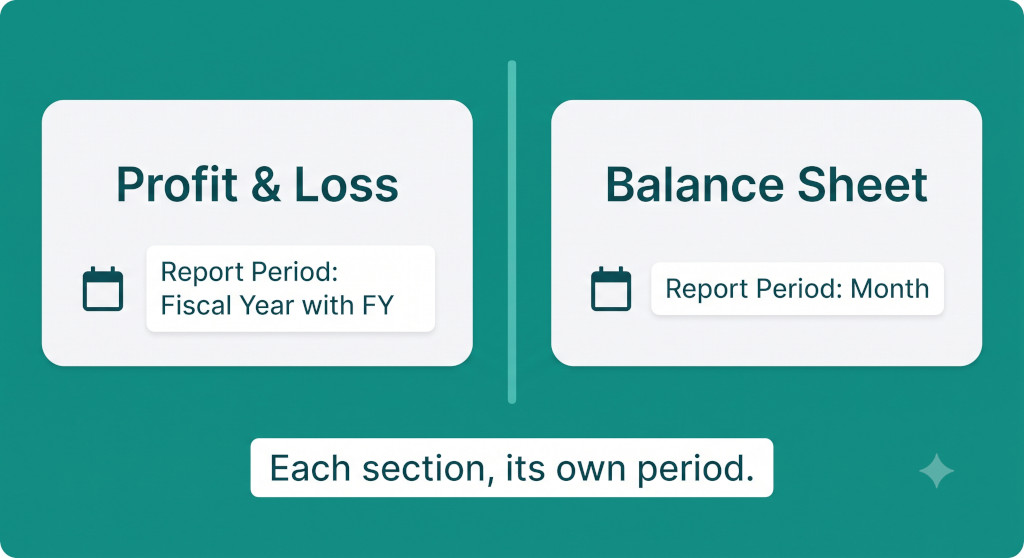
This is the most substantive change for groups with complex reporting requirements. Previously, the report period for all sections in a package was controlled at the package level — every section showed the same period. Now, each Report section can have its own report period and data type configured independently.
In Manage Sections, when you select a Report section (such as Profit & Loss or Balance Sheet), you’ll see two new per-section settings below the orientation option:
- Report Period — set to Month, Fiscal Year with FY, Quarter, or other available period options
- Data Type — set the data type appropriate to that section (for example, movement for a P&L, balance for a Balance Sheet)
In practice, this means a single package can include a Profit & Loss section showing the full fiscal year to date, a Balance Sheet section showing the current month-end position, and a Cash Flow section showing the current quarter — all delivered together in one PDF, generated and sent automatically on schedule. Previously, this would have required either three separate packages or manual post-processing to combine different period views.
Per-section period settings override the package-level period setting for that section only. Sections without a specific period configured continue to use the package default. This means existing packages don’t break — you only add per-section overrides where you need them.
For groups already using Insight Packages to automate board pack delivery, this update removes one of the most common reasons for manual intervention before sending. If you’re not yet using Insight Packages, the previous update post and the board reporting guide cover the full context for how finance teams use them.
Where to Find These Settings
All four enhancements are available in the Insight Package editor now, for all accounts. Navigate to Insight Packages in the workspace sidebar, open any existing package or create a new one, and you’ll find:
- Cover Pattern and Cover & Contents Theme in the main package settings panel (left side)
- New section types in the Add Section dialog within Manage Sections
- Per-section Report Period and Data Type in the Manage Sections panel, on each Report-type section
No migration is required for existing packages. All current packages retain their existing settings and continue to generate as before. The new options simply become available alongside what’s already configured.
Not Using Insight Packages Yet?
Insight Packages let you build your board pack once and deliver it automatically — to every stakeholder, on schedule, every month. Start a free trial to see how it works with your group’s data. Start Free Trial